Discover how to safely extract MP3 from Youtube. Our guide covers secure methods for high-quality audio, from desktop apps to advanced tools.
How to Safely Extract MP3 From Youtube
Extracting MP3 audio from a Youtube video is a powerful first step towards making content more accessible, productive, and versatile. Whether you use a simple online converter, dedicated desktop app, or a command-line tool, the goal is to save the audio track directly to your device. This is perfect for listening to lectures offline, repurposing interviews into podcasts, or creating accessible versions of your content.
Why Bother Extracting Audio From Youtube?
Before we get into the "how," let's talk about the "why." Pulling audio from a Youtube video isn't just about downloading a file; it's a strategic move that unlocks new possibilities for creators, students, and professionals. It’s about making content more flexible, accessible, and ultimately, more impactful.
For instance, a content creator can take a video interview and effortlessly repurpose it into a podcast episode, reaching an entirely new audience that consumes content on the go. This simple act gives existing videos a new lease on life without creating anything from scratch. Similarly, a marketer could extract audio from a customer testimonial and use it as a powerful soundbite for social media or an accessibility-focused campaign.
A Serious Boost for Productivity and Learning
For students and researchers, the benefits are immediate and practical. Imagine turning a two-hour university lecture into a lightweight MP3. Suddenly, your study time is no longer chained to a desk. You can absorb key information during your commute, at the gym, or while doing chores, transforming downtime into a valuable learning opportunity. This is a real solution for productivity.
This approach offers several key advantages:
- Better Accessibility: Audio-only versions are a massive help for visually impaired users and anyone who learns best by listening, making your content more inclusive.
- True Offline Access: You can listen to important content absolutely anywhere, without worrying about a Wi--Fi connection, boosting productivity on the move.
- Smart Content Repurposing: A single video can become a podcast, the source for an accessible written transcript, or a series of audio clips, multiplying its value. To explore this further, our guide on how to convert audio from Youtube has even more ideas.
When you isolate the audio, you’re not just saving a file; you’re creating a portable, versatile asset. This mindset transforms a technical chore into a powerful productivity hack. It’s all about making your content work smarter and serve a wider audience.
Choosing the right method to extract an MP3 from Youtube depends on your specific problem. Are you trying to improve accessibility, boost productivity, or repurpose content at scale? Each method offers different trade-offs in quality, safety, and efficiency.
You have a few different paths: quick online converters, more robust desktop software, and for the tech-savvy, powerful command-line tools. The best choice depends entirely on your end goal, whether you're a creator sourcing audio clips or a student saving a lecture for offline study.
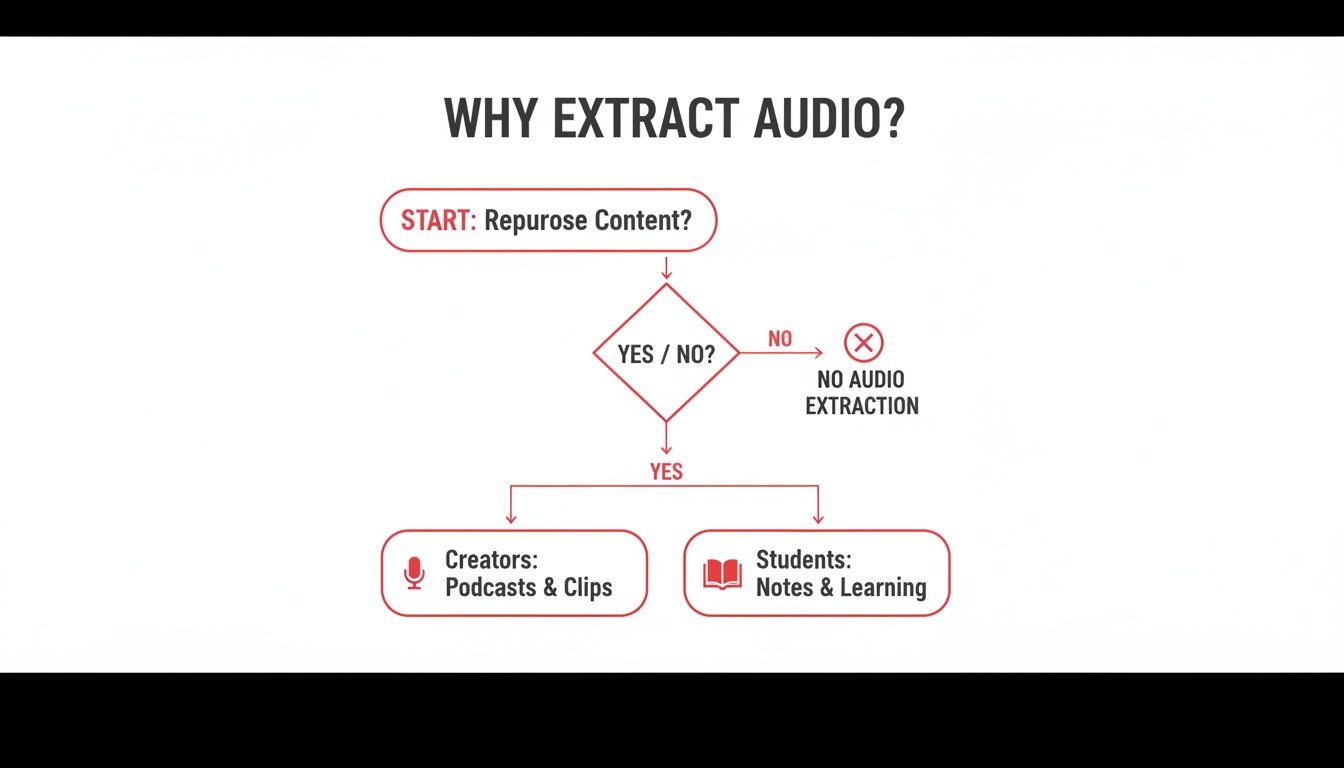
As you can see, the 'why' behind your download is a big factor. A podcaster needing pristine audio for repurposing has very different requirements from someone just wanting a song for a personal playlist.
To help you decide at a glance, here’s a quick breakdown of how the main methods stack up against each other.
Youtube to MP3 Method Comparison
| Method | Best For | Pros | Cons |
|---|---|---|---|
| Online Converters | Quick, one-off downloads when convenience is key. | No installation needed; fast and simple to use. | High risk of malware/ads; no control over audio quality; unreliable. |
| Desktop Software | Regular use, batch downloads, and high-quality results. | Safe and ad-free; allows bitrate selection; can download playlists. | Requires a one-time installation. |
| Command-Line Tools | Tech-savvy users who need automation and total control. | Unmatched flexibility; highest quality possible; scriptable for bulk tasks. | Steep learning curve; no graphical interface. |
This table gives you the bird's-eye view, but let's dig into what using each of these actually feels like.
Online Converters: Quick and Easy, but Risky
Online converters are massively popular for one simple reason: they’re fast and don't require you to install anything. Just paste a Youtube link, hit a button, and you get an MP3. For a single download, that simplicity is tough to argue with.
But here’s the catch. That convenience often comes at a cost. Many of these sites are littered with aggressive pop-up ads, confusing download buttons designed to trick you, and can even be a gateway for malware. You also get no control over the audio quality, often ending up with a low-bitrate file that sounds flat and lifeless compared to the original.
Desktop Software: The Reliable Choice
If you find yourself needing to extract audio more than just occasionally, dedicated desktop software is the way to go. It’s a much safer and more powerful approach. Apps like VLC Media Player or 4K Youtube to MP3 are installed right on your computer, cutting out the risks that come with sketchy websites.
These tools give you far more control over the final audio file. You can usually:
- Select the audio bitrate to make sure you get a high-quality recording.
- Download entire playlists or even whole channels with just a couple of clicks.
- Manage all your downloads in a clean interface without any ads getting in the way.
Yes, you have to spend a minute installing the software, but it's a small price to pay for much better quality, security, and peace of mind. For any serious work, it's a no-brainer.
Advanced Methods: For Total Control
For those who are comfortable with a bit more tech, command-line tools like yt-dlp are in a league of their own. This route gives you absolute, granular control over everything—from the exact audio format and quality down to the metadata tags.
It definitely has a steeper learning curve, but if you want to automate downloads or need the absolute highest fidelity, this is the gold standard.
Ultimately, you have to weigh your need for speed against your standards for quality and security. If you're in a pinch, a carefully chosen online tool might do the job. But for anyone doing this regularly or for a project that matters, taking a few minutes to set up proper desktop software will give you better, safer results every single time.
Using Desktop Software for Reliable Quality
If your goal is to consistently repurpose content or improve productivity, relying on online converter sites can feel like a roll of the dice. They're often slow, ad-ridden, and deliver unpredictable quality. For consistent, high-quality results that solve real workflow problems, dedicated desktop software is the professional choice.
Think of it like this: an online tool is a public kiosk—fine in a pinch, but not for important work. A desktop app is a dedicated workstation. It’s reliable, secure, and gives you complete control over your productivity and the quality of your output.
This approach is perfect for anyone serious about audio fidelity and workflow efficiency. Content creators can source podcast interviews or background music in the best possible quality. Researchers can archive entire lecture series for offline study, enhancing their productivity. It’s about building a dependable process.
Getting the Best Audio Quality
One of the biggest wins with desktop software is direct control over the bitrate, which is the key to audio quality. Most online tools just spit out a standard 128kbps file, which can make music sound tinny and speech a bit muddy. With an application like 4K Youtube to MP3, you get to call the shots.
Let's say you're saving a live music performance. Your choice of bitrate makes a huge difference:
- For casual listening: A bitrate of 192kbps usually hits the sweet spot, balancing decent quality with a manageable file size.
- For serious audio: Bumping it up to 320kbps ensures you’re capturing every bit of detail possible, preserving the richness of the original sound.
You simply don't get this level of precision with web-based converters. For any project where quality truly matters, desktop software isn't just an option; it's a necessity.
By choosing your bitrate, you are actively deciding how much audio information to preserve. For any serious project, from podcast production to academic research, having this control is non-negotiable for achieving a professional outcome.
Mastering Batch Downloads and Playlists
Here's where desktop tools truly shine: solving the problem of scale. Instead of the mind-numbing process of converting videos one-by-one, you can just copy the link to an entire Youtube playlist or channel and let the software handle the heavy lifting.
This is an absolute game-changer for productivity. Imagine a student needing to download an entire semester's worth of video lectures—they can do it in one go. Or a podcaster grabbing every episode of a guest's interview series for research. You just set it and forget it. If you're looking for other methods, check out our guide on extracting audio from video online.
The process couldn't be simpler:
- Find your playlist: Head over to the Youtube playlist or channel you need.
- Copy the URL: Just grab the link directly from your browser's address bar.
- Paste it in: Most of these apps have a big, obvious "Paste Link" button waiting for you.
- Let it run: The software will analyse the entire playlist and start downloading everything as high-quality MP3 files.
This batch-processing feature turns a tedious chore into a streamlined, automated workflow, making it an essential productivity tool for anyone dealing with more than a couple of videos at a time.
The Power User’s Choice: Mastering YT-DLP and FFmpeg
If you're ready to solve productivity and content repurposing challenges at scale, it's time to step up to the tools the pros use. For anyone who needs ultimate control, speed, and automation, the command-line duo of yt-dlp and FFmpeg is the ultimate solution. This is how you extract MP3 from Youtube like an expert.
Forget graphical interfaces. This approach is about giving your computer direct, powerful instructions to solve complex problems. It’s the preferred method for developers, media archivists, and content creators who need a rock-solid, ad-free, and endlessly flexible workflow. It might look technical, but mastering it can save you a staggering amount of time.
Why Go Command-Line?
Jumping into a terminal window can feel like a leap, but the payoff for your productivity is huge. Unlike web-based tools that often re-compress audio, yt-dlp talks directly to Youtube's servers to grab the best possible audio stream right from the source.
This direct line gives you some serious advantages:
- Top-Tier Quality: You call the shots. Specify the exact audio codec and bitrate you want, ensuring you’re not sacrificing sound quality for your projects.
- Serious Automation: Write simple scripts to download and process entire channels with a single command. This is a massive productivity win.
- Smart Metadata: Automatically embed details like the artist, album, and track title right into the MP3 file, improving organization and accessibility.
- Clean and Safe: No ads, no pop-ups, no trackers, and no sketchy software. Just clean, direct, and reliable downloads every time.
It's the difference between ordering a set meal at a restaurant and having a personal chef who cooks precisely to your recipe. With yt-dlp and FFmpeg, you're the chef.
Real-World Commands You Can Use Today
Getting started is probably easier than you think. Once you've installed yt-dlp and FFmpeg (they're both free and open-source), you can run commands straight from your computer’s terminal or command prompt.
Let's walk through a couple of practical examples.
To grab a high-quality MP3 at 320kbps (the best you can get for this format), the command is clean and simple:
yt-dlp -x --audio-format mp3 --audio-quality 0 "YOUTUBE_URL_HERE"
Here, the -x flag tells it to extract only the audio, --audio-format mp3 sets our desired output, and --audio-quality 0 instructs it to get the highest bitrate available.
Now, what if you're archiving a podcast series and want the metadata to be perfect for accessibility and organization? You can tell yt-dlp to pull that information directly from the video's title.
yt-dlp -x --audio-format mp3 --audio-quality 0 --embed-metadata --metadata-from-title "%(artist)s - %(title)s" "YOUTUBE_URL_HERE"
This command not only downloads the audio but also correctly populates the file’s properties, saving you the headache of manually editing it later.
This method isn’t just about downloading a file; it’s about creating an efficient, repeatable system. If you handle a lot of audio, the ability to script these tasks is a game-changer for your productivity.
The true magic happens when you start chaining these commands into scripts to process hundreds of files overnight. That level of automation simply isn't on the table with other methods, making this the undisputed champion for any serious project where both quality and efficiency are critical.
Turning Your New MP3 Into Valuable Content
So, you’ve managed to extract MP3 from Youtube. Don't just let that file sit on your hard drive – that’s not the end game. It’s actually the starting line for solving bigger problems related to content repurposing, accessibility, and knowledge management.
Having the MP3 is one thing, but turning that audio into text? That’s where the magic really happens. A solid transcript, powered by AI, unlocks the full potential of your audio, turning a single file into a versatile asset.
Think about it: you take the audio from a one-hour webinar you just hosted. In minutes, an AI transcription tool can provide a complete, accurate transcript. Suddenly, that single recording has blossomed into a resource you can use to educate, inspire, and improve accessibility.
From Audio File to Content Engine
Once you have that transcript, you can multiply the impact of your original video with surprisingly little effort. This is a real solution for content creators stretched for time. If you're looking for a solid tool, it's worth learning how an audio file to text converter works to get you started.
Here are a few practical ways this solves real problems:
- Craft In-Depth Blog Posts: Clean up the transcript, add headings and images, and you’ve got a comprehensive article that makes your content more discoverable and accessible.
- Fuel Your Social Media: Pull out the best quotes and key stats from the transcript. Boom – you now have a week's worth of posts to engage your audience.
- Create Accessible Show Notes: For podcasters, a transcript is the perfect foundation for detailed show notes, improving SEO and serving hearing-impaired audiences.
- Build a Personal Knowledge Base: Researchers and students can turn hours of lectures into searchable text, boosting productivity by making it easy to find specific information without scrubbing through audio.
This strategy is all about maximizing your impact. You take one audio file, turn it into text with AI, and lay the groundwork for a dozen different assets. It’s the ultimate way to extend the life and reach of your work.
Streamlining Your Workflow with Transcription
Trying to transcribe audio by hand is a nightmare. It’s slow, tedious, and can easily take 4-5 hours for every one hour of audio. Automated tools completely flip that script, giving you an accurate transcript in just a few minutes.
This speed is what makes a scalable content system possible. Imagine a marketing team grabbing audio from customer testimonials, transcribing them, and instantly pulling powerful quotes for their website. Or an educator providing text versions of their video lessons to make them more accessible.
This kind of efficiency turns content repurposing from a chore into a genuine productivity hack, letting you focus on the creative stuff instead of the grunt work.
Navigating Copyright and Fair Use
Before you start pulling audio from Youtube, we need to have a quick but important chat about copyright. It’s easy to think of Youtube as a free-for-all, but nearly everything you see and hear is protected. This means you can't just grab an MP3 and use it wherever you like.
Taking audio without permission can get you into hot water, from a slap on the wrist by Youtube for violating their terms of service to, in more serious cases, legal trouble for copyright infringement.
So, When Is It Okay?
For your own personal, private listening? You’re generally in the clear. Think of it like saving a lecture to listen to on your way to work or grabbing a podcast episode for an offline trip. No one’s going to chase you down for that.
The real trouble starts when you use that audio publicly. If you repost a song, use a clip in your own monetised video, or include someone else’s narration in a commercial project without getting a licence first, you're crossing a line. That’s a straightforward copyright violation.
Understanding Fair Use and Creative Commons
You might have heard of "fair use" (or "fair dealing" in places like the UK and Canada). It's a legal concept that allows you to use small bits of copyrighted material without permission for things like commentary, criticism, or news reporting. For example, using a 10-second soundbite in a video review could fall under fair use. But be warned: fair use is a notoriously grey area, and what qualifies is often decided case by case. It's not a free pass.
A much safer bet is to look for content that someone has already given you permission to use. This is where Creative Commons (CC) licences come in. Many creators use them to let you reuse their work, usually just by asking you to give them credit.
Before you download anything, make it a habit to scroll down and check the video’s description for licensing info. Stick to audio that’s either in the public domain or has a clear Creative Commons licence. It’s a simple step that shows respect for the original creator and keeps you out of trouble.
Frequently Asked Questions
Let's tackle some of the most common questions that pop up when you're looking to grab an MP3 from a Youtube video. Think of this as a quick-fire round to clear up any lingering doubts and help you pick the best tool for the job.
Is It Safe to Extract Audio From Youtube?
This really boils down to the method you use. Stick with well-known desktop software like VLC or 4K Youtube to MP3, or a command-line tool like yt-dlp, and you'll be on safe ground. These are very safe because they run locally on your computer, away from the Wild West of sketchy websites.
The real gamble is with online converters. Many of these sites are plastered with aggressive pop-up ads and confusing download buttons designed to trick you into installing malware or other junk. If you absolutely have to use one, proceed with caution and make sure your ad-blocker is switched on.
Will I Lose Audio Quality When Converting?
You can, yes. Remember, the audio on Youtube is already compressed. If you then use a tool that re-compresses that audio into a low-quality MP3 (say, at 128kbps), you're going to hear a noticeable drop in fidelity. It can sound tinny or washed out.
To keep the sound as crisp as possible, always choose a method that lets you download the audio at the highest available bitrate. Aim for 256kbps or 320kbps. Desktop and command-line tools are brilliant for this, giving you that essential control over quality.
Which Method Is Best for Downloading Playlists?
For tackling entire playlists or even channels, desktop software is the clear winner. There's really no contest.
Tools like 4K Youtube to MP3 are specifically designed for this. You just copy the playlist link, paste it in, and the software handles the rest, lining up all the videos and downloading them for you. Trying to do this with an online converter would mean a mind-numbing process of converting each video one by one. For any kind of batch job, dedicated software is the only way to go.
Once you've got your MP3 file, the next step is often turning that audio into text for show notes, blog posts, or study guides. This is where a tool like YoutubeToText comes in. It automates the transcription process, giving you an accurate text version in minutes.
Ready to transform your audio into useful written content? Give it a try at https://youtubetotext.ai.