Discover how to easily get subtitles from Youtube. This guide covers the best manual methods, transcript tools, and expert tips for content repurposing.
A Simple Guide to Getting Subtitles from Youtube
Getting subtitles from a Youtube video is a problem many creators, marketers, and researchers face, but solving it is easier than you might think. You can go a few different routes, from a simple copy-and-paste using Youtube’s own transcript feature to downloading professional SRT files for video editing. For a more productive workflow, tools like YoutubeToText.ai let you grab accurate, editable subtitles in just a click, even in different languages. The right method for you really just boils down to what you need them for—whether it's making your content more accessible, repurposing it for a blog, or solving a transcription challenge.
Why Youtube Subtitles Are a Game Changer
Subtitles aren't just an accessibility feature anymore; they've become a core part of how we all watch videos. This is especially true on our phones, where we’re often watching with the sound off. For creators and marketers, this shift means that providing accurate subtitles is no longer a "nice-to-have"—it's a must if you want to connect with the widest possible audience and solve the problem of silent-viewing engagement.
Just think about your own habits. When was the last time you were scrolling through your social feeds in a quiet office or on a noisy train? You probably watched a bunch of videos on mute, relying completely on the captions. This isn't just a personal quirk; it's a widespread behavior that savvy content creators can leverage for better performance.
Boosting Viewer Engagement and Comprehension
It's simple: when your content is easier to watch, people will watch it for longer. Subtitles solve the problem of divided attention, helping viewers focus and really grasp what you're saying, whether they're in a loud café or are not a native English speaker. This directly boosts crucial Youtube metrics like watch time and audience retention, signaling to the algorithm that your video is worth recommending.
Subtitles have gone completely mainstream. Research from Sonix.ai shows that a massive 70% of Americans now watch content with subtitles, and a staggering 80% of Netflix users turn them on at least once a month. This isn't just about accessibility anymore; it’s a preferred way to watch.
Unlocking SEO and Content Repurposing
Every single word in your subtitle file is a keyword that search engines can read and index. By adding an accurate transcript, you're essentially handing Google and Youtube a detailed script of your video. This solves the challenge of making video content discoverable, giving search algorithms far more context, which can seriously improve your rankings for relevant search terms. If you want to dive deeper into this, our guide on how to transcribe a Youtube video provides actionable steps.
But it doesn't stop at SEO. A transcript is a treasure trove for repurposing content, solving the relentless need for fresh material. That 10-minute video can quickly be transformed into:
- A detailed blog post
- A week's worth of social media updates
- An engaging email newsletter
- Key talking points for a presentation
This productivity-boosting approach lets you squeeze so much more value out of a single video, reaching new audiences on different platforms without having to start from scratch every time. Grabbing the subtitles is the first, crucial step in this powerful workflow.
Tapping into Youtube's Built-In Transcript Feature
Often, the quickest solution to getting a video's text is hiding in plain sight. Many Youtube videos have a full, time-stamped transcript built right into the page. This is the perfect method for when you need to solve a simple problem, like grabbing a quick quote or double-checking a fact without any extra tools.
First, head to the video you want the text from. Look just below the video player, in the description box, and click the "...more" button to see the full details. If the creator has enabled it, you'll find a button that says "Show transcript."
Clicking that button pops open a new panel right beside the video. You'll see the entire script, neatly organised with timestamps. It’s interactive, too—click on any line of text, and the video will jump straight to that moment. This feature alone is a huge productivity booster for researchers and fact-checkers.
Getting a Clean Copy of the Text
By default, the transcript shows timestamps next to every line, which is great for navigation but creates a formatting problem if you just want clean text.
Thankfully, you can hide them with a single click.
In the transcript panel, find the three-dot menu icon and select "Toggle timestamps." Just like that, they're gone.
Now you’re left with pure dialogue. You can easily highlight what you need, copy it, and paste it into a document, an email, or even a social media post. It’s an incredibly fast way to pull key moments from a video.
Of course, this method isn’t perfect. When you paste the text, it will likely be one giant block without any paragraph breaks, so you’ll have to do some manual formatting. If the transcript was created by Youtube's automatic captioning, you can also expect to find some errors in spelling or punctuation.
For a deeper dive into different transcription methods, check out our guide on how to get a Youtube video transcript.
Expert Tip: I find this built-in feature is best for surgical strikes. It's the perfect tool for solving the specific problem of pulling a single, powerful quote for a presentation or verifying a statistic mentioned in a tutorial. It’s not designed for cleanly transcribing an entire video from start to finish.
When you need a well-formatted, accurate transcript of a whole video without the manual cleanup, you'll want to look at more specialised tools. But for those quick text grabs, nothing beats the convenience of Youtube's native transcript viewer.
Getting Your Hands on the Actual Subtitle Files
While grabbing the plain text from Youtube's transcript viewer is great for a quick copy-paste, sometimes you need to solve a more technical problem. If you're a video editor, content manager, or researcher, you'll almost always want the actual subtitle file. This gives you so much more control and lets you integrate captions into professional software, dramatically improving your workflow.
When you download the subtitle file, you get a clean, perfectly time-stamped document. You can drop it straight into video editing software, archive it for your records, or use it for more advanced content repurposing. The two formats you’ll run into are SRT and VTT.
What Are SRT and VTT Files Anyway?
Think of these as the industry-standard blueprints for captions. They don't just contain the words; they hold the crucial timing data that solves the problem of synchronizing text with video, ensuring captions appear on screen at the exact right moment.
SRT (SubRip Text): This is the old faithful of the captioning world. It's a simple, no-fuss format that’s compatible with pretty much every video player and editor out there, including big names like Adobe Premiere Pro and Final Cut Pro.
VTT (WebVTT): This is the more modern successor to SRT, built for the web. It does everything SRT does but adds support for things like bold and italic text, and even lets you control where captions appear on the screen. It’s the standard for most online video platforms.
Honestly, for most content repurposing tasks like turning a video into a blog post or social media snippets, a simple SRT file is all you'll ever need. It gives you the core text and timing, which is all that matters.
This simple infographic breaks down the basic process of accessing a Youtube transcript, which is the foundation before you even think about downloading files.
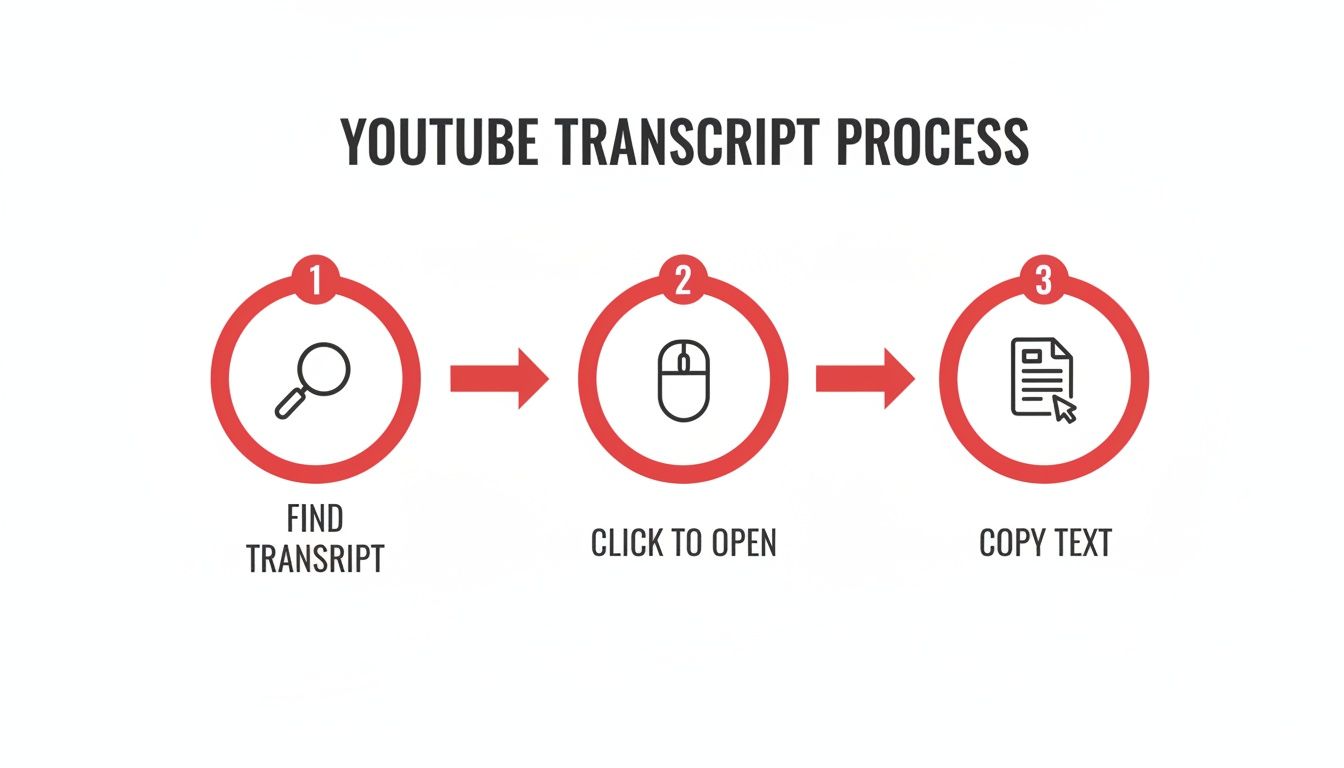
As you can see, getting the raw text is just a matter of a few clicks. You find the option, open the transcript panel, and copy what you need. Easy.
The Technical Route: Using Developer Tools
What if there's no obvious download button? You can usually still solve this problem by peeking "under the hood" of the webpage with your browser's developer tools. It sounds a bit technical, but it’s surprisingly straightforward once you know where to click.
Start by opening the Youtube video. Right-click anywhere on the page and select "Inspect" from the menu. This will open a new panel full of code. Don't let it scare you; we're only interested in one little tab.
In that new panel, find and click on the "Network" tab. Now, head back to the video and make sure the captions (CC) are turned on. You might need to refresh the page to get things moving. In the filter box inside the Network tab, just type "timedtext" or "caption".
This filters out all the noise and should leave you with just one or two results. That's your subtitle file.
Pro Tip: This is a fantastic workaround, but it’s not foolproof. If a video has no captions at all—not even auto-generated ones—you won't find a file to download. This is a common dead end when you're trying to process a lot of videos and highlights why sometimes you need a more powerful tool for the job.
From here, just right-click on that file name in the Network panel and choose "Open in new tab." Boom. You'll see the raw subtitle text appear in your browser. All that's left is to save the page (Ctrl+S or Cmd+S) as a .srt or .vtt file, and it’s ready to use in your next project. It's a manual process, for sure, but it’s a reliable way to get subtitles from Youtube when you really need the original file.
The Easiest Way to Get Subtitles with One Click
If you’ve tried the manual methods, you know they can be a bit of a slog. Hunting for the transcript, cleaning up the text, and getting the timing right takes time. For anyone whose time is money, a dedicated tool can solve this productivity bottleneck by turning that multi-step chore into a single, satisfying click.
This is exactly where a purpose-built solution like YoutubeToText.ai comes in. It cuts out all the friction. Forget digging through developer tools or manually fixing messy text. You just paste a Youtube link and get an accurate subtitle file instantly.
Solving the Biggest Subtitle Headaches
The real magic of a dedicated tool isn’t just speed; it’s about solving the most common frustrations that pop up. For a video editor, it means grabbing a perfectly formatted SRT or VTT file without the headache. For a marketer, it means quickly slicing up a long webinar into a dozen shareable social media clips.
Imagine you're a researcher with hours of interview footage to analyse. Instead of spending days on transcription, you could solve your time-crunch problem by processing your entire video library in a few minutes. That speed lets you jump straight into the analysis, not the tedious prep work.
Key Takeaway: A one-click tool does more than just download a file. It gives you back your most valuable resource—time. By automating the extraction and formatting, you can shift your focus from manual grunt work to the creative and strategic stuff.
Expanding Your Reach with Multilingual Support
Another huge advantage of these specialised tools is their ability to handle multiple languages. This is an absolute game-changer for solving the challenge of connecting with a global audience. You can easily grab subtitles in a video's original language and then translate them to tap into new markets.
This is especially important for reaching audiences in regions with massive video consumption. The Netherlands, for example, has one of the highest Youtube adoption rates in the world, with a staggering 92.6% of the population using the platform. If you want to engage this audience, providing accurate Dutch subtitles solves a critical accessibility problem and makes your content far more engaging. You can find more global Youtube usage stats on passport-photo.online.
Generating Clean and Editable Transcripts
Beyond just subtitle files, these tools are fantastic at producing clean, editable transcripts. This directly solves the main problem with Youtube’s own transcript feature, which often just gives you a giant wall of text with no punctuation or paragraph breaks.
A properly formatted transcript is ready to use right away for all sorts of things:
- Creating blog posts: The text is already organised, so adapting it into an article is a breeze.
- Producing show notes: Podcasters can generate detailed notes for their episodes in seconds.
- Improving accessibility: You can offer a clean transcript as a downloadable resource right alongside your video.
At the end of the day, a one-click solution is the ultimate productivity hack. It’s designed for professionals who need reliable subtitles from Youtube but don't want to deal with the technical hurdles or time sink of doing it all by hand.
Turning Your Subtitles into Valuable Content
Getting your hands on the subtitle file is really just the beginning. The magic happens in what you do with it next. A raw transcript is a bit like an unpolished gem—with a little bit of work, it can solve your content creation challenges and become a cornerstone of your entire strategy.
Your first move should always be a quick but careful edit. As good as Youtube's auto-generated captions have become, they're far from perfect. They often trip up on names, industry jargon, or complex terminology, and those little mistakes can chip away at your credibility if you leave them in.
Polishing Your Auto-Generated Text
Think of this part as a final quality check before you send your text out into the world. Spending just a few minutes cleaning things up makes your content look professional and easy to follow. It’s a small time investment that has a huge payoff in how people perceive your brand.
Here’s a quick checklist to solve common AI transcription errors:
- Correct Proper Nouns: The AI often stumbles over company names, people's names, or specific product titles.
- Fix Technical Jargon: Double-check any industry-specific terms. Something like "multinomial logistic regression," for example, could easily get garbled.
- Add Punctuation: Auto-captions are notorious for missing commas, full stops, and question marks—all of which are essential for readability.
- Break Up Text: Long, rambling AI-generated sentences need to be broken down into shorter, more scannable paragraphs that are easier on the eyes.
Once your transcript is clean and accurate, you're ready to put it to work and start repurposing.
Multiplying Your Content's Impact
A single video transcript is an absolute goldmine for solving the "what to post" problem. Instead of thinking of it as one piece of content, see it as the raw material for an entire campaign. This shift in mindset can save you an incredible amount of time and effort, boosting your overall productivity.
A polished transcript lets you work smarter, not harder. You can take one well-researched video and spin it into multiple pieces of content that keep your audience engaged across different platforms for weeks.
Let’s say you’ve just published a 15-minute video review of a new piece of software. That one transcript can be transformed into:
- A Comprehensive Blog Post: Flesh out the key points from the video, add some screenshots, and embed the original video itself. You'll end up with a rich, SEO-friendly article.
- A Social Media Series: Pull out five key tips or memorable quotes. Each one can become a graphic for Instagram, a short post for LinkedIn, or a thread on X.
- An Email Newsletter: Summarise the video's main takeaways and send it to your subscriber list, with a link driving them back to the full video or the new blog post.
- A Downloadable Guide: Format the transcript into a clean PDF checklist or guide that your audience can save for later. For a deeper look at this, our guide on the Youtube to text process has some great ideas.
This strategy works particularly well in markets where people are highly engaged online. In the Netherlands, for example, the Youtube user base keeps climbing, reaching around 9.9 million users in 2023. This shows a strong preference for video as a source of information and learning, creating a massive opportunity for accessible, multi-format content that stems from your videos. You can learn more about Youtube's growth in the Dutch market on Analyzify. By repurposing your subtitles, you're meeting your audience exactly where they are.
Common Questions About Youtube Subtitles
When you start pulling subtitles from Youtube, you’ll quickly run into the same few questions that everyone else does. Getting these sorted out early will save you a lot of headaches and let you focus on your actual project. Let’s break down the most common ones I hear.
Can I Get Subtitles from Any Youtube Video?
For the most part, yes—as long as the creator uploaded a subtitle file or Youtube's own auto-captioning system has done its thing. This solves the basic accessibility problem for a huge number of videos.
The quickest way to know for sure is to look for the little "CC" (Closed Captions) icon in the video player. If it's there, you're good to go. Most videos on the platform have them, but you might find they're missing on very new or less popular content. If you don't see that "CC" icon, it's a safe bet there are no captions to download.
What Is the Difference Between SRT and VTT Files?
Think of these as two tools to solve the same problem. They both store your subtitle text along with the timing information needed to sync it to the video.
- SRT (SubRip Text) is the old reliable. It's a super simple format that's been around forever and works with pretty much every video player or editing tool you can imagine. It just contains numbered subtitles, timestamps, and the text itself.
- VTT (WebVTT) is the newer, more web-friendly version. It does everything an SRT file can but also supports extra features like text styling (bolding, italics) and more control over where captions appear on the screen.
Honestly, for most tasks like creating a blog post from a video or just getting a readable transcript, a simple SRT file is all you'll ever need.
How Accurate Are Youtube's Auto-Generated Subtitles?
They've gotten surprisingly good, often providing a solid solution for basic transcription needs. For a straightforward video with one person speaking clearly, you can often see over 90% accuracy.
But that accuracy takes a nosedive when things get complicated. Background noise, heavy accents, people talking over each other, or complex jargon will trip up the AI every time. This is a common problem that AI transcription is still working to solve perfectly.
My advice? Always treat auto-generated captions as a solid first draft, not the finished product. A quick human proofread is essential to catch strange phrasing or outright mistakes before you use the text for anything important.
Is It Legal to Download Subtitles from Youtube?
This is a big one, and the answer is nuanced. Generally, downloading subtitles for your own personal use is fine. This falls under fair use for things like private study, making a video accessible for yourself, or research.
The trouble starts if you plan to use those subtitles publicly or for commercial projects without getting permission from the video's creator. That's when you can wander into copyright infringement territory. The best rule of thumb is to respect the creator's work—if it's not for your eyes only, get permission first.
Ready to skip the manual work and get accurate subtitles in seconds? YoutubeToText gives you one-click SRT/VTT downloads and clean transcripts from any Youtube video. Start saving time today at https://youtubetotext.ai.