Learn how to download Youtube transcript files with our guide. We cover built-in tools, third-party apps, and advanced methods for content creators.
Download Youtube Transcript Files Made Simple
If you need to grab a Youtube transcript quickly, the easiest way is using Youtube's own "Show transcript" feature right on the video page. But if you're looking to unlock the full potential of that content—turning it into articles, enhancing accessibility, or creating subtitles—you'll find that dedicated third-party tools can get the job done in a single click, providing downloadable TXT or SRT files.
Why Youtube Transcripts Are a Secret Weapon for Productivity

Ever watched a fantastic Youtube video and thought, "I wish I had this written down"? Being able to download a Youtube transcript is so much more than a neat trick. For creators, marketers, students, and researchers, it’s a game-changer that transforms hours of video into a format you can search, edit, and repurpose. This simple act solves a major problem: video content is locked in time, but a transcript makes it instantly accessible and actionable.
It allows you to stop being a passive viewer and start actively working with the information. This simple step opens up a world of possibilities that can make you more productive, improve accessibility, and help you squeeze every last drop of value out of the videos you watch or create.
Beyond Viewing: Content Repurposing and Accessibility
One of the biggest problems a transcript solves is the constant need for new content. With a transcript, a single video can suddenly become the source for a ton of new material, boosting your productivity.
- Blog Posts and Articles: The transcript is your first draft for a detailed blog post. A 20-minute video can easily be fleshed out into a 2,000-word article, hitting all the key points without you having to start from a blank page.
- Social Media Content: Pull out those punchy quotes, key stats, or handy tips directly from the text. You'll have dozens of engaging posts for Twitter, LinkedIn, or Instagram ready to go, saving hours of brainstorming.
- Newsletters and Ebooks: Got a series of related videos? Stitch the transcripts together to build a comprehensive guide, an email course, or even a short ebook.
Beyond content creation, transcripts are a powerful tool for inclusivity. Providing a transcript makes your content far more accessible—an essential solution for people who are d/Deaf or hard of hearing. It also helps non-native speakers who might find it easier to read English than to follow a fast-paced conversation, ensuring your message reaches a wider audience.
Enhancing Research and SEO
For students and researchers, transcripts solve the problem of information overload. Think about it: a two-hour lecture becomes a searchable document where you can find exactly what you need with a quick Ctrl+F. It makes creating study notes and citing sources incredibly efficient. You can also explore our guide to learn more about how to transcribe a video into text for your academic work.
For content creators, a transcript is an SEO goldmine. Search engines can't watch videos, but they can crawl text. By including the transcript in your video description or on your website, you provide a keyword-rich resource that helps Google understand your video's context, improving its chances of ranking in search results.
The Official Method Using Youtube's Interface
Sometimes the simplest solution is the best one. Youtube has a built-in tool that lets you grab a transcript right from the video page, no extra software or websites needed. It's my go-to when I just need the text quickly for a quote or reference.
This is a fundamental skill, especially in places where Youtube is a huge part of daily life. Take the Netherlands, for instance, where in 2023, an incredible 97% of internet users were on the platform. With so many people watching, the need for accessible content is massive. You can read more about this in the latest research on Youtube usage in the Netherlands.
Finding and Using the Transcript Feature
So, how do you find it? Head to the Youtube video you want the transcript for and look for the description box right below the player.
You’ll usually have to click the ...more link to see the full description. If the creator has enabled it, a "Show transcript" button will appear right at the bottom.
Clicking that button opens up a new panel to the side of the video, neatly laying out the entire text with timestamps.
From there, you’ve got a couple of handy options. See the three little dots at the top of the transcript panel? Click that, and you'll find "Toggle timestamps." This is great for getting rid of the timecodes if you just want a clean block of text to work with.
Now, you can just highlight everything (Ctrl+A on Windows, Cmd+A on a Mac), copy it, and paste it directly into a document. It's as simple as that.
Key Takeaway: For quick quotes, study notes, or just grabbing the text without fuss, Youtube's own interface is perfect. It’s fast, direct, and solves the immediate problem of needing the text without requiring third-party tools.
Common Roadblocks and Limitations
Of course, this method isn't foolproof. The biggest headache is when the "Show transcript" button just isn't there. This usually happens for one of two reasons:
- The creator has chosen to disable captions and transcripts.
- The video is brand new, and Youtube’s auto-generator hasn’t caught up yet.
Another drawback is the lack of a proper download option. You’re stuck with copy-pasting, which can sometimes mess up the formatting. If you need a clean download of a Youtube transcript as a TXT or SRT file for serious productivity or accessibility tasks, you'll have to look at other solutions.
When Youtube's own tools just don't cut it, it's time to bring in the specialists.
While the built-in transcript feature is okay for a quick glance, it falls short for any serious work. You can't download a file directly, and formatting is a non-starter. This is where third-party tools come in – they're built to solve these exact productivity problems.
These services are designed to do one thing and do it well: download a Youtube transcript in a clean, usable format. Think of them as the bridge between Youtube's basic offering and what you actually need to get work done efficiently.
Why a Dedicated Tool Is a Game-Changer
The biggest win with a dedicated tool is getting the exact file you need in seconds, solving the problem of tedious manual work. Forget the copy, paste, and clean-up routine. These services handle all the grunt work for you.
Here’s what you can typically expect:
- Your Choice of Formats: Need a clean .TXT file for a blog post or a timed .SRT file for subtitles? Most tools let you download in multiple formats.
- No More Timestamps (If You Don't Want Them): A simple checkbox is usually all it takes to strip out the timecodes, leaving you with a clean block of text ready to be edited.
- Handle Entire Playlists: Some of the more powerful tools can pull transcripts from a whole playlist at once. This is a massive timesaver for anyone doing research or creating course materials from a video series.
These features aren't just nice to have; they're essential productivity boosters for anyone who regularly works with video content. A video editor can grab an SRT file to jump straight into captioning, while a content marketer can get a clean text file to kickstart a new article.
This move towards smarter content tools is happening everywhere. In the Netherlands, for example, the demand for services that can download Youtube transcripts is growing, driven by a need for better accessibility and content repurposing. You can see how these services integrate into business workflows for a better idea.
Choosing the Right Tool for the Job
Not all transcript downloaders are the same, and the best one for you really depends on what you're trying to accomplish. If you just need to grab a text file from a single video once in a blue moon, a simple, free web-based tool will do the trick. They're usually dead simple to use.
But if your work demands more, you might want to look at something like YoutubeToText. These platforms often provide better accuracy, especially if the video's audio isn't crystal clear, and pack in more powerful features. For anyone looking to make this a regular part of their workflow, you can download your Youtube transcript with a single click and save yourself a ton of time.
My rule of thumb is to match the tool to the task. For a quick, one-off job, a free online converter is perfectly fine. But for regular, ongoing projects, a dedicated service that offers better accuracy, multiple formats, and batch processing is an investment that pays for itself in time saved.
At the end of the day, using a third-party tool is about working smarter. It solves the most tedious part of the process, so you can focus on what really matters: turning that video content into something valuable.
A Technical Approach with Browser Developer Tools
If you're comfortable getting a bit more technical and want to bypass third-party tools, you can grab a Youtube transcript straight from your browser's developer tools. It might sound intimidating, but it's a fantastic way to understand what's happening under the hood and get the raw data directly from the source.
This method is a great fallback if other tools aren't working or if you'd rather not use an external website for privacy reasons. It puts you in total control.
Finding the Transcript File
First, you'll need to open your browser's developer tools. The easiest way is to right-click anywhere on the Youtube video page and choose "Inspect". Alternatively, you can use a keyboard shortcut: Ctrl+Shift+I on Windows or Cmd+Option+I on a Mac. A new panel will pop up, showing you the webpage's code and network activity.
Once you've got that panel open, click on the "Network" tab. This is your window into all the requests your browser is making. To catch the transcript file in action, you'll need to refresh the Youtube page while this tab is open.
This handy flowchart gives a bird's-eye view of how most download methods work, including this manual one.
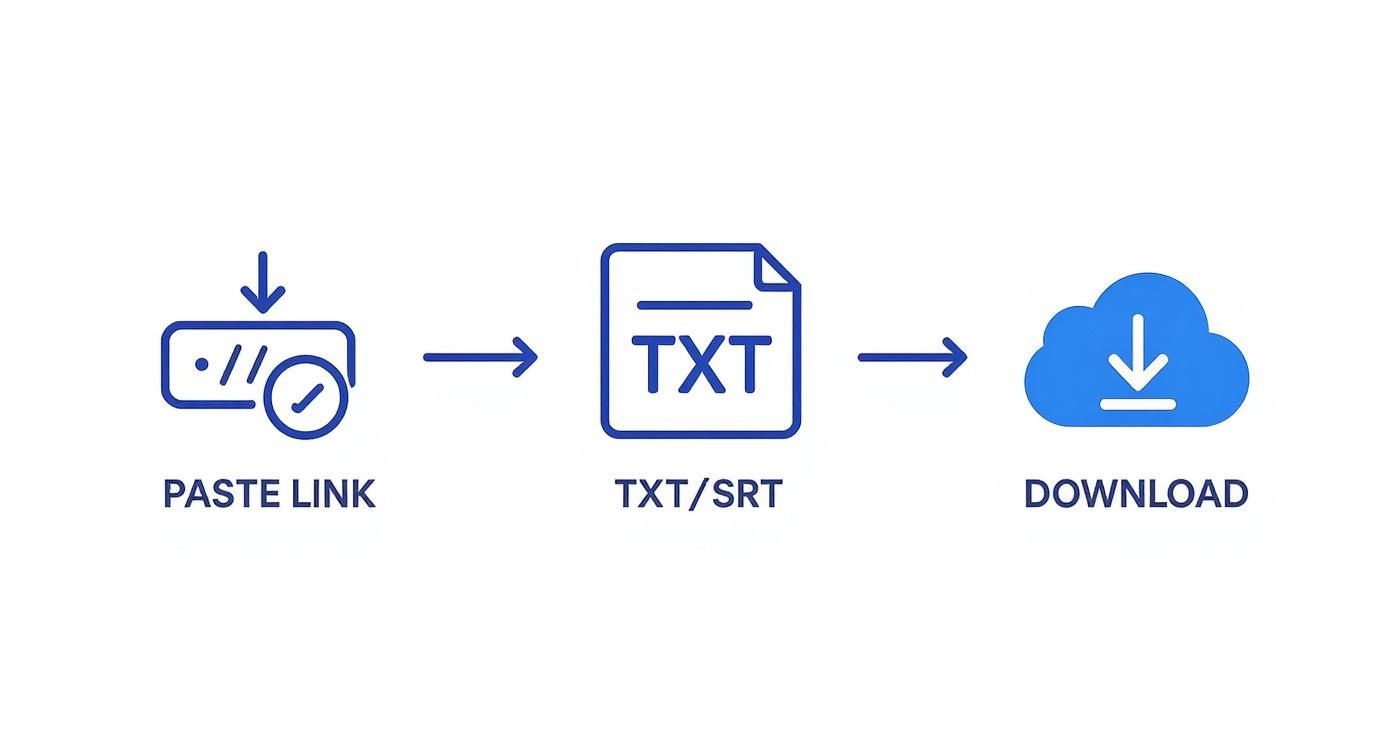 No matter the method, it always comes down to giving it a link and getting a file back. Simple as that.
Filtering and Downloading the Data
After you reload the page, you'll see a long, cascading list of files. Don't let it overwhelm you. We just need to find the one we're looking for.
Go to the filter box, which is usually near the top of the Network panel, and type in timedtext or transcript. This immediately cuts through the noise and should leave you with just a few requests, or maybe only one.
Click on the file name that appears. A new pane will open next to it, showing all the details. Head over to the "Response" or "Preview" tab. Voilà! You're looking at the raw transcript data, often in a structured JSON format, with every line of text and its corresponding timestamp.
This raw data is the very same stuff third-party tools grab and clean up for you. By accessing it yourself, you get the transcript straight from Youtube. From here, you can just copy and paste the text into your favourite editor to format it however you like.
It's a bit more hands-on, for sure. But for developers, curious content creators, or anyone who wants to download a Youtube transcript without relying on external services, this is a foolproof way to solve the problem using nothing but your web browser.
Getting to Grips with Auto-Generated and Multilingual Transcripts
When you grab a transcript from Youtube, nine times out of ten you’re dealing with text generated by an AI. Youtube's automatic speech recognition has come a long way, but it’s not perfect. The problem is that background noise, multiple speakers, or niche terminology can create inaccuracies.
Think of these AI-generated transcripts as a rough first draft. They give you a fantastic head start, but they almost always need a bit of human polish before you can use them professionally. If you’re turning a video into a blog post or creating accurate subtitles for accessibility, this clean-up step is an essential part of the process.
Dealing with Automatically Generated Text
The first issue you’ll probably spot in an auto-generated transcript is the wild punctuation. The AI often misses commas, periods, and question marks, leaving you with long, rambling sentences. You'll also see random capitalization and a lack of sensible paragraph breaks.
Misheard words are another classic problem. Homophones are a big one (think "there," "their," and "they're"), but names and industry-specific jargon also tend to trip the AI up. The quality of the video's audio makes all the difference here; a crisp, clear voice with no background music will always give you a much cleaner result.
Remember, the goal of cleaning up a transcript is to preserve the original speaker's meaning while making the text clear and readable. It's about clarity, not creative rewriting.
The scale of this automation is massive. Take the Youtube-Commons dataset, for instance, which contains over 22 million transcripts. It even includes automatic translations for videos in languages like Dutch, creating a goldmine for language analysis. You can check out more on this vast dataset and its applications to get a sense of how widespread this technology is.
How to Handle Transcripts in Different Languages
One of Youtube’s most inspiring features is its ability to automatically translate transcripts, opening up your content to viewers all over the world. If a video has a high-quality, manually created English transcript, Youtube can often generate translated versions in other languages with impressive accuracy.
But here’s the catch: if you start with a slightly wonky auto-generated English transcript and then ask Youtube to auto-translate that, the errors just pile up. A small mistake in the source language can easily become a completely bizarre phrase in the translation.
Here’s a bit of practical advice I’ve picked up for working with multilingual text:
- Clean Up the Original First: Always, always, always fix the transcript in its original language before you even think about translating it. This gives the translation tool the best possible source material to work with.
- Get a Native Speaker to Check It: If the translated transcript is for something important, like your website or marketing materials, it's worth getting a native speaker to give it a once-over. Automated tools are good, but they can't catch subtle cultural nuances.
- Watch Out for Formatting Glitches: Make sure whatever tool you use to download the transcript file can handle different languages and character sets properly. The last thing you want is a file full of garbled text.
Ultimately, working with these transcripts takes a bit of patience. By understanding their limits and knowing how to polish them, you can effectively transcribe Youtube videos for almost any purpose. The key is to see that initial download not as the final product, but as the raw material for your next project.
Got Questions? We've Got Answers
Even when you know the steps, sometimes you hit a roadblock. Let's solve some of the most common problems people face when trying to download a video transcript.
Why Can't I Find the Transcript for Some Youtube Videos?
It’s a classic problem: you click the three dots, but the "Show transcript" option is nowhere to be found. Frustrating, right?
This usually means one of two things. The creator might have turned off captions entirely, or they simply haven't uploaded a transcript file themselves. For brand new videos, it can also just be a waiting game—Youtube needs a bit of time to automatically generate the text. If you're in a hurry, a good third-party tool is your best bet, as it solves this problem by creating a fresh transcript directly from the audio.
How Accurate Are Youtube's Auto-Generated Transcripts?
Youtube's automatic captions have come a long way, but they're far from perfect. Think of them as a decent first draft.
The final quality really depends on a few things:
- Clear audio without much background noise.
- The speaker's accent and how fast they talk.
- Whether the video is full of jargon or technical terms.
A good rule of thumb is to treat the auto-generated text as a starting point. It's a fantastic productivity booster, but it's not ready for prime time. Always give it a good proofread before you publish it as an article or use it for professional subtitles.
Taking a few minutes to clean it up makes all the difference.
Is It Legal to Download a Transcript from Someone Else's Video?
This is a big one, and it pays to be careful. Generally, if you're downloading a transcript for your own personal use—like for study notes, research, or to reference something—you're likely covered by fair use principles.
But things get tricky if you plan to republish it or use it commercially. Since the transcript comes from someone else's copyrighted video, using it publicly without permission can land you in hot water. The safest routes are to either ask the creator for permission or to make sure you give them clear and obvious credit.
What's the Difference Between SRT and TXT Transcript Files?
Knowing your file types will save you a headache later. The two main formats you'll see are TXT and SRT, and they solve completely different problems.
TXT File: This is your basic plain text file. It's just the words, nothing else. Perfect if you want to read the content, pull quotes, or repurpose it into a blog post.
SRT File: This is a subtitle file. It contains the text, but it also has precise timestamps for when each line should appear and disappear on screen. This is the format video players need to show captions in sync with the action.
So, the choice is simple. Need text for reading or repurposing? Grab the TXT. Need subtitles for accessibility? You'll need the SRT.
If you're looking for a quick and painless way to get accurate, ready-to-edit transcripts in whatever format you need, YoutubeToText handles all the hard work. Turn any video into text with just a couple of clicks. Try it for free at youtubetotext.ai.
