Learn how to convert TXT to SRT files with this complete guide. Discover manual methods, automated tools, and pro tips for accurate subtitle creation.
How to Convert TXT to SRT for Perfect Subtitles
So, you've got a plain text transcript of your video and need to turn it into perfectly timed subtitles. You're in the right place. The key is converting that simple .txt file into a universally compatible .srt file. This little bit of technical magic transforms a basic script into synchronised captions that make your video more accessible, searchable, and engaging for everyone.
From Simple Text to Synced Subtitles

Turning a plain text transcript into a professional subtitle file might sound complicated, but it's a standard and essential step in modern video production. A .txt file just gives you the words. It’s missing the crucial timing data that tells a video player when to show those words on screen.
That’s where the SRT (SubRip Subtitle) format shines.
An .srt file is your text transcript, but supercharged with precise timestamps. It’s a simple set of instructions telling the player exactly when each line of dialogue should appear and when it should disappear. This synchronisation is what turns a raw script into functional, helpful captions that genuinely improve the viewing experience. Without it, you'd just have a block of text, totally disconnected from the video's audio.
Why This Conversion Matters
The need to convert txt to srt isn’t just a technical step; it’s a vital skill for anyone creating or sharing video content today. Whether you’re a professional content creator, a marketer, or an educator, getting this right solves real problems and offers serious advantages for your audience.
Here’s why it's so important:
- Enhanced Accessibility: Properly timed subtitles make your content understandable for viewers who are deaf or hard of hearing. It’s about making sure your message is open to everyone, solving a critical accessibility challenge.
- Improved User Engagement: Think about how many people watch videos on social media with the sound off. Captions let them follow along, which can dramatically increase watch time and message retention.
- Greater Global Reach: SRT files are incredibly easy to translate. This opens the door to creating subtitles in multiple languages, helping you connect with a truly international audience.
- Better SEO Performance: Search engines can crawl and index the text in your SRT files. This makes your video content searchable, helping it rank for relevant keywords and bringing in more organic traffic.
This guide will walk you through the entire process, from understanding the SRT structure to using both manual and automated methods. By the end, you’ll be able to confidently transform any text transcript into a polished, professional SRT file ready for any platform. If you're starting from scratch, our detailed guide on how to transcribe a video into text is the perfect first step.
The Essentials of an SRT File
Before we jump into turning a plain text file into a subtitle file, it's worth getting to know what an SRT file actually is. At its core, it’s just a simple text document, but one that follows a very specific set of rules. Think of it as a script for your video player, telling it exactly what text to show and when.
This simplicity is its biggest advantage. Because it’s so basic, almost every video player and platform—from Youtube to VLC Media Player—can read it. This universal support is precisely why it’s become the go-to format for subtitles and captions.
The entire file is built on a sequence of these timed text blocks. Get the structure right, and it works flawlessly. But a single mistake, like a misplaced comma or a missing blank line, can throw everything off.
What Makes Up an SRT Block?
Every single caption you see on screen comes from a small, three-part block of text in the SRT file. Nailing this structure is the key to creating subtitles that sync up perfectly.
- A Sequential Number: Each subtitle block kicks off with its own number, starting at 1 and counting up (1, 2, 3...). This simply tells the video player the order of the captions.
- The Timestamp: This is the most important part. It dictates the exact moment a caption appears and disappears. The format is incredibly precise:
Hours:Minutes:Seconds,milliseconds --> Hours:Minutes:Seconds,milliseconds. - The Subtitle Text: This is the actual text you want your audience to read. To keep things clean and easy to read, it’s best practice to stick to one or two lines per block.
Once these three parts are in place, you must add a blank line. This empty space acts as a separator, telling the player, "Okay, this block is finished, get ready for the next one." It's a small detail, but the file won't work without it.
One of the most common slip-ups I see is using a full stop instead of a comma to separate seconds from milliseconds in the timestamp. Video players are sticklers for this rule, so make sure it's always a comma, like
00:00:15,350.
To give you a clearer picture, here’s a breakdown of how a standard SRT block is put together.
SRT File Structure Breakdown
| Component | Example | Description & Formatting Rule |
|---|---|---|
| Subtitle Number | 1 |
A sequential integer that identifies the subtitle block. It must start at 1 and increment for each subsequent block. |
| Timestamp | 00:00:05,500 --> 00:00:08,250 |
The start and end times for the subtitle. The format HH:MM:SS,ms is mandatory, with --> separating the two times. |
| Subtitle Text | This is the first line of the subtitle.And this is the second line. |
The caption text to be displayed. Best practice is to limit this to a maximum of two lines for readability. |
| Blank Line | (empty line) | A required blank line that separates one subtitle block from the next. The file will not parse correctly without it. |
Getting familiar with this structure is the first step. It's the foundation upon which all accurate, professional-looking subtitles are built.
A Few Tips for Readability
Beyond the technical rules, a few 'unwritten' guidelines can make your subtitles much more viewer-friendly. For example, try to keep each line to around 42 characters and, as mentioned, never go beyond two lines per caption block. This ensures the text is quick to read and doesn't obscure too much of the video.
In the Netherlands, the shift to digital media has made formats like SRT more important than ever. With internet penetration expected to hit 99.0% in early 2025, the need for accessible video content has skyrocketed. Well-timed, easy-to-read subtitles are no longer a nice-to-have; they're essential for reaching a wider audience. For anyone interested, you can find more data about Dutch internet usage and how it’s shaping digital content.
By keeping these fundamentals and best practices in mind, you can create an SRT file that’s not only technically perfect but also gives your audience a smooth and enjoyable viewing experience.
The Manual Method: Creating SRT Files by Hand
Sometimes, you need absolute control. For a short, punchy promo video or a creative project where every second counts, doing things by hand is the only way to go. Manually converting a txt to srt file gives you that fine-tuned precision, letting you time each caption perfectly to match your vision.
All you'll need is your video file, the transcript in a plain text document, and a basic text editor. Think Notepad on Windows or TextEdit on a Mac – nothing fancy required.
This is a hands-on process. You'll be taking your raw script and moulding it into the structured format that video players need to display subtitles. It involves breaking dialogue into manageable chunks, numbering them sequentially, and, most importantly, adding the exact start and end times for each line.
Building Your SRT File from Scratch
The heart of the manual method is simple, but it demands your full attention. Once you open your text editor, you'll need to follow the strict SRT syntax for every single caption block.
This workflow breaks down the three essential components you’ll be adding for every subtitle entry.
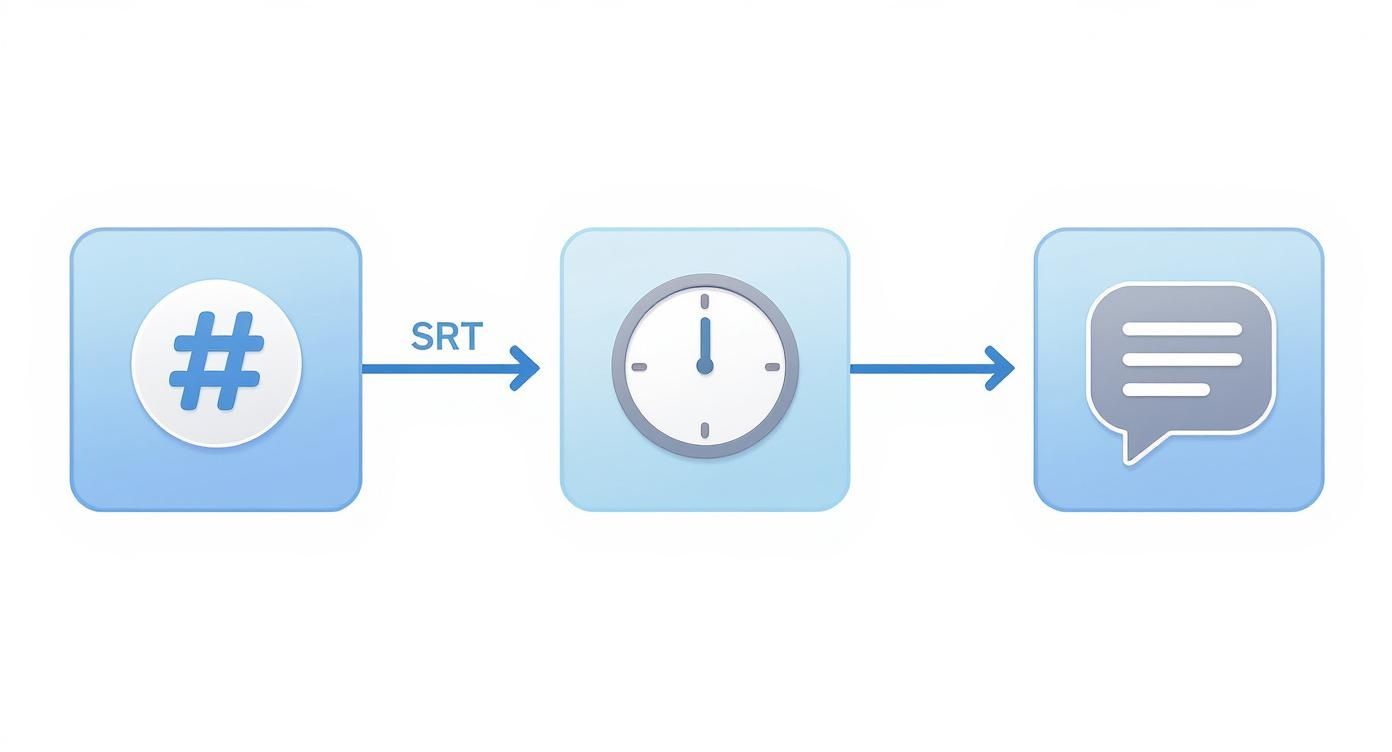
As you can see, each subtitle needs its own unique number, a specific timestamp, and the text itself. You then add a blank line to signal the end of that entry before starting the next one.
Getting the timing right is where the real work comes in. I usually have my video open and just play and pause my way through it. Press play, then pause the second you hear a line of dialogue begin. Jot down that time – that's your starting timestamp. Let the video play until the speaker finishes the line, then pause again. That’s your ending timestamp.
Here’s a real-world example of what a few completed blocks should look like in your text file:
1
00:00:10,450 --> 00:00:13,200
Welcome to our tutorial on how to
manually create SRT files.
2
00:00:13,800 --> 00:00:16,100
It's easier than you might think,
but precision is key.
3
00:00:17,000 --> 00:00:19,550
Let's get started with the first step.
See that blank line separating each numbered block? That’s not just for looks; it’s a critical instruction for the video player. If you forget it, the whole file will likely fail to load.
Saving Your File for Universal Compatibility
After you've meticulously timed and formatted your entire transcript, the last step is saving it correctly. This is a common trip-up point, so pay close attention.
I’ve seen it happen countless times: someone saves their file, but it secretly keeps a hidden
.txtextension, ending up asmy-video.srt.txt. To prevent this, you have to be deliberate about the file type and encoding.
When you’re ready to save, here's what to do:
- Head to File > Save As.
- In the "File name" box, type your chosen name and make sure to add .srt at the end (for example,
video-subtitles.srt). - Look for a dropdown menu like "Save as type" and switch it to "All Files". This is key.
- Finally, set the "Encoding" to UTF-8. This is a non-negotiable step to ensure any special characters or different languages show up properly instead of as weird symbols.
This manual approach offers unmatched control, making it the go-to choice for creators who value precision over speed. You're in the driver’s seat for every single detail, from timing down to the millisecond to deciding exactly where a line breaks.
Using Automated Tools for Fast TXT to SRT Conversion
While the manual method gives you absolute control, let's be realistic—it's not always practical. When you're facing a long video and a tight deadline, hand-timing every line of dialogue is a major productivity killer.
This is where automated tools really shine. They solve the time-consuming problem of manual SRT creation, turning the tedious chore of txt to srt conversion into a quick and almost painless process. These solutions range from simple online converters to incredibly smart AI-powered platforms that do nearly all the work for you.
Choosing the Right Automated Solution
Not all automated tools are built the same. The best one for you will depend on a few things: the length of your video, your budget, and how much accuracy you need straight out of the gate.
Generally, you'll come across two main types of tools:
- Simple Online Converters: These are usually basic websites where you upload your text file. They might still need you to add timestamps or use a simple interface to sync the text, but they’re a definite step up from a plain text editor.
- AI Transcription Services: This is where the real magic happens for productivity. Platforms like YoutubeToText.ai don't just convert a file you already have. They generate a highly accurate transcript directly from your video’s audio and then let you export it as a perfectly timed SRT file in a single click.
The rise of this technology isn't happening in a vacuum. The global transcription market was valued at USD 10.2 billion in 2024 and is expected to almost double by 2033. In tech-savvy markets like the Netherlands, the move towards AI-driven subtitle tools has been especially quick. A 2025 survey revealed that 48% of the Dutch population used AI platforms, a massive leap from just 12% the year before. This shows a clear appetite for efficient content tools like automated subtitling. You can find more on the rapid growth of AI usage in the Netherlands to see this trend in detail.
The Power of AI in SRT Creation
AI-driven platforms give you a massive head start by automating the most soul-crushing part of the process: creating the timestamps. These services use sophisticated speech recognition to listen to your video, figure out when each word is spoken, and assign precise timestamps automatically.
This screenshot from the YoutubeToText.ai homepage shows just how straightforward the process can be—you just paste a link, and the AI takes over.
The clean interface gets right to the point, showing its main purpose: turning video into text, which is the essential first step to getting a great SRT file.
For many creators, this is a total game-changer. A task that once took hours of painstaking work—pausing, typing, timing, repeat—can now be finished in minutes. Modern AI is so good that the generated SRT file is often 95-99% correct, usually only needing a few minor tweaks.
This kind of efficiency is a lifesaver for anyone who needs to regularly transcribe Youtube videos and add subtitles. By letting the tech do the heavy lifting, you can spend your time polishing the final captions to make sure they give your audience the best possible experience. Ultimately, these tools free you up to do what you do best: create more content, instead of getting bogged down in post-production.
How to Polish and Sync Your Subtitles for a Professional Finish

Getting an SRT file from an automated tool is a fantastic start, but it's rarely the final step. That last bit of polish is what elevates your subtitles from merely functional to genuinely professional, making the viewing experience seamless for your audience.
Even the best AI can't quite capture the nuances of human speech. This final review is your chance to catch those small errors and synchronisation quirks, turning a good output into a great one. It’s a small time investment that makes a huge difference in viewer satisfaction.
Reviewing and Adjusting Timestamps
The most critical part of this process is checking the synchronisation. I find the easiest way to do this is with a free, reliable tool like VLC Media Player. Just open your video, then drag and drop the SRT file onto the player window. Now you can see exactly how the captions line up.
Watch the video closely. Do the subtitles pop up the moment someone starts talking and vanish when they stop? If a caption hangs around too long or disappears too quickly, you'll need to dive into the SRT file and adjust its timestamp.
This is often called "spotting," and it really does require a good eye. A delay of even half a second can feel off and distract the viewer. For tiny adjustments, I usually pause the video right where the audio starts or stops, note the exact time, and then tweak the HH:MM:SS,ms values in the SRT file with a simple text editor.
Refining for Readability and Clarity
Beyond perfect timing, you need to make sure the text is actually easy to read. Automated tools sometimes spit out subtitle blocks that are technically correct but a real chore to read at a glance—like a single, long sentence that flashes on the screen for just a few seconds.
The goal is to make the text effortlessly scannable. Here are a few things I always look for:
- Split Long Lines: If a subtitle line has more than 42 characters or just looks crowded, break it into two shorter, more manageable lines.
- Break at Natural Pauses: Don’t just chop a sentence in half. Find a natural break, like after a comma or before a conjunction, to keep the reading flow smooth.
- Correct Formatting Errors: Quickly scan for any stray transcription mistakes or punctuation goofs that the automated tool might have missed during the initial txt to srt conversion.
A professional finish means thinking about the viewer's experience. If a subtitle is too long, they’ll spend more time reading than watching your video. Concise, well-timed captions should complement the content, never compete with it.
Multilingual Project Considerations
If you're working with translated subtitles, you’ve got a couple of extra layers to consider. Translations can dramatically alter sentence length and rhythm. What was a short, punchy phrase in English might become a much longer sentence in German, meaning you’ll have to extend its timestamp to give people enough time to read it.
It's also crucial to make sure your SRT file is saved with UTF-8 encoding. This is non-negotiable for correctly displaying special characters, accents, and symbols found in other languages. If you forget this step, all your careful translation work could show up as a bunch of gibberish. A final quality check in VLC will confirm everything looks perfect.
And for those who are constantly pulling videos from different platforms, finding a tool that streamlines this entire process is a game-changer. For example, our guide on how to download Youtube transcripts can give you a massive head start on creating your SRT files.
Got Questions About Converting TXT to SRT?
Even after you've got the basics down, a few common hiccups can pop up when you're turning a plain text file into subtitles. Let's walk through some of the most frequent problems and solve them.
What’s the Best Programme for Making SRT Files?
You'll be happy to know you don't need any fancy or expensive software for this. The humble text editor that came with your computer is all you need. If you're on Windows, Notepad is perfect. For Mac users, TextEdit does the job brilliantly.
The real trick isn't which editor you use, but how you save your work. When you're done, go to 'Save As'. You'll need to manually change the file extension from .txt to .srt. Just as important, look for an 'Encoding' option and make sure you select UTF-8. This last step is a lifesaver, as it stops special characters or different languages from turning into a mess of jumbled symbols.
Help! My Subtitles Aren’t Showing Up Properly.
This is a classic problem, and it almost always boils down to one of two simple fixes. First, have a close look at your file name. Sometimes, computers hide file extensions, and you might have accidentally saved your file as subtitles.srt.txt instead of just subtitles.srt. That extra .txt at the end will stop it from working.
The other likely culprit is the encoding. If your subtitles appear on screen as random symbols or question marks, it’s a dead giveaway that the file wasn't saved as UTF-8. Just open it back up in Notepad or TextEdit, choose 'Save As' again, and be sure to select UTF-8 from the encoding dropdown. This little tweak fixes the issue nine times out of ten.
A quick tip from experience: Video players are incredibly fussy. They are looking for two things: a file that ends in
.srtand is encoded in UTF-8. Get those two details right from the start, and you'll save yourself a world of frustration.
Can I Make My Subtitles Bold or Italic?
Absolutely. The SRT format is pretty straightforward, but it does support a few basic HTML tags to add a bit of style. This is great for adding emphasis, showing a title on screen, or distinguishing between speakers.
Here are the tags you can use:
- Use
<b>and</b>to make text bold. - Use
<i>and</i>to make text italic. - Use
<u>and</u>to underline text.
You can even nest them, like <b><i>This part is really important!</i></b>. A word of warning, though: not every video player or social media platform displays these styles correctly. Some might ignore them completely. It’s always smart to do a quick test on the platform where you plan to share the video, just to make sure it looks the way you want it to.
How Can I Make My Timestamps Perfect?
Getting timestamps spot-on is what separates good subtitles from great ones. If you're doing it by hand, you need precision. I recommend using a video player like VLC Media Player because it shows time down to the millisecond. Play the video, and pause it the very instant someone starts speaking to get your start time. Do the same thing the moment they finish to get your end time. For the ultimate control, proper video editing software lets you go through the video frame by frame.
If you’re using an automated tool, look for one with an interactive editor. The best ones let you click on any word in the transcript, and it will immediately jump you to that exact spot in the video. This makes fine-tuning the timing incredibly fast and almost effortless.
Ready to skip the manual work and get perfectly timed subtitles in minutes? YoutubeToText.ai uses advanced AI to automatically transcribe your videos and generate an accurate, downloadable SRT file with just one click. Start converting your video content effortlessly at https://youtubetotext.ai.