Learn how to extract audio from video Youtube for any project. Our guide covers the best tools and methods for content repurposing, offline listening, and more.
How to Extract Audio From Video Youtube A Practical Guide
Knowing how to extract audio from a Youtube video is a surprisingly powerful skill for anyone looking to boost productivity, improve accessibility, or creatively repurpose content. Whether you use an online tool, dedicated desktop software, or a mobile app, you can easily save the sound from any Youtube link as an MP3 or another audio file. This lets you engage with valuable information—from lectures to interviews—offline, on your own terms, and without being tied to a screen.
Why Bother Extracting Audio from Youtube?
Before we get into the "how," let's talk about the "why." Pulling the audio from a video isn't just a technical trick; it's a practical solution for repurposing content, increasing productivity, and making information more accessible. The reasons for doing it are incredibly varied, solving real-world problems for creators, students, and everyone in between.
Take a content creator, for example. They might record their interviews on video, but by stripping out the audio, they can instantly publish a new podcast episode. Just like that, they've doubled their content with hardly any extra work, reaching an audience that prefers to listen during their commute or at the gym. This is a classic example of smart content repurposing.
Making Content Fit Your Life
The real magic here is flexibility. Once you have that audio file, you're free from the screen. This unlocks a world of possibilities for how you consume information and boosts your productivity.
Here are a few everyday situations where this solves a real problem:
- Learning and Accessibility: Imagine creating a playlist of audio from language lessons. You can practise your pronunciation and listening skills while you're out for a walk or doing chores, no video required. For students with learning disabilities, listening can be a more effective way to absorb lecture material than watching.
- Creative Content Repurposing: A musician could grab the backing track from a performance video to play along with. It makes practice sessions more productive and fun. A podcaster can use audio clips from news reports for commentary, creating new, insightful content.
- Boosting Productivity: Heading somewhere with patchy internet? You can save lectures, talks, or even guided meditations to listen to without stressing about buffering or mobile data. This turns downtime into productive learning time.
When you turn a video into audio, you make the content work for your lifestyle, not the other way around. It’s all about accessing information on your own terms.
This skill is also the first step towards doing even more with the content. Once you have that audio file, you can edit it, mix it into your own projects, or even turn it into text. As we explore in our guide on how to convert audio from Youtube, transforming spoken words into a searchable document unlocks a whole new level of value for research, content creation, and accessibility.
Ultimately, knowing how to extract audio from video Youtube makes you a smarter, more efficient content consumer and creator. It transforms passive video watching into an active way of gathering and curating information for whatever you need, personally or professionally.
Choosing the Right Tool for the Job
When you need to extract audio from a Youtube video, the tool you pick really matters. It's not a one-size-fits-all situation. Think about your goal: are you just trying to save a podcast for your commute, or are you repurposing a lecture into a blog post for accessibility? The right tool depends entirely on what problem you're trying to solve.
You're essentially balancing four things: speed, quality, privacy, and how easy it is to use. Getting that balance right will save you a ton of frustration.
Quick and Easy Online Converters
If you just need a single audio file and you need it fast for simple offline listening, an online converter is probably your best bet. These are websites where you just paste the Youtube link, pick a format like MP3, and hit download. No installation, no fuss.
But there's a catch. This convenience often comes at the price of quality and privacy. You'll likely run into a lot of ads, some of which can be pretty sketchy. You also get very little say over the audio quality, and you're handing a link over to a third-party service. They're perfect for quick, non-sensitive jobs, but I wouldn't use them for anything that requires high-fidelity sound for content repurposing.
Convenient Browser Extensions
For those who find themselves grabbing audio fairly often, browser extensions are a nice step up in productivity. These little add-ons live right in your browser, usually adding a download button directly to the Youtube page. It’s a much smoother process than copying and pasting links all day.
Just like the online sites, they're incredibly easy to use but share some of the same risks. You might find the quality settings are limited, and it’s crucial to pick an extension from a trusted developer to avoid malware. They're ideal for frequent, casual downloads where convenience is key.
This quick decision tree can help you visualise whether you just need something for offline listening or if you plan on repurposing the content for a project.
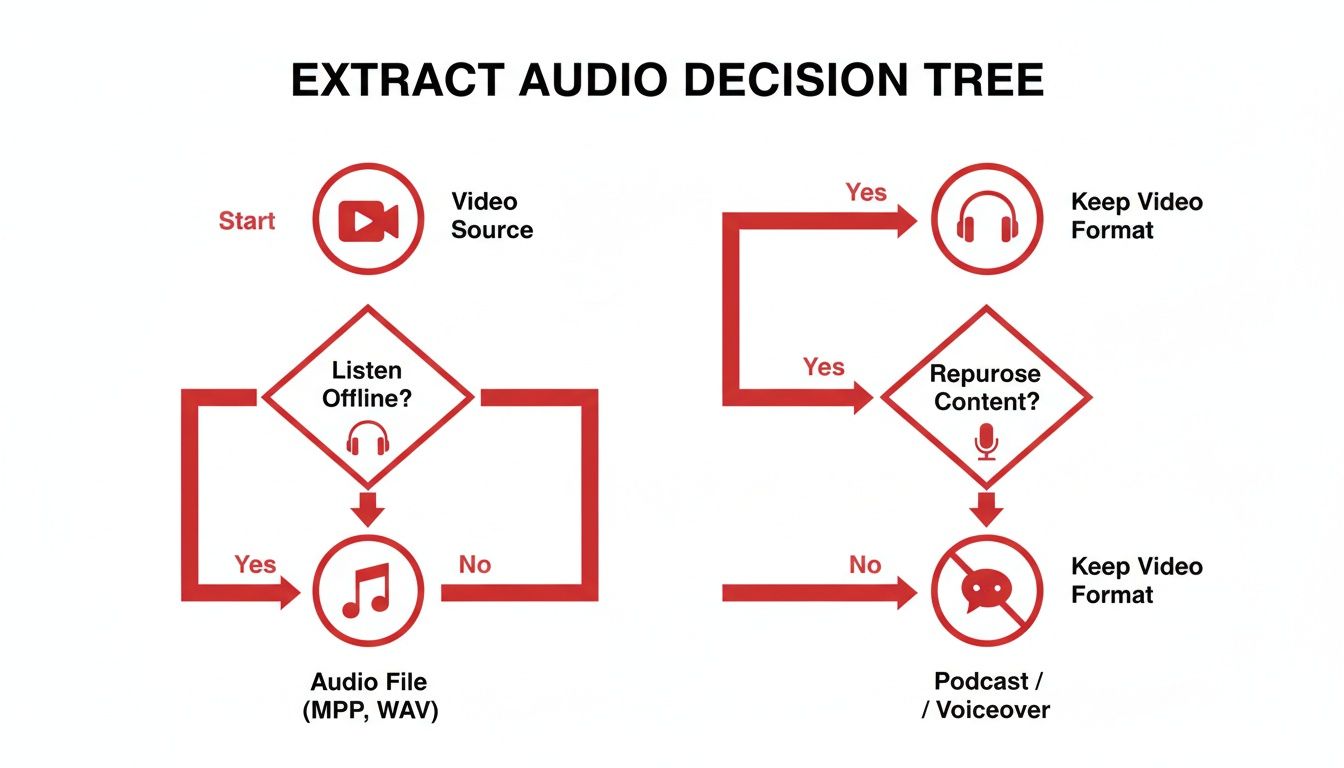
As you can see, figuring out your end goal is the first step to finding the right tool.
Powerful Desktop Software
When quality and control are the most important factors for your project, nothing beats desktop software. If you're serious about content creation, accessibility, or archival, this is the way to go. Programs like VLC Media Player or command-line tools like yt-dlp give you complete power. You can download audio in the highest possible quality, even using lossless formats like WAV or FLAC.
This approach puts you in the driver's seat. You can set specific bitrates, automatically name your files, and even download entire playlists with a single command—a huge productivity win. Yes, there's a bit of a learning curve, especially with command-line tools, but for content creators, researchers, or podcasters who need pristine source material, it's absolutely worth it. Plus, everything is handled locally on your machine, so your privacy is completely protected.
For professionals and anyone who refuses to compromise on audio quality, dedicated desktop software is the only way to go. It offers a level of precision and power that web-based tools simply cannot match.
On-the-Go Mobile Apps
Finally, if you live on your phone or tablet, a mobile app can be a great solution for productivity on the move. You can find apps for both Android and iOS that let you download audio directly to your device for offline listening.
The biggest win here is portability. You can grab a lecture to listen to on the train or a podcast for a flight without needing a computer. The trade-off is that they can be less reliable than desktop software and might have limits on file formats or download speeds. Just be sure to download them from official app stores to stay safe.
Comparison of Youtube Audio Extraction Methods
To help you decide at a glance, here’s a breakdown of how these different methods stack up against each other.
| Method | Best For | Pros | Cons |
|---|---|---|---|
| Online Converters | Quick, one-off downloads where convenience is the top priority. | No installation required; very fast and simple to use. | Intrusive ads, potential privacy/security risks, limited control over audio quality. |
| Browser Extensions | Frequent, casual downloading with a streamlined workflow. | Integrates directly into the browser; very convenient. | Can have limited quality options; requires trusting a third-party developer. |
| Desktop Software | High-quality archival, content repurposing, and professional use. | Maximum control over quality and format; high privacy; can download playlists. | Steeper learning curve, especially for command-line tools; requires software installation. |
| Mobile Apps | Productivity on the go and offline listening. | Perfect for on-the-go offline listening; convenient for mobile-first users. | Can be less reliable than desktop options; may have limitations; potential security risks. |
Each method has its place, and the best one for you really depends on what you're trying to accomplish.
Once you have your audio file, you might want to turn that speech into text for notes, articles, or subtitles. If that's your next step, you might find our guide on the best video to text converter tools really helpful. Understanding the strengths of each extraction method ensures you're always using the right tool for the job.
Using Online Converters for Quick Results
When you need to grab the audio from a Youtube video right now, without installing a single piece of software, an online converter is your best friend. These are simple web tools built for one job: you give them a Youtube link, and they give you back an audio file. Their main appeal is pure convenience and speed for straightforward tasks.
The workflow is almost identical no matter which site you choose. You find the video you want, copy the URL from your browser's address bar, and then pop over to the converter's website. You’ll be greeted by an input box, just waiting for that link.
How an Online Converter Works
Let’s run through a quick example. Say you've stumbled upon a brilliant two-hour podcast on Youtube and want to save it for your morning run. Just copy the video's URL, head to your chosen online converter, and paste the link into the field provided.
As you can see in this screenshot from a typical online tool, the interface is designed to be as simple as possible.
Once you paste the link, the website will process it for a few moments before showing you a list of download options. This is where you get to decide exactly what you want.
You’ll typically see a choice of audio formats and different quality settings. For most everyday uses, MP3 is the way to go. It strikes a fantastic balance between good sound quality and a small file size, making it perfect for your phone or any portable player.
Choosing the Right Format and Quality
Getting the audio you want means understanding the choices you're given. These online tools often throw around terms like format and bitrate, but what do they really mean for your ears?
- MP3 (MPEG-1 Audio Layer III): This is the king of audio formats for productivity and portability. It’s compressed, meaning it cleverly shrinks the file size by removing sound information most people can’t hear anyway. The biggest plus? It works on pretty much every device you can think of.
- WAV (Waveform Audio File Format): Think of WAV as the raw, unedited version of the audio, ideal for high-quality content repurposing. It’s an uncompressed format, so you get a perfect copy of the original sound. The quality is top-notch, but the files are massive. This is for podcasters, audio editors, or creators who need the best possible quality for their work.
- AAC (Advanced Audio Coding): Often considered the modern replacement for MP3, AAC can deliver slightly better audio quality at the same file size. It’s widely supported, particularly by Apple devices.
The bitrate, measured in kilobits per second (kbps), is all about quality. A higher bitrate like 320 kbps offers a richer sound, ideal for music. For spoken-word content like an interview or lecture, 128 kbps is usually more than enough and saves space.
Staying Safe and Avoiding the Traps
The convenience of online converters comes with a few catches you absolutely need to be aware of. Many of these free sites are plastered with aggressive ads, which can be anything from a simple pop-up to a genuinely malicious link trying to trick you.
Here are a few tips to stay safe:
- Never download extra software. A proper online converter does everything in your web browser. If a site tells you to install an "updater" or browser extension, it’s a huge red flag. Close the tab immediately.
- Spot the real download button. Ad-heavy sites are masters of confusion. The real download link for your audio is often a small, plain text link, while a giant, flashing "DOWNLOAD" button is almost certainly an advert.
- Use an ad-blocker. A reliable ad-blocker will make your life much easier, cleaning up the clutter and helping you avoid misleading ads altogether.
While millions use these tools, solid data on just how many people extract audio from Youtube is surprisingly hard to find. We know a lot about general viewing habits – you can see a deep dive into Dutch digital trends in this DataReportal report – but the specifics of audio ripping remain in the shadows. Also, remember that these online tools rely completely on your internet connection, so they can be slow or unreliable if your connection is spotty or you're dealing with a very large file.
When you need the absolute best audio quality and complete control over the process, it's time to graduate from online tools and browser extensions. For anyone serious about audio—creators, archivists, and audio engineers—nothing beats the precision you get with dedicated desktop software.
Command-line tools might look a bit daunting at first, but they offer incredible power to extract audio from video Youtube exactly the way you want it.
This method isn't just about grabbing a quick MP3. It’s about owning the entire workflow to boost your productivity and creative output. You can specify lossless formats, batch-download entire playlists, and automatically embed metadata. Better yet, since everything happens locally on your computer, your privacy is completely protected. It's the professional's choice for a good reason.
Why a Command-Line Tool Like yt-dlp Is Worth It
Tools like yt-dlp (a popular and very actively maintained version of the original youtube-dl) are the gold standard for serious content work. They communicate directly with Youtube's servers, cutting through the clutter of ads and trackers you often find on converter websites. This direct connection gives you access to the highest quality audio stream a video has to offer.
Yes, there's a bit of a learning curve, but it’s not as steep as you might think. Once you get the hang of a few basic commands, you open up a whole new world of automation and control. Think of it less like coding and more like giving your computer very specific, powerful instructions.
This isn’t just a simple downloader; it's a comprehensive tool for interacting with video content, backed by a community that keeps it updated and powerful.
Getting Set Up for the First Time
Before you can start pulling audio, you'll need to install two key pieces of software: yt-dlp and FFmpeg. FFmpeg is a critical multimedia framework that does the heavy lifting of converting and merging audio and video files.
Basically, yt-dlp is the manager that finds and downloads the data, and FFmpeg is the specialist that turns it into a perfect audio file for you.
How you install them depends on your operating system, but here’s the general idea:
- Install FFmpeg: On a Mac, you can use Homebrew (
brew install ffmpeg). On Windows, Chocolatey is a great option (choco install ffmpeg). - Install yt-dlp: You can also use a package manager for this, or just download the executable directly from the official GitHub page.
Once both are installed and your computer can find them in the command line (Terminal on Mac/Linux, Command Prompt or PowerShell on Windows), you’re good to go.
The initial setup is a one-time thing. After that, you've got a robust system ready to handle any audio extraction task you throw at it, from a single podcast episode to a thousand-video archive.
Practical Commands You’ll Actually Use
The real magic of yt-dlp is in the commands. This is where you tell the software exactly what you need. Let’s walk through a few real-world examples that go beyond a basic download.
Extracting the Best Possible Audio
Want to grab the highest quality audio from a video and save it as an MP3? The command is surprisingly simple.
yt-dlp -x --audio-format mp3 "YOUTUBE_URL"
-x: This is just shorthand for--extract-audio. It tells yt-dlp you only care about the sound.--audio-format mp3: This sets the output file type. You could just as easily usewav,m4a, orflacfor higher quality repurposing.
Downloading an Entire Playlist at Once
Imagine you're a researcher who needs to analyse a series of lectures. Downloading each one by hand would be a nightmare. With yt-dlp, this productivity-boosting command saves hours.
yt-dlp -x --audio-format mp3 --yes-playlist "PLAYLIST_URL"
The --yes-playlist part tells the tool to grab everything in the list, not just the single video the URL might point to. It will then work its way through the entire playlist, downloading and converting as it goes.
Fine-Tuning Your Downloads
Desktop software really shines when you need to get specific with your output. You can control everything from file names to the metadata embedded in the file.
- Custom Naming: Tired of cleaning up messy file names? Create your own template. For instance,
yt-dlp -o "%(uploader)s - %(title)s.%(ext)s"will name the file with the channel’s name and the video’s title. - Embedding Thumbnails: Want the video thumbnail to show up as album art in your music player? Just add the
--embed-thumbnailflag. - Adding Metadata: The
--add-metadataflag will pull in extra info like the upload date and description, making your audio library much easier to search and organise.
While it's tricky to find exact figures on tool usage, the huge popularity of platforms like Youtube in the Netherlands points to a massive audience for content. You can dig into general usage trends on Statista. This underlying demand for flexible content is what drives the need for powerful extraction tools. By mastering desktop software, you put yourself in a category of users who demand—and get—maximum control over their digital media.
Navigating Copyright and Best Practices
So, you've figured out how to get the audio from a Youtube video. That's the technical part. Now, we need to talk about the legal and ethical side of things, because responsible content repurposing means respecting the original creator.
At its core, it comes down to respecting the person who put in the work to make the content in the first place.
Youtube's official Terms of Service are pretty direct: you shouldn't be downloading anything unless they give you a clear "download" button right there on the page. Using a third-party tool to rip the audio technically breaks that rule. But let's be realistic—enforcement usually depends on what you do after you've got the file.
Personal vs. Public Use: This is The Big One
The most important question to ask yourself is: what am I going to do with this audio? Your answer is what separates being in a safe, low-risk zone from potentially getting into hot water.
Here’s a simple breakdown:
- Personal Use (Generally Fine): This is when it's just for you. Think about saving a lecture for offline study to boost your productivity, making a personal playlist of live music for a long drive, or archiving a podcast so you can catch up on a flight. You're the only one who will hear it.
- Public/Commercial Use (Potential Trouble): This is where it gets risky. Taking the background music from someone's travel vlog and using it in your own monetised video is a copyright violation. The same goes for uploading a song you ripped to a public website or using a clip from an interview in a paid training course without getting permission first.
The golden rule is this: if you're the only person who will ever listen to the audio you've extracted, you're usually okay. The second you share it, publish it, or try to make money from it, you absolutely need the rights to do so.
What About "Fair Use"?
You've probably heard the term "fair use" (or "fair dealing" in places like the UK and Canada). It's a legal concept that sometimes lets you use copyrighted material without permission for things like commentary, criticism, news reporting, or teaching. A classic example is a movie reviewer using a short audio clip to make a point in their critique. This is a form of content repurposing.
But—and this is a big but—fair use is incredibly complex and subjective. It’s not a magic wand you can wave to use whatever you want. It's actually a legal defence you'd have to argue in court, not a guaranteed right.
For the average person just wanting to listen to something offline, sticking to the personal use guideline is a much safer and clearer path. It’s all about respecting the creators who put their time and effort into making the content we all enjoy.
From Audio to Action: Transcribing Your Youtube Content
So, you've successfully pulled the audio from a Youtube video. Great! But what's next? While the audio file is perfect for listening, the real magic for productivity and accessibility happens when you turn that spoken word into text. This is where AI transcription comes in, transforming a simple audio clip into a searchable, shareable, and incredibly versatile asset.
Just think about the problems this solves. Podcasters can instantly create detailed show notes and blog posts. Students can convert a long lecture into a set of easy-to-scan study guides, improving accessibility. And video creators can produce accurate subtitles, opening up their content to a global audience, including those who are deaf or hard of hearing. It’s all about bridging the gap between hearing and reading.
Let AI Do the Heavy Lifting
Let's be honest, manually typing out audio is a painstaking chore. Thankfully, modern tools have made it a thing of the past. Services like YoutubeToText.ai use artificial intelligence to do the transcription for you, handling everything from audio files to direct Youtube links in just a few minutes.
The process is incredibly straightforward—just upload your file, and the platform gets to work.
This automated approach saves a massive amount of time, freeing you up to actually use the content instead of getting bogged down in creating it. If you're serious about repurposing your video content efficiently, learning how to get a Youtube video transcript is a skill you need.
When you transcribe your audio, you're not just making a text file. You're creating a searchable, editable, and shareable foundation for a dozen new projects.
The possibilities are almost endless:
- Repurpose Your Content: That one video interview can become a blog post, a series of social media snippets, and the core of your next email newsletter.
- Boost Accessibility: Easily generate closed captions (SRT or VTT files) to meet accessibility guidelines and connect with viewers who are deaf or hard of hearing.
- Simplify Research: Instead of scrubbing through hours of audio, you can just search the transcript for specific keywords or themes. It's a game-changer for productivity and analysis.
Got Questions About Ripping Youtube Audio?
Even once you've picked your tool, a few questions tend to pop up when you're ready to rip audio from a Youtube video. Getting your head around the details will help you work smarter and dodge some common headaches. Let's dig into the questions I hear most often.
One of the biggest concerns is always about the legal side of things. As I mentioned earlier, downloading copyrighted stuff without the owner’s say-so is a big no-no according to Youtube's rules. But here's the thing: it often boils down to personal use.
If you're just saving a university lecture to study later or grabbing a DJ set for your offline playlist, you're generally playing it safe. The real trouble starts if you try to share, re-upload, or make money from the audio you've snagged without permission.
Another thing people often wonder about is which audio format to pick. The best choice really hangs on what you need the file for—is it for simple listening, or for a bigger content repurposing project?
Choosing the Right Audio Format
Picking between formats like MP3 and WAV is basically a trade-off between file size and how good it sounds. Neither one is perfect for everything, but one will almost certainly be better for what you have in mind.
- MP3: This is your best friend for productivity and portability. MP3s are compressed to keep file sizes small, which is perfect for loading up your phone for a run or the daily commute. While some of the original audio data gets tossed out, a high-bitrate MP3 (think 320 kbps) sounds perfectly fine to most people, especially for things like podcasts or interviews.
- WAV: This is the choice for creators and audiophiles. WAV files are uncompressed, which means you get the full, original-quality audio, exactly as it was in the video. The catch? The files are huge. You’d only really need to go with WAV if you're doing professional audio work like editing, mixing, or creating a high-quality archive for repurposing.
For just about all everyday listening, an MP3 is the way to go. It strikes a great balance between quality and convenience and plays nice with pretty much any device you can think of.
Can I Do This On My Phone?
You absolutely can. Ripping audio on your phone is totally doable, but it has its own ups and downs. Mobile apps are incredibly convenient, letting you download audio straight to your device for listening on the move, no computer needed. This is great for on-the-go productivity.
The downside is that mobile apps can be a bit flaky compared to desktop software. You might run into limits on formats or download speeds, and they sometimes disappear from app stores for breaking the rules. For a quick and easy download directly to your phone, they're fantastic. But for bigger jobs, like downloading a whole playlist or saving files in the highest possible quality for a project, a desktop tool is still king.
Once you've got your audio sorted, you might want to turn those spoken words into text. YoutubeToText makes this super simple. You can feed it any audio file or even just a Youtube link, and it will generate an accurate, searchable transcript in minutes. It's brilliant for creating subtitles, show notes, or turning a talk into an article. Start transcribing for free at youtubetotext.ai.