Learn how to extract audio from video online Youtube using simple, safe methods. Our guide covers free tools, audio quality, and legal best practices.
How to Extract Audio From Video Online Youtube The Right Way
Sometimes, you just need the audio from a Youtube video to listen to on the go, repurpose into new content, or simply focus without visual distractions. Thankfully, you don't need complicated software. The simplest way is to use a web-based converter: you copy the video's link, paste it into the converter's website, and choose an audio format like MP3.
This is by far the fastest and most accessible method out there. It’s perfect for turning video content into a portable, audio-only format that fits your workflow, whether for productivity, accessibility, or creative projects.
Why Bother Extracting Audio from a Youtube Video?
Before we get into the nuts and bolts of how to do it, it's worth thinking about why you'd want to. Stripping the audio from a video isn't just a technical trick; it’s a powerful productivity and content creation strategy. Understanding your goal first will help you pick the right tool and format for the job.
Being able to grab just the audio completely changes how you can use video content, making it fit into parts of your day where watching a screen just isn't practical and unlocking new ways to share information.
Real-World Reasons to Grab the Audio
You'd be surprised how often having an audio-only version of a Youtube video solves a real problem. Here are a few common situations I see all the time:
- Boost Productivity & Accessibility: Saving a podcast interview, a university lecture, or a guided meditation to your phone means you can learn on your commute, at the gym, or anywhere you don't have a solid internet connection. It also makes content accessible for visually impaired users.
- Content Repurposing for Creators: If you're a content creator, a video interview can easily become your next podcast episode. Pulling the audio is the first step in a smart workflow that lets you reach a whole new audience on platforms like Spotify or Apple Podcasts, maximizing your content's value.
- Improve Focus for Studying: For students, listening to lecture recordings is a great way to revise. Removing the visual element can actually improve focus by eliminating distractions, making it easier to absorb important information.
And this isn't a niche need. In the Netherlands, for example, Youtube's ad reach was pegged at 14.8 million people at the start of 2024, which is about 80.9% of the whole population. With so many people using the platform, there's a huge demand for tools that can pull audio for music, podcasts, and study guides.
For creators, audio extraction isn't just about saving a file—it's about unlocking new content possibilities. A single video can spawn a podcast, audio clips for social media, and even a text-based article if you transcribe the audio.
At its core, separating audio from video is a fantastic productivity hack. It lets you consume great information when you can't be staring at a screen. And if your goal is more than just listening, you can take it one step further. Our guide on how to transcribe a Youtube video can show you how to turn that audio into a fully editable and searchable text document, opening up even more possibilities for content repurposing and accessibility.
Using Online Converters For Quick Audio Extraction
When you need to extract audio from a video online Youtube fast and without any fuss, a web-based converter is often the path of least resistance. These tools are designed for simplicity, making them the most popular choice for a quick, one-off job without installing any software.
The whole point of these sites is speed. You find a video you want on Youtube, copy the URL, and paste it into the converter’s input box. From there, you just pick your audio format, click a button, and you're pretty much done.
Finding And Using A Reliable Converter
First things first, you need to find a tool you can trust. A quick search for "Youtube to MP3" will throw a ton of options at you, but they're definitely not all the same. The good ones have a clean layout and don't immediately blast you with pop-up ads.
Once you land on a site that seems legit, the process is almost always the same:
- Grab the video URL from your browser's address bar while on the Youtube page.
- Paste that link into the obvious field on the converter website.
- Select your audio format. MP3 is the standard choice and will work on pretty much any device you can think of.
- Start the conversion. This usually takes a few moments, depending on how long the video is.
- Download your audio file once it's ready.
The real beauty of this method is its simplicity and how accessible it is. You can do it from any computer with an internet connection, often in less than a minute.
Navigating The Common Pitfalls
While online converters are handy, they're not without their problems. A lot of these free services are funded by aggressive advertising, which can be annoying at best and risky at worst.
The biggest challenge with online converters isn't the process itself—it's figuring out which download button is the real one. Many are just cleverly disguised ads. My rule of thumb? Always be suspicious of the big, flashy "Download Now" buttons.
To keep yourself safe, just watch out for these classic traps:
- Aggressive Pop-Ups: Good sites keep ads manageable. If a site starts opening new windows or tabs on its own, that’s a big red flag. An ad-blocker can be a real lifesaver here.
- Misleading Buttons: Ads are often designed to look like download links. The actual button is usually plainer, with text like "Download MP3" or "Save File." Hover over a link to see where it's taking you before you click.
- Software Prompts: Some sites will try to bait you into downloading a browser extension or some kind of "downloader" app. You should never need to install anything. If a site tells you to, it's time to find a different one.
By being a little cautious, you can get the audio you need without putting your computer at risk. It really just comes down to being patient and deliberate with where you click.
Choosing The Best Audio Format And Quality
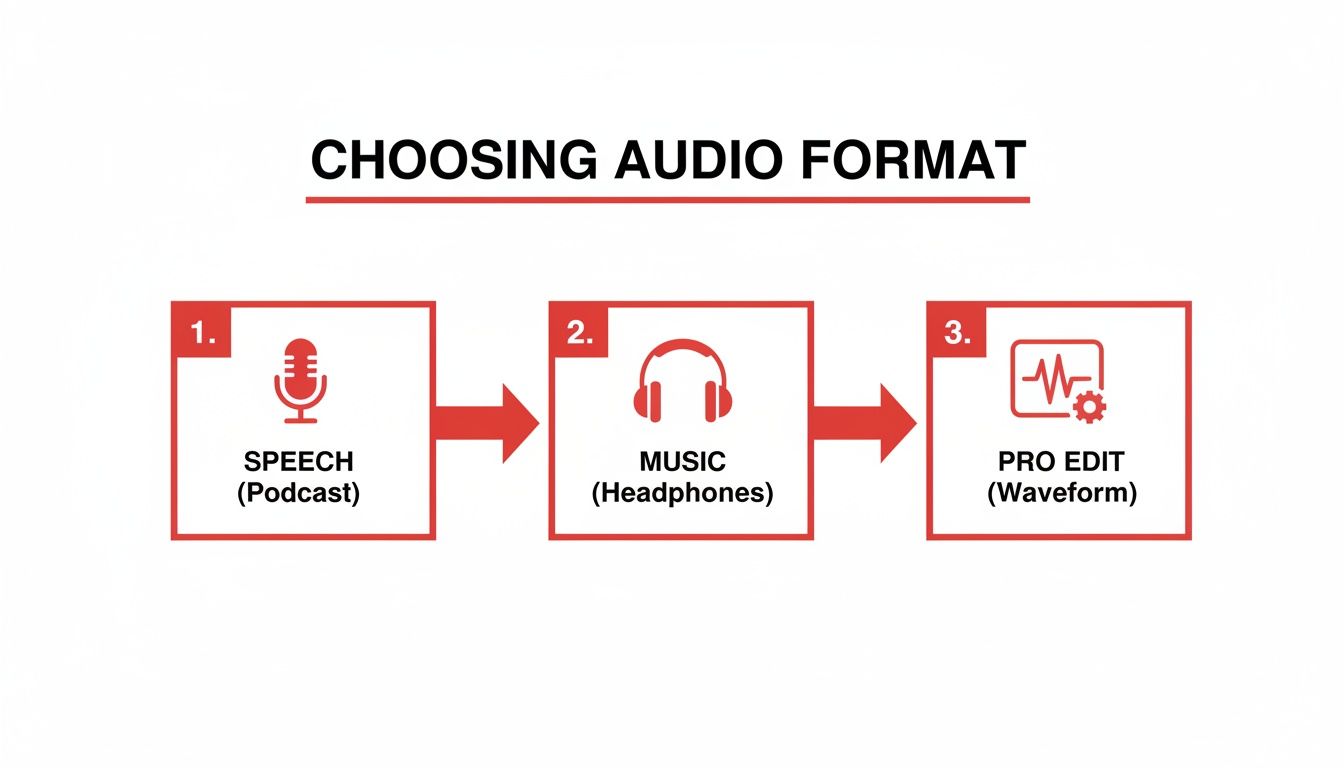
When you rip the audio from a Youtube video, the converter will usually throw a few options your way. Picking the right format and quality isn't just a technicality—it makes a huge difference to the final result, affecting both sound quality and how you can use the file later.
Think of it like saving a picture. For a quick social media post, a small JPEG is perfect. But a professional photographer will always shoot in RAW to capture every last detail for editing. Audio formats are no different; it’s all about striking the right balance between file size and sound fidelity for what you need to do, whether that's listening, transcribing, or producing a podcast.
Understanding Common Audio Formats
Most online tools will give you a handful of standard choices. Each one has its own pros and cons, making it better for certain jobs. Getting to grips with the basics will help you pick the right one every time.
Here's a quick look at the most common formats you'll run into:
- MP3 (MPEG-1 Audio Layer III): This is the undisputed king of audio. It's a compressed format, which means it cleverly strips out sounds our ears can't really pick up anyway, keeping file sizes small. An MP3 is ideal for downloading a podcast for your commute or when you need a manageable file for AI transcription.
- WAV (Waveform Audio File Format): Think of WAV as the original, untouched audio. It's an uncompressed, lossless format—a perfect, bit-for-bit copy. This gives you the absolute best quality possible, but the files are massive. If you're a creator needing pristine audio for serious editing in a program like Adobe Audition, WAV is your go-to.
- AAC (Advanced Audio Coding): Often hailed as the successor to MP3, AAC usually delivers better sound quality at the same file size. It’s the standard for Apple's ecosystem (think iTunes and Apple Music) and is a brilliant all-rounder if you see it as an option.
To make it even clearer, here’s a simple table to help you decide.
Common Audio Formats Compared
| Format | Best For | File Size | Quality |
|---|---|---|---|
| MP3 | Casual listening, podcasts, music playlists | Small | Good to Great |
| WAV | Professional audio editing, archiving, music production | Very Large | Lossless/Best |
| AAC | Streaming, modern devices (great all-rounder) | Small | Great |
Ultimately, the format you choose should match what you plan to do with the audio file.
What Does Bitrate Mean For You?
Besides the format, you'll also see quality settings like 128kbps, 192kbps, or 320kbps. This is the bitrate, and it simply measures how much data is used to encode one second of audio.
More data means better sound, but also a bigger file. For most everyday listening, 192kbps is the sweet spot, giving you excellent clarity without hogging storage. If you’re an audiophile or the audio is for a professional project, push it to 320kbps for the best quality you can get from an MP3. On the other hand, for a simple voice recording like a university lecture, even 128kbps will be perfectly clear for listening or transcribing.
Your end goal should always guide your choice. Grabbing a high-quality WAV file for a podcast you'll only listen to on your commute is overkill. Conversely, using a low-quality 128kbps MP3 for a professional video project will leave you with disappointing results.
Making the right selection ensures your extracted audio is perfectly suited for its intended use, whether for casual listening or a complex creative endeavour. For a deeper dive into different methods, you can learn more about how to convert audio from Youtube in our related guide.
A Safer Method Using Browser Developer Tools
If you're wary of pasting links into random third-party websites—and frankly, you should be—there’s a much cleaner way to get audio from a Youtube video. You can do it right inside your web browser using its built-in developer tools.
It sounds a bit technical, but it's more straightforward than it seems. This method bypasses all the sketchy ads and potential security headaches of online converters. You're essentially grabbing the audio file directly from Youtube's servers, giving you a high-quality source for your productivity or content repurposing needs.
Finding The Media Stream In Your Browser
First things first, you need to open the developer tools. On the Youtube video page, just right-click anywhere and choose "Inspect." Alternatively, a quick keyboard shortcut like Ctrl+Shift+I (on Windows) or Cmd+Option+I (on Mac) will do the trick.
A new panel will pop up, likely filled with code that looks intimidating. Don't worry, you can safely ignore almost all of it. We're just looking for one specific thing: the audio stream.
With the developer panel open, here’s what to do:
- Click on the "Network" tab. This is where your browser shows you all the different files it's fetching from the website.
- Now, refresh the Youtube page. You'll see this tab instantly populate with a long list of requests.
- To cut through the noise, find the filter bar at the top of the Network tab and type "audio". You could also look for a "Media" filter option. This isolates the file we're after.
- Let the video play for a few seconds and watch the list. You're looking for a file that is steadily growing in size—that’s your audio stream being buffered.
The trick is to spot the request that's actively downloading the audio. It’s usually one of the larger files that appears after the page loads. Once you’ve found it, you’re just a couple of clicks away from saving it.
Downloading The Audio File Directly
Once you've pinpointed the right audio stream in the Network tab, right-click on its name in the list. A menu will appear with an option like "Open in new tab."
Clicking that will open the raw audio file in a new browser tab, usually with a simple media player. From here, you can just right-click again on the player and select "Save audio as..." to download it directly to your computer.
The file you get will typically be a high-quality .m4a or .webm format. These are great for listening and can be easily converted to something else like an MP3 if you need to.
Sure, this takes a little more digging than using a converter, but the trade-off is well worth it. You get a clean, high-quality audio file straight from the source. No ads, no tracking cookies, and definitely no malware. It’s a great skill to have if you find yourself needing to grab audio on a regular basis.
Navigating The Legal And Ethical Side Of Audio Extraction
It’s incredibly easy to extract audio from a video online Youtube, but just because you can doesn't always mean you should. This is less about the tools and more about respecting the people who create the content we all enjoy. The second you hit that download button, you're wading into the waters of copyright law.
Youtube's Terms of Service are pretty direct about this. Essentially, you shouldn't download any content unless Youtube explicitly gives you a "download" button or link for it. This rule exists for a good reason: it protects the intellectual property of the musicians, podcasters, and educators who make their living on the platform.
Copyright And Fair Use Explained
This whole conversation boils down to two big ideas: copyright and fair use. Copyright automatically gives creators exclusive rights over their work. But "fair use" (known as "fair dealing" in some countries) is a legal concept that lets you use copyrighted material without permission, but only for very specific reasons that often benefit society.
What does fair use typically cover?
- Commentary or Criticism: Using a short audio clip in a reaction video or review.
- Education & Accessibility: A professor playing a snippet of a famous speech during a lecture, or creating an audio-only version of educational content for personal study or for a visually impaired student.
- Parody: Creating a funny, satirical take on an original work.
- Transformative Use: Repurposing the audio in a completely new way, for example, transcribing it to create a text-based study guide or an accessible blog post.
Fair use isn't a free-for-all, though. It's a nuanced guideline, decided on a case-by-case basis. It definitely doesn't mean you can grab a whole album for your personal playlist to get around buying it.
My rule of thumb? Always assume the content is protected by copyright. Only download audio if you have clear permission, the work is in the public domain, or it has a Creative Commons licence that allows it.
Making Responsible Choices
This is a big deal everywhere, but especially in places like the Netherlands, where Youtube is a go-to source for music. It's common for people, particularly younger listeners, to convert videos for offline use. The sheer popularity of this practice, as you can see from data on Youtube usage in the Netherlands on Statista.com, just makes it more important for everyone to be mindful.
At the end of the day, it's about respecting the creators. Before you extract any audio, just ask yourself a quick question: Does my plan honour the creator's work and stay within the spirit of fair use? If you're not sure, it’s always smarter to play it safe.
Frequently Asked Questions
Even with the best tools, a few questions always pop up when you're trying to extract audio from video online Youtube. Let's tackle some of the most common ones so you can move forward with confidence.
We'll cover the big topics: legality, what quality settings actually matter, and how to get it done on your phone.
Is It Legal To Extract Audio From A Youtube Video?
This is the big one, and the answer isn't a simple yes or no. In general, Youtube's Terms of Service don't permit downloading content, especially if it's copyrighted. The platform is built for streaming, not for saving files.
That said, there are some important exceptions where you're usually in the clear. You can typically download audio if the content is:
- In the public domain, meaning its copyright has expired.
- Covered by a Creative Commons licence that explicitly allows you to download and reuse it.
- For your own personal use under "fair use" rules, like for study, research, accessibility, or transformative content repurposing.
When in doubt, always respect the creator's work. If you're not sure you have the right to download it, it's safest to just stream it.
What Is The Best Audio Quality To Choose?
The "best" quality really depends on what you need the audio for. There’s no point in downloading a massive file if you don't need pristine quality.
For most everyday listening, like a podcast or a lecture, an MP3 at 192kbps or 256kbps is the sweet spot. You get great clarity without a huge file size, which is perfect for AI transcription services.
However, if you're a serious audiophile or you're using the audio for a professional project, you'll want the highest quality you can get. That usually means a 320kbps MP3. If sound quality is absolutely critical, look for a lossless format like WAV, but be prepared for a much larger file. For simple spoken-word content, you can easily get by with 128kbps.
Can I Extract Audio On My Mobile Phone?
You absolutely can. Almost every online converter tool is designed to work perfectly on a phone's web browser, whether you have an iPhone or an Android.
The steps are exactly the same as on a computer. Just copy the video link from your Youtube app, paste it into the converter's site, pick your format, and download the audio file straight to your device.
The main thing to watch out for on mobile is the ads. Be careful not to click on aggressive pop-ups or misleading download buttons, which can be even more confusing on a small screen.
A common pitfall on mobile is unintentionally clicking on an ad that redirects you to the app store or another website. Be patient and look for the genuine download link, which is often less flashy than the advertisements surrounding it.
And if your goal is to turn that audio into text, we have a complete guide on how to get a Youtube video transcript that makes the process incredibly simple, unlocking powerful options for content repurposing and accessibility.
Ready to turn your favourite Youtube content into text? With YoutubeToText, you can generate accurate transcripts, subtitles, and summaries in just minutes. Start transcribing for free today!