Learn safe and effective web video download techniques. This guide covers everything from browser tools to advanced software for your offline viewing needs.
Your Complete Guide to Web Video Download Methods
Downloading a video from a website simply means saving a copy to your device so you can watch it offline, repurpose it for new content, or make it more accessible. The right method depends on your goal.
For a quick, one-time grab, an online tool or a browser extension is usually the fastest route. But if you’re looking to download videos in bulk for content repurposing or need specific formats for transcription, a command-line tool like yt-dlp offers much more control. Just a quick heads-up: always be mindful of copyright before you download anything.
Why You Might Need to Download Web Videos
Saving a video to your computer is about more than just having something to watch on your commute. It’s about turning a piece of online media into a real asset you can use for work, research, or creative projects. Downloading is often the first step to unlocking a video's full potential for productivity, accessibility, and content creation.
If you’re a content creator or marketer, this is your bread and butter. Think about taking a long webinar, transcribing it for an article, and chopping it up into a dozen bite-sized clips for social media. Or grabbing the best moments from a customer testimonial, adding captions, and popping it into a presentation. This kind of workflow boosts productivity and opens up new ways to connect with your audience.
For students and researchers, downloading videos helps build a reliable library for offline study and analysis. Journalists can archive interviews and source clips, ensuring they’re always available for fact-checking and transcription. This makes content more accessible and easier to work with, long after the original link might have disappeared.
Finding the Right Tool for the Job
So, which tool should you use? It all comes down to what you’re trying to achieve. There’s no single “best” method, only the right one for the task. The biggest trade-off is usually between convenience and control. Do you just need to save one video quickly for offline viewing, or are you after precise settings for quality, format, and downloading multiple files for a content repurposing project?
This simple flowchart can point you in the right direction, helping you decide between a user-friendly option and a more powerful, technical one.
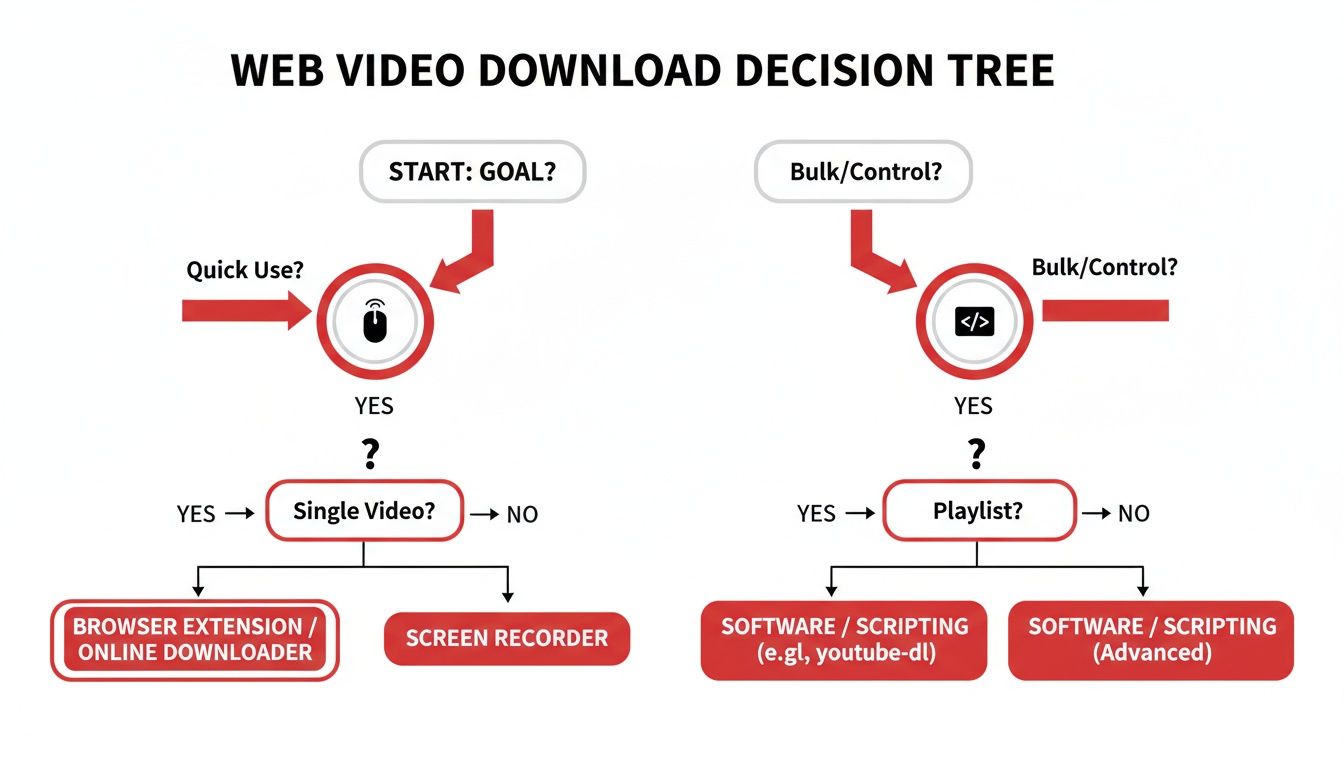
As you can see, for simple, occasional downloads, browser-based tools are perfect. But when you need to handle bulk jobs, automate workflows, or prepare content for transcription and subtitling, command-line applications are the way to go.
Comparing Web Video Download Methods
To make it even clearer, here’s a quick overview of the different methods to help you choose the best fit for your situation.
| Method | Best For | Ease of Use | Typical Features |
|---|---|---|---|
| Browser Extensions | Quick, occasional downloads from popular sites | Very Easy | One-click downloads, simple quality selection. |
| Online Downloaders | One-off downloads without installing software | Very Easy | Copy-paste URL, basic format options. |
| Desktop Software | Batch downloads, playlists, format conversion | Moderate | Advanced quality/format settings, built-in player. |
| Command-Line (yt-dlp) | Power users, bulk/automated downloads, preparing videos for transcription | Difficult | Total control over format, quality, subtitles, metadata. |
Each method has its place. The key is matching the tool's strengths to your immediate need, whether that's grabbing a single clip in seconds or building a complex workflow for content repurposing.
The Bigger Picture: Content Accessibility and Use
Knowing how to manage online video is becoming more and more relevant. Just look at the numbers. In early 2023, Youtube had 15.50 million users in the Netherlands alone, reaching a massive 88.1% of the total population. This incredible adoption shows how much people love online video and highlights the growing need for tools to manage it. You can learn more about these digital trends in the Netherlands if you're curious.
Ultimately, the goal is to connect online video with real-world results. Here are a few practical scenarios where downloading a video is the essential first step:
- Creating Subtitles: Download a video, upload it to an AI transcription service, and get accurate subtitles to make your content accessible to a wider audience.
- Content Repurposing: Save a long-form interview to your computer so you can easily edit it into shorter social media clips or transcribe it into a blog post.
- Productivity & Research: Run downloaded video files through analysis software to spot trends, or transcribe lectures to create searchable study notes.
- Offline Presentations: Embed videos directly into your slides to avoid embarrassing buffering issues during a presentation, ensuring a smooth delivery.
By getting a handle on a few download techniques, you give yourself the power to use video content on your own terms. You can turn it into a powerful tool for communication, accessibility, and productivity. This guide will walk you through the most effective methods, so you can save, repurpose, and analyse web videos with confidence.
Easy Downloads with Browser Extensions and Online Tools
If you just need to grab a video from the web without getting bogged down in complicated software, browser-based tools are your best friend. They're incredibly handy, often adding a download button right on the page you're viewing or just asking you to copy and paste a link.
This approach is perfect for everyday productivity. Maybe you're a student saving a lecture to watch offline before an exam, or you’re a social media manager archiving a competitor's ad for your team's inspiration board. In these cases, you just need it done quickly and simply.
Finding and Trusting Browser Extensions
Browser extensions plug right into your web browser, like Chrome or Firefox, giving you one-click download powers. You can find them easily by searching your browser's official web store. But a word of caution: not all extensions are created equal, and picking a dodgy one can be a security nightmare.
Here’s my personal checklist for vetting any video downloader extension:
- Recent Updates: I always check the "Last Updated" date. An extension that’s actively maintained is far less likely to have security holes or break when websites change their code.
- Real User Reviews: A high number of positive reviews is a good sign. I make sure to read the recent ones, though, to see if it still actually works as promised.
- Sensible Permissions: Before you install, the extension will list the permissions it needs. If a simple video downloader asks for access to my browsing history or contacts? That’s an immediate red flag. No thanks.
Once you’ve found a good one, it will usually let you pick the video quality (720p, 1080p, etc.) and sometimes even the format. MP4 is the universal standard, and 1080p usually hits that sweet spot between great quality and a file size that won’t eat up your hard drive, which is perfect for later use in presentations or social media.
Using Web-Based Downloaders Without Getting Scammed
If you’re not keen on installing anything, a web-based downloader is the way to go. These are just websites where you paste the video's URL, and it spits out download links for you. They’re super convenient, but this is where you need to be the most careful.
The trade-off for these "free" services is often a screen full of aggressive and misleading ads. Some can even push you towards malicious downloads.
My golden rule: never, ever click on the pop-ups or download any "required software" these sites try to force on you. A legitimate download link should be a direct link to a file, usually ending in .mp4 or a similar video format.
To stay safe, try to stick with well-known online downloaders that have a clean layout and aren’t plastered with sketchy ads. If a site feels spammy, trust your gut. It probably is. Just close the tab and find a better one.
It's also worth remembering that for some tasks, like prepping a video for transcription, you might not need the video file at all. Some modern tools can extract the audio directly from a Youtube link, letting you skip the download process entirely and boosting your productivity.
And if direct downloading is blocked, don’t forget you have another trick up your sleeve. Using one of the best free screen capture tools is a great workaround. This method simply records whatever is playing on your screen, giving you a reliable way to capture the content you need for offline viewing or analysis.
Unlocking Advanced Control with Command-Line Tools
When you move beyond simple one-off downloads and need real power for productivity, accessibility, and content repurposing, it’s time to look at command-line tools. I know, the idea of a black screen with blinking text can seem a bit intimidating at first, but tools like yt-dlp (a popular and well-maintained fork of youtube-dl) are the secret weapon for professionals. They offer a level of control that browser extensions and online services just can’t touch.
This is the method I personally use for any kind of bulk archival project or content workflow. It’s an absolute game-changer if you need to download dozens of videos at once. Think of researchers saving an entire archive for textual analysis, educators grabbing a full course playlist for offline use, or content creators snagging just the highest-quality audio from an interview to create a transcript and blog post.
The image above really captures the spirit of this method: you’re moving away from manual clicks and towards automated, repeatable commands. This shift is what turns a tedious manual task into an efficient, almost effortless process, especially when you need to scale up your content repurposing workflow.
Getting Started with yt-dlp
First things first, you need to get yt-dlp installed on your system. Unlike a browser extension, it's a small programme that runs in your computer’s Command Prompt (on Windows) or Terminal (on macOS and Linux). The installation is surprisingly straightforward, and the official yt-dlp page on GitHub has simple instructions for every operating system.
Once it's installed, you can start running commands. Don't worry about memorising anything complex; you can begin with simple copy-and-paste commands and build from there. The basic structure is always the same: yt-dlp [OPTIONS] "VIDEO_URL".
The real magic is in the options you add. You can tell it exactly what you want.
Practical Commands for Everyday Power Users
Let's get into some real-world examples. Instead of just theory, here are a few practical commands you can adapt for your own projects. I'll break down what each part does so you can understand the logic.
Download a single video in the best quality: This is as simple as it gets. Just give yt-dlp the URL, and it automatically figures out the best video and audio streams, merging them into a single MP4 or MKV file for you.
yt-dlp "https://www.youtube.com/watch?v=your_video_id"Download an entire playlist: This is where command-line tools really flex their muscles. To grab every video in a playlist, you just feed it the playlist URL. It will even number the files for you automatically. This is perfect for archiving an entire lecture series for later study.
yt-dlp "https://www.youtube.com/playlist?list=your_playlist_id"Extract audio only for a podcast or transcription: If you only need the audio track, this is incredibly efficient. The
-xflag tells it to extract the audio, and--audio-format mp3specifies the output format. This is the ideal first step for repurposing a video interview into a podcast episode or creating a transcript.yt-dlp -x --audio-format mp3 "https://www.youtube.com/watch?v=your_video_id"
These commands just scratch the surface. With yt-dlp, you can download private videos (if you have access), embed metadata, and even point it to a text file full of URLs to download in bulk. It’s the ultimate tool for serious archival work and efficient content workflows.
The desire for this kind of control over content isn't niche. Just look at recent market trends—Dutch consumers, for example, spent 103.5 million USD on transactional video on demand, which shows a strong preference for owning or having offline access to specific content. You can explore more insights on the Dutch video-on-demand market on Statista. This behaviour is exactly why so many people turn to powerful download tools.
Adding Subtitles to Your Downloads
For content creators, researchers, and language learners, one of the most valuable features is the ability to download subtitles right along with the video. This is crucial for accessibility, analysis, and repurposing content. Manually finding and syncing subtitle files is a massive headache, but yt-dlp makes it completely automatic.
Here are a few commands to get you started with subtitles:
See all available subtitles: Before you download, you can quickly check which languages are available.
yt-dlp --list-subs "https://www.youtube.com/watch?v=your_video_id"Download a specific language subtitle: If you just want the English subtitles, you can specify it. The
--write-subsflag downloads the subtitle file (usually a .vtt or .srt file) alongside your video. This is perfect for making content accessible or for translation projects.yt-dlp --write-subs --sub-lang en "https://www.youtube.com/watch?v=your_video_id"Embed subtitles directly into the video file: This one is my favourite for productivity. The
--embed-subsflag actually merges the subtitle track into the video container itself, so you can easily turn captions on or off in your media player without juggling separate files.yt-dlp --embed-subs --sub-lang en "https://www.youtube.com/watch?v=your_video_id"
Mastering this single feature can dramatically improve your workflow. If you want to dive deeper, our guide on how to download a Youtube video with its subtitles breaks down even more options for managing your downloaded captions.
Staying on the Right Side of Copyright and Ethics
It's never been easier to download a video from the web, but that convenience comes with a huge responsibility: respecting the people who created it. This isn't about memorising dense legal jargon. It's about understanding the basic rules so you can use content fairly and focus on your goals, whether it's enhancing accessibility, creating new content, or improving your productivity.
The video above does a fantastic job of breaking down the core ideas of copyright. If you're a journalist, teacher, or content creator who needs to repurpose clips, getting this right is non-negotiable.
Understanding Fair Use and Creative Commons
Two concepts you’ll bump into constantly are Fair Use (or 'Fair Dealing' in places like the UK and Canada) and Creative Commons.
Fair Use is a legal principle that says you can use small bits of copyrighted material without permission for things like commentary, news reporting, or schoolwork. But here's the catch: it's a grey area. It’s a defence you can make, not a free pass to do whatever you want.
Creative Commons, on the other hand, is refreshingly clear. It’s a system where creators can tell you upfront exactly how you can use their work, moving away from the old "all rights reserved" model, which is a massive win for content repurposing.
When you spot the familiar Creative Commons logo, you know the creator has chosen to share their work.
This symbol is your cue to check the specific licence they've chosen—it might let you download, share, or even remix their content without any hassle, as long as you give proper credit.
How to Check a Video's Licence
Thankfully, most platforms make this easy. Take Youtube, for instance. To check a video's licence, just go to the description box below the video and click "Show more." If you scroll down, you'll find a "Licence" section.
You'll usually see one of two things:
- Standard Youtube Licence: This is the default setting. It means you can watch it on Youtube, but you can’t download, re-upload, or use it elsewhere without the creator's direct permission.
- Creative Commons Attribution licence (CC BY): This licence is a game-changer for content creators. The creator is giving you the green light to reuse and even edit their video, as long as you give them credit for the original.
Always check the licence before you download for repurposing. It takes two seconds and is the single most important habit you can build to use web video legally and ethically. Doing this can save you from a world of copyright headaches later on.
This really matters in places where video is a huge part of daily life. For example, on Dutch social media, 14.3 million people spend about two hours a day on these platforms. With Youtube alone reaching 15.50 million users in the Netherlands, a massive number of people are interacting with this content every single day. You can read more about these social media milestones on wearesocial.com. That widespread use just highlights how crucial it is for everyone to understand and respect these rules.
From Download to Done: The Power of AI Transcription
So, you’ve downloaded your video. Great. But what’s next? Getting the file onto your computer is really just the starting point. The real value comes when you turn that video into something you can actually work with—like searchable, editable text.
This is where AI transcription comes in, and it’s a game-changer for productivity and content repurposing. For creators, it means you can take a long-form interview and quickly chop it up into blog posts, tweets, or social media snippets. Researchers can sift through hours of recorded talks without the soul-crushing task of typing it all out by hand. For anyone focused on accessibility, a transcript is the foundation for creating accurate subtitles.
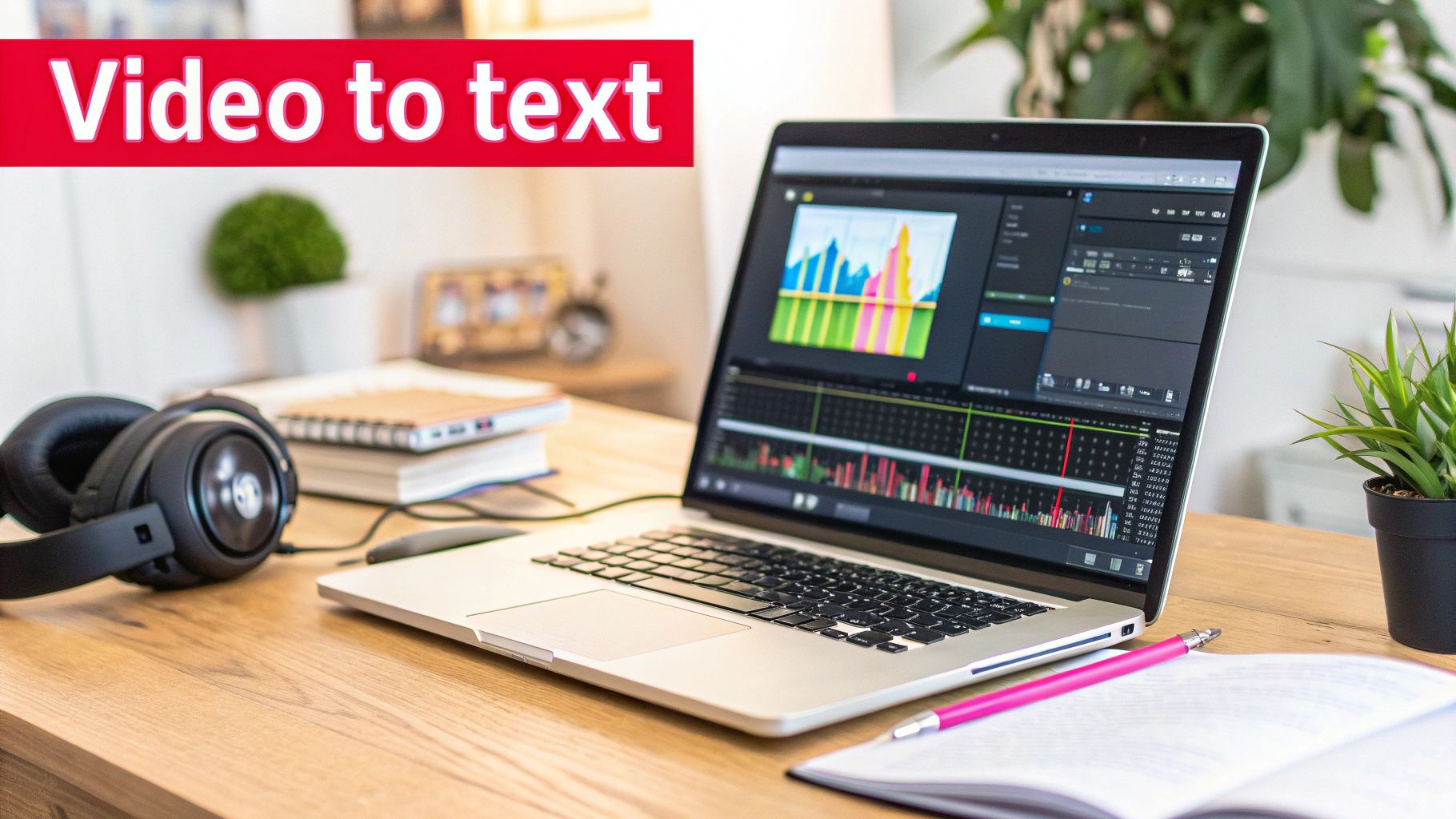
The image above gets right to the heart of it: taking a visual medium and converting it into text opens up a world of possibilities for analysis and repurposing content, dramatically boosting your productivity.
Getting Your File Ready for Transcription
Before you even think about hitting that "transcribe" button, you need to focus on one thing: audio quality. AI tools are smart, but they aren't magic. They can't accurately capture words they can't hear clearly. When you download a video, you'll often have a choice of quality and format—this choice makes all the difference for your transcript's accuracy.
Always go for the highest quality audio available. If you can download the audio track separately, formats like WAV or a high-bitrate MP3 are your best bet. If you’re grabbing the whole video file, a standard MP4 is usually a safe choice, as nearly every transcription service out there can handle it.
The old saying "garbage in, garbage out" has never been more true. A clean audio source with clear speakers and little background noise will get you a transcript that's 95% accurate or even better. A noisy, muddled file will just give you a wall of gibberish that’s more work to fix than transcribing it yourself from scratch.
When you download your video, picking the right file format is crucial for getting a clean, accurate transcript later on. Some formats are simply better suited for processing audio clearly.
Best Formats for High-Quality Transcription
| File Type | Best For | Why It Works Well | Considerations |
|---|---|---|---|
| MP4 | General-purpose video downloads | Widely supported by almost all transcription services. | Video quality can impact file size, but audio is usually fine. |
| WAV | Highest-quality audio extraction | Uncompressed, lossless format that preserves every detail. | Files are very large, which can be slow to upload. |
| MP3 | Good quality audio with smaller file sizes | A good balance of quality and size. Easy to handle and share. | Make sure you select a high bitrate (192 kbps or more). |
| FLAC | Lossless audio for archival purposes | Like WAV but compressed, so file sizes are smaller. | Not as universally supported as MP3 or WAV. |
Ultimately, if you prioritise clean audio in a common format, you’re setting yourself up for a much smoother and more accurate transcription process.
A Smarter Way to Work with AI Tools
Let’s be honest, uploading a massive video file can be a slow, clunky process. A much smarter workflow is to use a service that can grab the video directly from its source URL, cutting out the download-then-upload step completely. This is where tools like YoutubeToText.ai really come in handy, supercharging your productivity.
Instead of messing around with local files, you just paste in the Youtube link. The tool does all the heavy lifting in the cloud and spits out exactly what you need. It saves you bandwidth, time, and a whole lot of hassle.
From one link, you can typically get:
- A full transcript of everything spoken in the video.
- A quick, AI-generated summary highlighting the main points.
- Perfectly timed subtitle files (like SRT or VTT) to make your video more accessible.
This approach turns a simple downloaded video into a wellspring of structured, reusable information. If you're new to all this, learning how to transcribe a video to text is a core skill that will boost your productivity tenfold.
In the end, it’s all about making your content work smarter, not harder. By turning dialogue into text, you make it discoverable, shareable, and far easier to repurpose. For a deeper look at the nitty-gritty, check out our guide on how to transcribe a Youtube video for more practical tips.
Got Questions About Downloading Web Videos?
Once you start downloading videos from the web, a few questions are bound to come up. It's totally normal to wonder about the legal side of things, what quality settings to pick, or how to stay safe from dodgy software. Let's clear the air and tackle some of the most common queries I hear.
Think of this as your practical cheat sheet. We'll walk through the big questions so you can download what you need with confidence, whether it's for improving accessibility, content repurposing, or personal productivity.
Is It Actually Legal to Download a Video from the Internet?
This is the million-dollar question, and the honest answer is: it’s complicated.
Legally speaking, downloading copyrighted material without the owner’s explicit permission is a no-go. But the reality is a bit of a grey area. For instance, it's perfectly fine to download videos that are in the public domain or have a Creative Commons licence that allows for it. This is key for content repurposing.
The best practice is to always check the website's terms of service and the video's specific permissions. When it comes to saving a publicly available video for your own personal, offline viewing, it's generally a case of "don't ask, don't tell." Most platforms don't officially allow it, but it's widely tolerated.
What Video Quality Should I Choose When Downloading?
The "best" quality really depends on what you're using the video for. It’s all about finding the right balance between how good it looks and how much space it takes up on your hard drive.
Here’s my simple breakdown based on experience:
- For Casual Viewing: Just watching on your laptop or phone? 1080p in an MP4 format is your sweet spot. The quality is crisp, and the file size won’t clog up your device.
- For Editing or Archiving: If you're a video editor or you’re saving something important for the long haul, always go for the highest quality available. That might mean a 4K download in a format like MKV, which is great because it can bundle multiple audio and subtitle tracks into one file.
- For Transcription: When your main goal is getting a text transcript to boost accessibility or repurpose content, visual quality doesn't matter much. What you need is crystal-clear audio. Always choose the download option with the highest audio bitrate. This makes a huge difference for transcription accuracy.
A good rule of thumb? Match the quality to your screen. Downloading a massive 4K file just to watch on a tiny phone screen is overkill and a waste of storage.
Could a Video Downloader Give My Computer a Virus?
Unfortunately, yes. This is a real risk, and you need to be careful. The web is littered with sketchy online converters and "free" tools that are just a front for malware, adware, or spyware.
Your best defence is to be smart about the tools you use. Stick to reputable, well-known software. An open-source tool like yt-dlp is a fantastic choice because its code is public, meaning thousands of developers have scrutinised it for anything malicious.
If you prefer browser extensions, only install them from official stores like the Chrome Web Store. Before you click install, take a minute to read recent reviews and check out the developer. If a website bombards you with pop-ups and confusing download buttons, that’s a massive red flag. Trust your gut and close the tab.
How Do I Download a Private or Unlisted Video?
This one requires a bit of technical know-how and, more importantly, a strong ethical compass. You can generally only download private or unlisted videos if the creator has shared the direct link with you and given you their blessing.
More advanced tools like yt-dlp can sometimes pull this off by using your browser's login cookies to authenticate. Essentially, the tool acts on your behalf, as if you were logged in and watching it yourself.
However, and I can't stress this enough, you should only ever do this with explicit permission from the video's owner. Trying to get around privacy settings to access content you weren't meant to see is a huge invasion of privacy and a breach of trust. Always respect the creator's intentions, especially if you plan to repurpose or transcribe their content.
Ready to put those downloaded videos to work? YoutubeToText is the easiest way to get accurate transcripts, summaries, and subtitles from any spoken content. Instead of wrestling with video files, just paste a Youtube link and get the text you need in a snap. Start making your video content more accessible and searchable at https://youtubetotext.ai.