Unlock every method for a transcript Youtube download. Our guide covers simple tricks, developer tools, and automated services for perfect text every time.
Transcript Youtube Download: A Guide to Getting Accurate Text
You can get a transcript from a Youtube video in a couple of ways. The quickest method is using Youtube's own 'Show transcript' feature, then copying and pasting the text. It's a bit messy, but it works. For a much cleaner, more accurate result, you can use a dedicated service that pulls a polished transcript straight from the video's URL, solving the problem of inaccurate and poorly formatted text.
Why Bother Downloading Youtube Transcripts?
Turning video into text isn't just about creating subtitles; it's about unlocking the full potential of your content. Professionals in marketing, research, and education are discovering how converting spoken words into a written format can solve major challenges around productivity, accessibility, and content strategy. This simple step can make your content work much harder for you.
For example, a marketer can transform an hour-long webinar into a detailed, SEO-friendly blog post, reaching audiences who prefer reading. A researcher can instantly search hours of interview footage for key quotes, saving valuable time. This isn't just a technical trick; it's a productivity hack.
Making Content Accessible and Reusable
At its core, the biggest win is making information more flexible and inclusive. A video is a locked box, but a transcript is open, searchable, and incredibly easy to repurpose. This solves the problem of single-use content and opens up a world of possibilities:
- Breathe New Life into Old Content: One video can be the source for a dozen new pieces of content. Think blog articles, social media snippets, email newsletters, or even staff training guides.
- Improve Accessibility for Everyone: Transcripts are essential for people with hearing impairments, solving a critical accessibility barrier. They also help non-native speakers who might find it easier to read along than to follow fast-paced speech.
- Speed Up Research and Analysis: Academics and journalists can analyse interviews, lectures, and documentaries in a fraction of the time, pinpointing specific quotes and data without having to re-watch anything.
When you convert video to text, your content starts pulling double duty. It’s no longer just a video—it’s a searchable database, a source of knowledge for everyone, and a goldmine for content repurposing.
Getting Around Youtube's Own Limitations
While Youtube's built-in transcript tool is a decent starting point, it often creates more work than it saves. The automatically generated captions are frequently full of mistakes, especially if the speaker has an accent or uses technical terms. The formatting is also a bit of a mess and usually needs a lot of tidying up. For a closer look at the process, we have a complete guide on how to transcribe a Youtube video.
In the Netherlands, for example, Youtube is massive, with 9.8 million people using it every month. That's about 52% of the population, showing just how much demand there is for reliable transcriptions to improve accessibility and repurpose Dutch-language content.
This guide will walk you through all the options for getting a clean transcript, from simple copy-paste tricks to powerful, automated tools that solve these common problems.
Quick and Simple Manual Methods
When you just need a transcript fast and don't want the hassle of installing new software, Youtube's own interface is your best bet. The built-in "Show transcript" feature is a no-frills way to grab the raw text of a video's dialogue, perfect for a quick reference or a one-off project.
You'll find this feature tucked away just below the video player. Click the "...more" button in the video's description box to expand it, and a button labelled "Show transcript" will pop up. Give that a click, and a new panel will appear right next to the video, showing you the entire script, complete with timestamps.
Copying and Cleaning the Raw Text
From this transcript panel, you can highlight and copy the text you need. There's a neat little option to toggle the timestamps on and off with a single click. If you don't need to know the exact timing for each line, turn them off before you copy—it’ll save you a fair bit of cleanup work later.
Once you paste the text into an editor like Google Docs or Microsoft Word, you'll see it's a bit rough around the edges. Youtube’s auto-generated transcripts are often full of weird line breaks and punctuation mistakes. It's essentially a direct, unedited dump of what the speech-to-text algorithm thinks it heard.
To solve the problem of messy text without pulling your hair out, the "Find and Replace" function in your text editor is your best friend. For example, if you copied the text with the timestamps still in, you can search for the time format (like MM:SS) and replace it with nothing. All gone in one go.
Common Cleanup Tasks
Timestamps are just the start. You'll likely run into a few other formatting quirks. Here are the usual suspects you can sort out with "Find and Replace":
- Removing extra spaces: It's common to find double spaces lurking between words. Just search for " " and replace them all with a single space " ".
- Fixing line breaks: Auto-transcripts love to start a new line for every tiny phrase. This means you'll probably have to go through and manually join sentences to form proper paragraphs.
- Correcting speaker labels: If the transcript attempts to identify different speakers, it often gets it wrong. A quick read-through is usually all you need to fix these labels and make the whole thing clear.
The manual copy-paste method is a solid choice for short videos where perfect accuracy isn't the main goal. But for anything longer, the time you'll sink into cleaning up formatting and fixing errors can quickly become a major productivity drain.
Ultimately, this is a great, no-cost way to get the job done. But it has its limits. The process is slow, repetitive, and the final accuracy hinges entirely on how good Youtube's auto-captions were in the first place, which can be a real mixed bag. For longer videos or any kind of professional work, you'll probably find this manual approach just doesn't cut it.
Getting Your Hands on the Subtitle Files
Copying and pasting a transcript is fine for quick jobs, but it's a messy business. You lose all the timing information, which is a dealbreaker for anything serious like video editing, detailed analysis, or content localisation. For that, you need the actual subtitle file, usually an SRT or VTT file.
These files are the real deal. They're not just text; they're text broken down into perfectly timed chunks, the very data Youtube uses to display captions. Grabbing these files is surprisingly straightforward and doesn't cost a thing—all you need is your web browser. This is hands-down the best free way to get a clean transcript youtube download, especially when the creator has uploaded high-quality, professional captions.
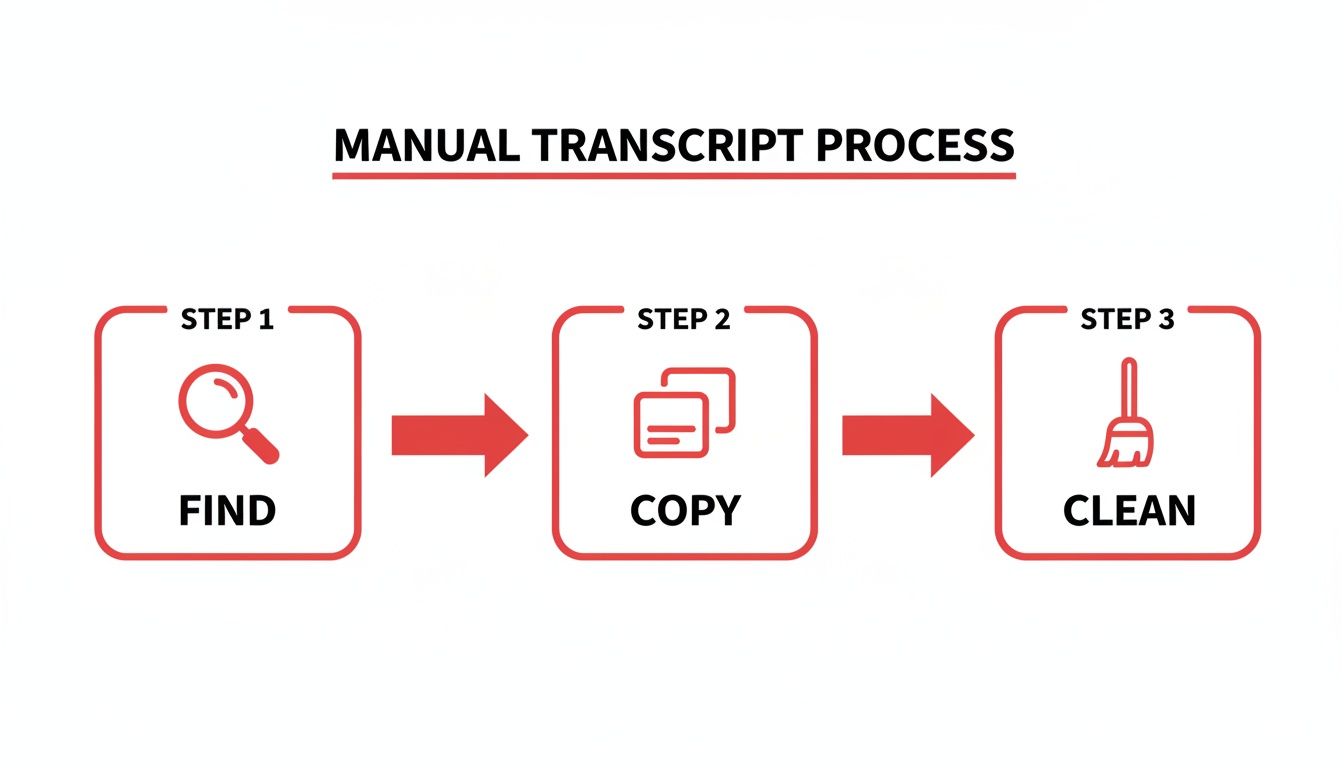
The process of finding, copying, and cleaning a transcript manually can be broken down into a few simple stages, as shown below.
We're about to take this core idea and make it far more powerful by grabbing the source file directly, skipping the tedious cleanup.
Using Browser Developer Tools
This might sound a bit technical, but trust me, it's easier than it looks. We'll walk through the process using Chrome and Firefox, but it's similar in most modern browsers. The idea is to peek behind the curtain at the data your browser is fetching from Youtube and snatch the subtitle file right out of the air.
First, navigate to the Youtube video you need the transcript from. Before you even press play, it's time to open the developer tools.
- You can right-click anywhere on the page and choose "Inspect" from the menu.
- Or, even faster, use the keyboard shortcut: Ctrl+Shift+I on Windows or Cmd+Option+I on a Mac.
A new panel will pop up. It can look a bit overwhelming, but we're only interested in one small part of it.
Pinpointing the Subtitle File
Once the developer panel is open, find and click on the "Network" tab. This tab acts like a log, showing you every single file your browser requests to load the page.
With the Network tab active, refresh the Youtube page. You’ll see a long list of items quickly filling the panel. To find what we're looking for, type "timedtext" into the small filter box at the top of this list. This will instantly hide everything else, leaving only the caption or subtitle files.
The magic of this method is getting a perfectly clean, timestamped file without any manual faffing about. You're getting the raw data that the Youtube player uses, which is perfect for professional work in video editing software or for precise academic analysis.
Just click on the file name that appears in the filtered list. A new pane will open next to it, displaying the contents of the file. You can now copy the entire block of text, paste it into a plain text editor (like Notepad on Windows or TextEdit on Mac), and save it with an .srt extension. That’s it!
If you're interested in exploring this further, you can find more details on how to download Youtube videos with subtitles and integrate them into your projects.
Comparing Youtube Transcript Download Methods
To help you choose the right approach for your needs, here’s a quick comparison of the main methods for getting a Youtube transcript.
| Method | Ease of Use | Accuracy | Output Format | Best For |
|---|---|---|---|---|
| Youtube UI (Copy/Paste) | Very Easy | Depends on video captions (auto or manual) | Plain Text | Quick, informal note-taking or content summaries. |
| Developer Tools | Moderate | Excellent (source file) | SRT / VTT (raw text) | Video editors, researchers, and anyone needing precise timestamps. |
| Third-Party Tools | Easy | Depends on the service | Plain Text, SRT, VTT | Users who need multiple formats or batch downloads without technical steps. |
| Command-Line (youtube-dl) | Difficult | Excellent (source file) | Multiple formats | Tech-savvy users who need scripting, automation, and maximum control. |
Each method has its place. For a simple text grab, the built-in transcript viewer is fastest. But for professional work requiring timestamps, digging into the developer tools or using a dedicated command-line utility is the way to go.
Using Command-Line Tools for Bulk Downloads
If you're comfortable working with a bit of code, command-line tools are a game-changer for speed and automation. This is the go-to method for developers, researchers, and anyone who needs to process a ton of videos at once—something that would take forever to do manually. This solves the problem of scale, allowing you to build powerful, automated workflows.
The undisputed champion here is a tool called yt-dlp. It’s a powerful, regularly updated program that lets you download videos, audio, and—most importantly for us—transcripts right from your computer's terminal.
Instead of clicking through menus for every single video, you can write one simple command to grab the transcripts for an entire playlist. It gives you incredible control over the whole process.
Getting Started with yt-dlp
The first step is installation, which is pretty straightforward on most systems. The main requirement is having Python on your machine, since yt-dlp runs on it. Once you've got Python, installing the tool itself is usually just a single line of code.
On macOS or Linux, you can often use a package manager like Homebrew (brew install yt-dlp) or Python's own installer, Pip (pip install -U yt-dlp). For Windows, you can just download the .exe file from the project's official website and pop it into a system folder so you can run it from anywhere.
The real magic of a command-line tool isn't just downloading one file; it's about automation. You could write a tiny script that runs weekly, automatically pulling transcripts from a channel's newest videos without you lifting a finger. This is productivity on a whole new level.
Once it's installed, you’re ready to start pulling transcripts.
Essential Commands for Downloading Transcripts
The power of yt-dlp comes from its "flags"—little add-ons to your command that tell it exactly what to do. You can instruct it to fetch only the subtitles, ignore the video entirely, and even pick the language and format.
Here are a few commands you'll find yourself using all the time:
To download all available English subtitles for a single video:
yt-dlp --write-auto-subs --sub-lang en --skip-download VIDEO_URL
This tells the tool to focus only on subtitles (--write-auto-subs), specifically English ones (--sub-lang en), and to ignore the actual video file (--skip-download).To grab transcripts for an entire playlist:
yt-dlp --write-subs --sub-lang en --skip-download PLAYLIST_URL
Notice how we just swapped the video URL for a playlist URL? The command will now loop through every video in that playlist and pull the English transcript for each one. Simple as that.To choose a specific format:
You can also specify whether you want an SRT or VTT file by using the--sub-formatflag. Just add--sub-format srtto get files that are ready to go in most video editors.
This method turns getting a transcript from a manual chore into a quick, automated workflow. For anyone who deals with a lot of video content, learning a few basic commands can save an unbelievable amount of time. And if you're looking for other ways to isolate a video's spoken content, have a look at our guide on how to extract sound from a Youtube video for more useful tricks.
Taking the Easy Route: Automated Third-Party Services
Let's be honest. Manual methods are tedious, and command-line tools can be intimidating. This is where dedicated third-party services come in, offering the most elegant solution to the problem of getting clean, accurate Youtube transcripts. They are designed to save you time and effort.
These platforms are built for one thing: getting you a high-quality transcript without the fuss. They completely sidestep the biggest headaches of other methods, like stripping out timestamps or fixing endless errors from Youtube's auto-captions. All you need is the video's URL. You paste the link, and their AI does the heavy lifting, delivering a polished transcript in minutes. For anyone whose time is valuable, this is often the smartest way to go.
So, Why Bother with a Dedicated Service?
It really comes down to solving two key problems: poor accuracy and lack of convenience. While Youtube's built-in captions can be a bit of a gamble, a service like YoutubeToText.ai often uses more advanced speech-recognition technology. The result? A much cleaner transcript that needs far less editing on your part.
On top of that, these platforms give you export options that you just don't get with manual methods. With a single click, you can usually download the transcript in several useful formats:
- Plain Text (.TXT): Perfect for grabbing the text to drop into a blog post, article, or your personal notes.
- SubRip Subtitle File (.SRT): The go-to format for video captions, solving compatibility issues with most video editing software.
- WebVTT File (.VTT): A more modern format for web video players that offers extra styling capabilities.
This one-click versatility is a game-changer for content repurposing. Imagine grabbing a TXT file for a blog post and an SRT file for your social media clips, all from the same video, all in one go. It’s an inspiringly efficient workflow.
This approach is a lifesaver when you're dealing with multiple videos or really long content. In the Netherlands, for instance, these tools have completely changed how people work. A staggering 68% of 250,000 NL creators now use transcription tools daily. By moving away from Youtube's flaky 60-80% accuracy auto-captions to precise AI, they've seen a 55% jump in repurposed content. You can read more about how Dutch creators use transcription tools on youtube-transcript.io.
The Simple Workflow of Automated Tools
Using a service like YoutubeToText.ai couldn't be simpler. You just find the Youtube video you need, copy the URL from your browser's address bar, and you're halfway there.
Head over to the service's website and look for the input box—you can't miss it. Paste the link, hit the button, and the platform's AI gets to work. Even for videos that are an hour or two long, the whole process usually only takes a few minutes.
Once it's done, you'll see the full transcript right there in your browser. You can give it a quick scan, make any small tweaks, and then choose your preferred file format to download. This turns what used to be a tedious chore into a quick, simple step in your workflow, solving a major productivity bottleneck.
Minding the Legal and Ethical Side of Things
Getting a transcript from a Youtube video is the easy part. The real test is how you plan to use it. It's incredibly important to know where the legal and ethical lines are drawn, especially if you're using the text for anything more than your own personal notes.
Grabbing a transcript for your private study notes or personal research is usually fine. But the moment you think about republishing that content, even just a small piece of it, you’re wading into copyright territory. Remember, the words spoken in a video are the intellectual property of the creator, and the transcript is a direct copy of that.
A Quick Word on Fair Use and Giving Credit
You've probably heard of "fair use" (or "fair dealing" in places like the UK and Canada). It's a legal concept that lets you use small bits of copyrighted material without asking, but only for specific things like commentary, criticism, or research. It's a notoriously grey area, though, and not a get-out-of-jail-free card. The best and most respectful path is always to give credit where it's due.
The golden rule here is simple: if you didn't create it, credit the person who did. Proper attribution isn't just about covering your back legally; it shows respect and builds trust with your audience and the original creator.
So, if you're quoting from a transcript in a blog post, an article, or a research paper, make sure your attribution is crystal clear. Something as simple as, "As [Creator's Name] explained in their video, '[Video Title]...'" along with a link back to the original Youtube video, is perfect. It gives them the credit they deserve and even sends some traffic their way. It’s a win-win.
Got Questions? We've Got Answers
When you start pulling transcripts from Youtube videos, you'll probably run into a few common head-scratchers. Let's solve some of the most frequent problems you might face.
Can I Actually Get a Transcript for Any Youtube Video?
Honestly, no. You can only get a transcript if the video has captions to begin with. These might be high-quality captions the creator uploaded themselves, or they could be the auto-generated ones from Youtube.
If a video has no captions whatsoever, there’s simply nothing to download. Your only real move at that point is to use an external service that can listen to the audio and generate a brand-new transcript for you, solving the problem of a missing transcript.
What's the Real Difference Between SRT and VTT Files?
You'll see these two file types pop up a lot. Both SRT and VTT are just plain text files that match up spoken words with timestamps, but they have slightly different jobs.
- SRT (SubRip Text): Think of this as the old reliable. It’s the most common and widely supported format out there. Just about every video player and editing program on the planet can read an SRT file, making it a super safe bet.
- VTT (WebVTT): This one is the modern, web-focused version. It was built for HTML5 video players and lets you do more advanced things like styling text (bold, italics) and positioning captions on the screen.
For most day-to-day tasks, either one will do the trick.
My rule of thumb: If you need maximum compatibility for offline editing, go with SRT. If you're working with web video and need styling options, VTT is your friend.
How Can I Fix a Terrible Auto-Generated Transcript?
Ah, the classic Youtube auto-caption mess. We've all been there. Trying to manually clean up a transcript full of errors is a massive time sink and a huge productivity killer.
Your best option is to run the video through a specialised AI transcription service. These tools use much more sophisticated speech-recognition technology than Youtube's built-in system, which means you'll get a far more accurate transcript right from the start. This is the most efficient solution to the accuracy problem.
The alternative is the painful process of copying the text and fixing every single mistake by hand. Trust me, for anything longer than a couple of minutes, it’s just not worth the headache.
Ready for a faster, more accurate way to get transcripts? YoutubeToText converts any Youtube video into clean, editable text in seconds. Paste a link and download your transcript in TXT, SRT, or VTT format. Try it now at https://youtubetotext.ai.