Discover how to get the transcript of a Youtube video using four simple and effective methods. Turn video content into text for SEO, research, and more.
Get the Transcript of a Youtube Video With These Proven Methods
Ever watched an hour-long webinar and desperately wished you had a searchable doc of all the key points? Or maybe you’ve created a fantastic video and want to turn it into a blog post without typing every single word. This is where knowing how to get the transcript of a Youtube video completely changes the game, solving the problem of locked-in, inaccessible video content.
It’s not just about having the text. It's about unlocking the immense potential held within your videos. A transcript transforms passive visual content into an active, incredibly versatile asset. Your valuable information is no longer confined to a video file; it becomes searchable, editable, and ready for content repurposing, making it more accessible and productive for everyone.
Expand Your Content’s Reach and Accessibility
One of the biggest wins you get from a video transcript is a serious boost in visibility and accessibility. Search engines can’t watch your video, but they can crawl and index text. When you add a transcript to your video's description or create a blog post from it, you’re feeding Google the keywords and context it needs to rank your content, solving the problem of poor video SEO.
This is a huge deal, especially in a crowded market. Take the Netherlands, for example. Youtube usage there is massive, hitting around 7.021 million users aged 15 and over in 2023. A transcript helps you connect with this audience, including the 18% of Dutch internet users who prefer reading a summary. More importantly, it makes content accessible to the 1 in 6 citizens with hearing challenges, solving a critical accessibility issue.
A transcript makes your video discoverable to a wider audience, including people who use search engines to find information or just prefer to read. It's an accessibility and SEO powerhouse rolled into one.
Streamline Your Workflow and Boost Productivity
Beyond reach, transcripts are incredible productivity tools. They solve the tedious problem of manual note-taking, saving countless hours for anyone who works with spoken content. This inspires a more efficient way of working and unleashes creativity.
Imagine how this solves problems in these roles:
- For Marketers: Quickly pull powerful quotes for social media, analyze competitor messaging, or build detailed case studies from customer testimonial videos.
- For Researchers: Sifting through hours of interviews becomes effortless. You can search for specific terms, identify key themes, and cite sources with perfect accuracy.
- For Creators: Repurposing content is no longer a chore. Your video script can instantly become a blog post, a newsletter, or the foundation for an eBook, solving the "content treadmill" problem.
Taking it a step further, using transcripts for more advanced strategies like AI content repurposing can seriously amplify your reach and squeeze new value out of your existing Youtube videos. When you get down to it, knowing how to transcribe a video from Youtube is a core skill for maximizing your content's impact.
An Overview of Youtube Transcription Methods
So, you need the text from a Youtube video. Before you dive in, it’s good to know there isn’t just one way to do it. The best approach really depends on the problem you're trying to solve. Are you looking for a quick, rough draft for personal notes, or do you need a polished, accurate transcript to repurpose as a blog post?
Your options range from simple, built-in features to powerful, dedicated tools. You can use Youtube’s own transcript viewer, download the caption files directly, or turn to an AI service for a more refined result. There are even browser extensions for those who do this often.
The Four Main Ways to Get a Transcript
Let’s get practical and look at the main paths you can take. The most straightforward is using Youtube's own transcript feature. It's built right into the platform, giving you a quick, no-fuss way to see the text without any extra software. It’s perfect when you just need to grab a quote or check a specific detail fast.
However, if accuracy and proper formatting are important, you'll probably want to look at a dedicated AI service. These tools are specifically designed to deliver clean, punctuated text, often with speaker labels and different export options. They fix the classic problem of messy, run-on sentences you often get from auto-generated captions. For a deeper dive, this guide on how to convert Youtube to text has some great pointers.
The best method isn't always the most complicated one. It's the one that fits what you're doing, whether that’s quickly pulling notes or creating a professional document for an audience.
This decision tree helps visualise how your end goal—be it SEO, content repurposing, or academic research—can point you toward the right transcription strategy from the start.
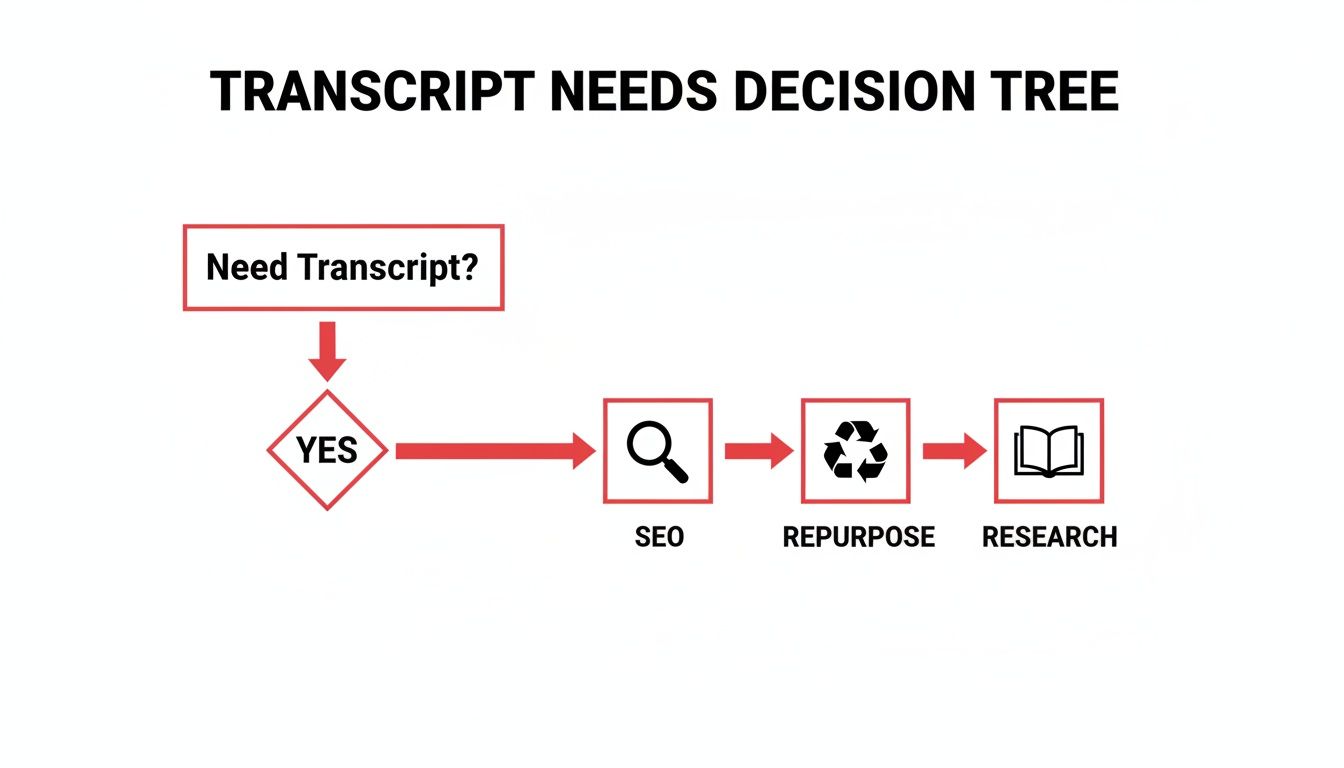
As you can see, knowing why you need the transcript is the first step. It helps you decide how much accuracy and formatting you really need, which in turn helps you pick the right tool for the job.
Comparing Your Options at a Glance
To help you decide, here’s a quick comparison of the different methods. Consider what's most important for your project—is it raw speed, budget, or is flawless accuracy the top priority?
I've put together a table that breaks down the pros and cons of each approach, so you can see at a glance which one lines up with your needs.
Comparison of Youtube Transcription Methods
This table compares the key features of different methods to get a Youtube video transcript, helping you choose the best option based on your needs for speed, accuracy, cost, and ease of use.
| Method | Best For | Accuracy | Speed | Cost |
|---|---|---|---|---|
| Youtube’s Built-In Viewer | Quick, informal reference; grabbing quotes | Low to Medium | Instant | Free |
| AI Transcription Services | High-quality, professional use; content repurposing | High | Fast | Paid (often with free trials) |
| Manual Caption Download (SRT/VTT) | Videos with accurate, creator-provided captions | High (if captions are good) | Fast | Free |
| Browser Extensions & Advanced Tools | Frequent users; automated, in-browser workflows | Medium to High | Fast | Free or Freemium |
In short, there’s a tool for every task. For a quick peek at the text, stick with Youtube's built-in tool. For anything more serious, an AI service is usually worth the investment. And if you’re lucky enough to find a video with great creator-made captions, downloading them directly is a fantastic free option.
Using Youtube's Built-In Transcript Viewer
Sometimes the simplest solution is the best one. Before you go searching for third-party tools, it's worth knowing that Youtube often has a transcript ready and waiting for you, built right into the video page. You don't need to install anything, sign up for a service, or download any software.
This makes it my go-to method when I just need a quick look at the text. For example, if I'm watching a cooking tutorial and want to grab the list of ingredients, or I'm following a coding guide and need to copy a specific command, this feature is a real time-saver. It’s all about getting the raw text fast without any fuss.
How to Find and Use the Transcript
Getting to the transcript is pretty straightforward. Just head to the video you're interested in and look for the description box right below the player. You’ll probably need to click "...more" to see the full description.
Scroll down past the general information, and you should see a button that says "Show transcript". Give that a click, and a new panel will pop up, usually to the right of the video, showing the entire script with timestamps.
The best part about this native tool is the interactive timestamps. You can click on any line of text, and the video will instantly jump to that exact moment. This is incredibly helpful for navigating long interviews or lectures to find the specific part you need to review.
But, as with most free, built-in tools, there are a few trade-offs to keep in mind. While it's incredibly convenient, the quality of the transcript itself can be a bit of a gamble.
Working Around the Downsides
The main headache with Youtube's built-in transcripts, especially the auto-generated ones, is their accuracy and formatting. What you often get is a solid wall of text. There's usually no punctuation, no capitalisation, and no clear separation between sentences. This can make it a real chore to read, let alone reuse for anything professional.
You’ll run into a few common problems:
- Punctuation is MIA: Sentences just bleed into one another, making the text confusing and hard to scan.
- Word Mix-ups: The AI often stumbles over similar-sounding words (think "your" vs. "you're") and has a particularly hard time with technical terms or niche jargon.
- Messy Copy-Pasting: When you copy the text, it usually grabs all the timestamps along with it. You're then left with the tedious task of manually deleting them.
If you decide to go this route, be prepared to do some cleaning up. You can use a simple find-and-replace function in any text editor to strip out the timestamps, but fixing the grammar and adding punctuation will require a proper manual proofread. For your own personal notes, it might be perfectly fine. However, if you're planning to repurpose that content for a blog post or a report, the editing time can add up quickly, making other methods a much more efficient choice.
Getting Accurate Transcripts with AI Tools
While Youtube's built-in tool is handy for a quick look, it often falls short when you need a clean, reliable, and genuinely usable transcript. When accuracy, proper punctuation, and sensible formatting are what you’re after, dedicated AI transcription services are the way to go. They’re built to solve the exact problems of inaccuracy and poor formatting found in basic auto-captioning, inspiring you to create higher-quality content.
Think of it this way: Youtube's transcript is a rough first draft. A specialised AI tool, on the other hand, delivers a polished final copy. Services like YoutubeToText.ai are designed for one purpose: turning video audio into precise, well-structured text, saving you a huge amount of editing time.
This is the homepage for YoutubeToText.ai, and you can see right away how simple they’ve made the whole process.
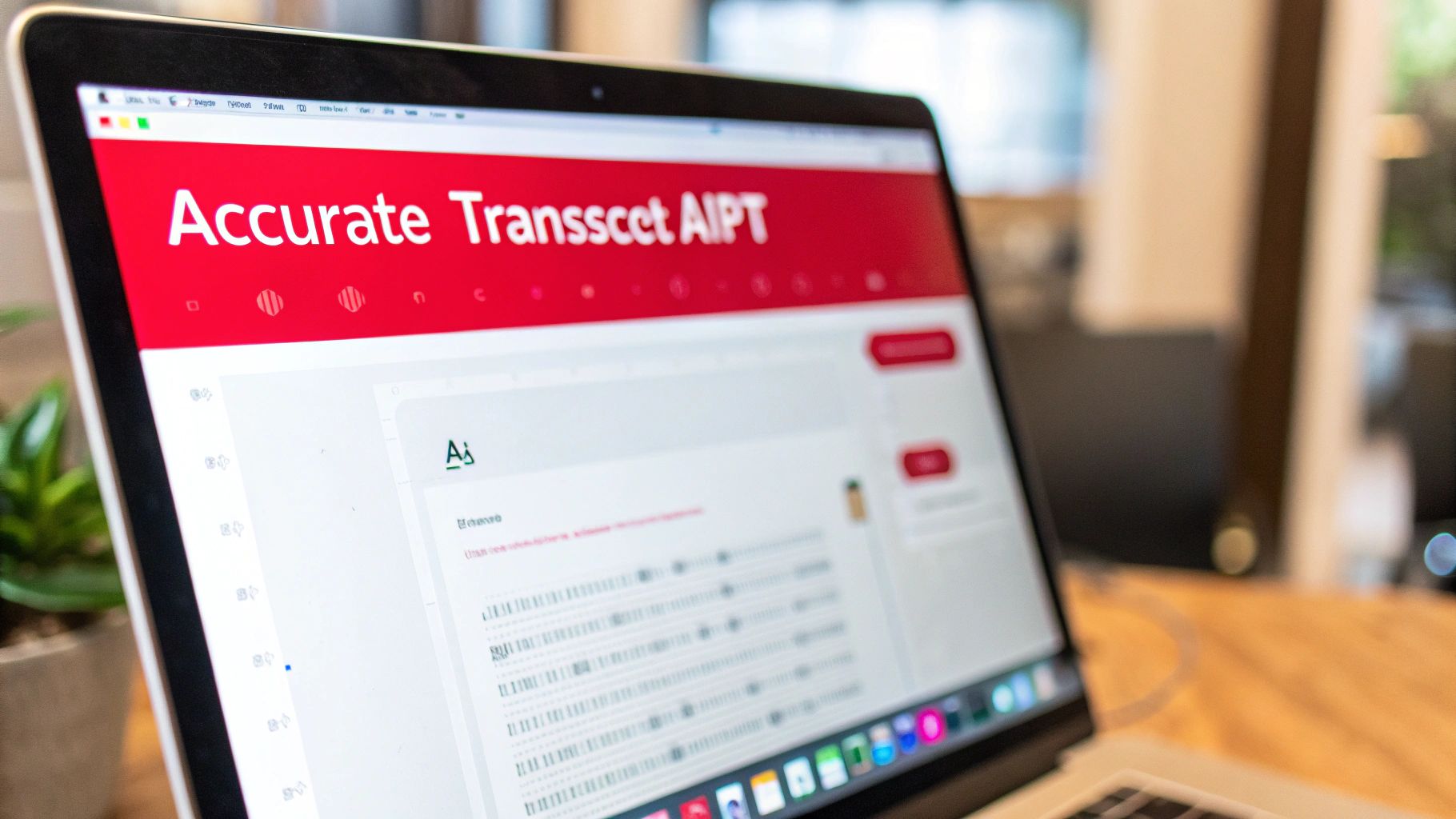
The interface is intentionally minimal. It’s all about pasting a link and getting your text, which makes it fast and easy for anyone to use.
The Power of a Dedicated AI Service
Unlike the raw text dump you get from Youtube, proper AI tools offer features that make your entire workflow smoother. The process couldn't be simpler: you just paste the Youtube video's URL, and the service does all the heavy lifting. Within minutes, you’ll have a complete transcript that's in a different league quality-wise.
So what makes these tools so much better?
- Punctuation and Capitalisation: The AI correctly adds full stops, commas, and capital letters. This simple but crucial step turns a wall of text into readable paragraphs.
- Speaker Identification: For interviews or videos with multiple speakers, the transcript often includes speaker labels, making the dialogue much easier to follow.
- Multiple Export Formats: You aren't stuck with copy-pasting. You can download the transcript as a plain text file (.txt), a document (.docx), or even as subtitle files (.srt, .vtt) with a single click.
If you've ever spent hours manually cleaning up an auto-generated transcript, you’ll see the value here immediately. For a deeper look into how it all works, our guide on using a video to text converter explores the technology in more detail.
The real advantage of a dedicated AI transcription tool isn’t just better accuracy; it's the massive amount of time you get back. What used to be a tedious manual editing job becomes a quick, automated task.
A Real-World Scenario for Marketers
Imagine your marketing team needs to analyse a competitor's hour-long webinar. Using Youtube's built-in tool would mean painstakingly copying messy text and then spending hours trying to clean it up. With a service like YoutubeToText, you can paste the link and get a fully punctuated, searchable document in minutes.
This efficiency unlocks some serious strategic advantages. Your team can instantly search the transcript for mentions of key features, customer pain points, or marketing strategies. You can pull powerful quotes for social media, summarise key takeaways for an internal report, and analyse your competitor's messaging with incredible precision—all without the grunt work.
For researchers and students in the Netherlands, tools that auto-generate editable transcripts from educational videos—like CBS's 'Netherlands in Numbers 2023' series—can slash study time by as much as 70%. This turns hours of lectures into searchable, time-stamped notes. Likewise, video editors benefit from one-click SRT/VTT exports, which are essential since NL accessibility laws mandate captions for public content, impacting the 1 in 6 citizens with hearing challenges.
Power User Workflows: Getting Transcripts at Scale
When you find yourself needing more than just a handful of transcripts, the manual click-and-copy methods start to feel clumsy and slow. For developers, video editors, or content managers who deal with video in bulk, a more technical approach can completely transform your workflow, solving the problem of inefficiency at scale.
This is where scripting and command-line tools come in. They offer a level of control and automation that web-based tools simply can't match, inspiring a more powerful and productive way of managing content.
Browser Extensions for On-the-Fly Transcripts
Browser extensions are a fantastic middle ground. They integrate transcription features right into the Youtube interface, so you don't have to constantly switch tabs or open another website. Everything happens right on the video page.
Many of these extensions will grab and display the transcript in a much cleaner format, often letting you copy or download it with a single click—minus all the timestamps. This is perfect for researchers or writers who are constantly pulling quotes and need a clean block of text to work with.
Automate Everything with Command-Line Tools
For the true power users out there, nothing beats the command line. A brilliant and incredibly versatile tool for this is yt-dlp, an active and well-maintained fork of the classic youtube-dl project. It’s a small program you run from your computer’s terminal, and it can download videos, audio, and, most importantly, caption files.
This approach gives you total control. Imagine grabbing the subtitle files for an entire playlist with just one command—it's a massive time-saver for video editors who need those SRT or VTT files for their projects.
The real magic of command-line tools is automation. You can write simple scripts to fetch transcripts from a long list of URLs, specify languages, and even plug the whole process into your existing content management system.
So, how does it actually work? Here's the gist of it:
- First, get it installed. The installation process for yt-dlp is a little different depending on your operating system (Windows, macOS, or Linux).
- Open up your terminal. Once it's installed, you’ll run your commands from the terminal or command prompt.
- Run the command. To download all available English subtitles for a specific video, you’d use something like this:
yt-dlp --write-auto-subs --sub-lang en --skip-download [Youtube_URL_Here].
This command tells the tool to find the auto-generated English subtitle file and save it without downloading the entire video. If you're keen to dive deeper, our guide to downloading Youtube videos with subtitles has more tips and tricks.
Sure, these advanced methods have a bit of a learning curve. But for anyone who handles video content professionally, the time you save is well worth the initial effort. You’re essentially moving from a one-by-one manual process to a fully automated system.
Alright, let's tackle some of the common questions that pop up when you start pulling transcripts from Youtube. It seems simple on the surface, but a few details can trip you up.
Here are some straight answers to the things people ask most often.
Can I Get a Transcript for Any Youtube Video?
Almost, but not quite. Whether a transcript is available really boils down to two scenarios: either the creator uploaded a custom caption file, or Youtube's own automatic system has had a chance to process the audio.
Thankfully, one of those is true for the vast majority of videos on the platform. But what about the odd one out? If you hit a wall and find a video with no captions at all, you're not out of luck. You'll just need to turn to a third-party AI service. These tools work by listening to the audio and generating a fresh transcript from scratch, which is perfect for filling in those gaps.
How Accurate Are Auto-Generated Transcripts?
Honestly, it's a bit of a lottery. The quality of Youtube's own auto-generated transcripts can swing wildly. If you've got a video with a single speaker, a standard accent, crystal-clear audio, and zero background noise, you might get something surprisingly good.
The trouble starts when things get complicated. The system often stumbles over heavy accents, technical jargon, or when multiple people are talking at once. Punctuation is another big one—auto-transcripts rarely include any, which turns the text into a massive, hard-to-read block. For anything serious, like creating professional subtitles, doing academic research, or turning the video into a well-written article, you'll want something better. A specialised AI transcription tool will deliver a far cleaner and more reliable result.
It's not just about getting the words right; it's about getting the context right. A professional-grade transcript understands sentence structure, which makes all the difference when you actually need to use the text.
Is It Legal to Transcribe Someone Else's Video?
This is a big one, and it's smart to ask. For the most part, if you're transcribing a video for your own personal use, you're in the clear. Things like taking study notes, doing private research, or just making the content more accessible for yourself generally fall under fair use.
Things get a bit more serious when you plan to publish or make money from the transcript. At that point, you're dealing with copyright law. The best practice is always to give credit to the original creator. If you have any commercial intentions, getting their permission directly is the safest and most ethical route. While quoting sections for commentary or a review is usually okay, lifting large chunks of the transcript word-for-word could land you in hot water.
What Is the Difference Between a Transcript and Subtitles?
They're related, but they serve completely different purposes.
A transcript is essentially the script of the video laid out as a plain text document. It’s meant to be read, searched, or analysed separately from the video itself. Think of it as a block of text, like this article.
Subtitles, however, are all about timing. They come in special files (like SRT or VTT) where the text is broken down into small, time-coded chunks. Each chunk is designed to pop up on the screen at the exact moment the words are spoken.
So, to put it simply: you read a transcript, but you watch with subtitles.
Ready to stop wasting time on manual clean-up and get perfectly formatted transcripts in minutes? YoutubeToText uses advanced AI to convert any Youtube video into accurate text, summaries, and subtitle files with just one click. Try it for free and see how much faster your workflow can be. Learn more at https://youtubetotext.ai.