Discover the best Youtube subs download methods for content creators, marketers, and researchers. Learn how to get accurate SRT files quickly and easily.
Your Complete Guide to Youtube Subs Download Methods
Downloading your Youtube subtitles is a small task that pays off in a big way. It’s not just a technical box to tick; it’s a smart strategy that seriously boosts your video’s accessibility, unlocks powerful content repurposing opportunities, and improves your search ranking. By taking this simple step, you can transform a single video into a valuable asset for blog posts, social media updates, and more, saving you hours of work while reaching a wider audience.
Why Downloading Youtube Subtitles Is a Smart Move
When you download the subtitles from your Youtube videos, you're making your content more accessible and discoverable. It's a simple step that creates a more inclusive experience for viewers and provides a powerful tool for your content strategy, solving the problem of how to maximize your video's impact with minimal extra effort.
At its core, this is all about accessibility. A subtitle file means viewers who are deaf or hard of hearing can fully engage with your video. It also helps people watching in noisy places like on the train, or in quiet environments like an office or library, making your content more versatile for every viewer's situation.
This is why so many successful creators don't just stop at downloading; they proactively learn how to add captions to videos to ensure they're reaching the largest possible audience from the get-go.
Unlock Powerful SEO Benefits
Here's something many people forget: search engines can't actually watch your video. They rely on text to figure out what your content is about. When you have a subtitle file, you have a complete, word-for-word transcript.
This transcript is a goldmine for Google. It’s packed with keywords and context that tell search algorithms exactly what your video covers, making it far more likely to show up in relevant search results. More relevant searches mean more organic traffic to your channel.
A video without subtitles is like a book with a blank cover. The content might be amazing, but search engines have no way of knowing what's inside. A transcript is the key that unlocks its discoverability.
Streamline Your Content Repurposing
For me, one of the biggest wins is how a subtitle file makes repurposing content a breeze. Suddenly, one video can become the source for a dozen other pieces of content, solving the constant challenge of creating fresh material.
- Blog Posts: You can easily turn the transcript into a full-length article. Just tidy up the text, add some headings, and embed the original video.
- Social Media Updates: Pull out compelling quotes, interesting facts, or helpful tips directly from the text. These make for perfect, bite-sized posts on Twitter, LinkedIn, or as text overlays on Instagram Reels.
- Email Newsletters: Use the transcript to write a quick summary of your video's key takeaways for your subscribers, with a link encouraging them to watch the full thing.
This approach is a massive time-saver. By turning your spoken words into text, you unlock a productive workflow that lets you create more content in less time, helping you stay ahead in a competitive landscape.
Comparing Your Options for Downloading Subtitles
So, which way is the best to get subtitles from a Youtube video? Honestly, there’s no single "best" answer. It all boils down to what you need the subtitles for. Are you just grabbing the text for notes, or do you need a perfectly timed file for a video project?
Choosing the right approach from the get-go will save you a ton of headaches. Some methods are lightning-fast but basic, while others give you more power and precision but require a bit more effort.
Manual and Browser-Based Methods
The quickest and dirtiest way to get the text is right from Youtube's own interface. If a video has captions, you can almost always find a "Show transcript" option. Just open it up, and all the text is right there for the taking. This is my go-to when I just need to pull a few quotes or get the gist of a video for a blog post.
The big catch? You're only getting the raw text. It often comes with timestamps mixed in that you'll have to clean up yourself, and you definitely won't get a proper SRT or VTT file that syncs with a video. For a broader look at different techniques, this a quick and easy guide to downloading Youtube videos with subtitles offers some great additional perspectives.
- Youtube's Transcript Feature: Find it in the three-dot menu below the video player. It's perfect for a quick text grab, but don't expect any professional formatting.
- Browser Copy-Paste: The name says it all. Highlight the transcript text, copy it, and paste it wherever you need it. Simple as that.
The trade-off here is crystal clear: you get speed, but you lose function. You can have the text in seconds, but you're giving up the timing data that's essential for video editing, translation, or accessibility work.
Dedicated Tools for Efficiency
When you need a real, properly formatted subtitle file, it's time to bring in the specialised tools. These services are built specifically for creators, video editors, and researchers who can't mess around with manual clean-up. They solve the productivity problem by giving you clean, timed files in just a couple of clicks.
You've got a few different flavours here, from super-simple web tools to powerful command-line utilities for the more technically inclined. One is all about a friendly user experience, while the other is built for automation and bulk processing.
Comparison of Youtube Subtitle Download Methods
To help you decide at a glance, here’s a quick breakdown of how the most common methods stack up against each other. Think about your own project needs and technical comfort level to see which one is the right fit for you.
| Method | Best For | Ease of Use | Key Benefit |
|---|---|---|---|
| Online Converters | Content creators, marketers, and students needing quick SRT/VTT files. | Very Easy | One-click downloads with a simple URL paste. No software installation needed. |
| Command-Line (yt-dlp) | Developers, researchers, and users needing to download subtitles in bulk. | Difficult | Highly customisable, scriptable, and allows for batch processing of many videos at once. |
| Browser Extensions | Casual users who want an integrated download button directly on the Youtube page. | Easy | Convenient access without leaving the Youtube website. |
Ultimately, it's about matching the tool to the task. If you're repurposing a video into an article, a simple copy-and-paste from the transcript might be all you need. We dive deeper into this in our guide on the best video to text converter tools available.
But for any kind of professional video work, a dedicated online service that hands you a clean SRT or VTT file is, without a doubt, the smarter and more efficient choice.
The Quickest Method for One-Click Downloads
When you need subtitles right now and can’t be bothered with fussy workarounds, a dedicated online tool is your best bet for a quick youtube subs download. A good automated service solves the problem of tedious manual work by delivering professionally formatted files in a flash, boosting your productivity.
These platforms are built for one thing: speed and simplicity. Forget about hunting for hidden transcript panels, painstakingly cleaning up messy timestamps, or worrying about whether your file will even work. It’s a simple, copy-and-paste job that turns a tedious chore into a single click.
From URL to File in Seconds
Using a tool like YoutubeToText shows just how easy this can be. The whole process is designed to get you the subtitle file you need with zero fuss. All you have to do is find the Youtube video, copy its URL from your browser's address bar, and pop it into the input box on their site.
The platform gets to work straight away. It scans the video, pulls out all the available caption data, and neatly packages it into standard, ready-to-use formats. Best of all, there's no software to install or complicated settings to wrestle with.
The clean interface and obvious call-to-action mean you can grab what you need without a single moment of confusion, even if it's your first time.
Once the tool has done its thing, you’ll see your download options. You’ll almost always be offered SRT (SubRip Text) and VTT (WebVTT) formats, which are the industry standards. They work with pretty much every video player and editing suite out there. Having instant access to properly formatted files is a massive time-saver, especially if you’re repurposing video content. If you want to dive deeper into the different file types, our full guide on how to download a transcript from Youtube has you covered.
More Than Just a Download
While a one-click download is the main event, many of these tools now come with extra features that are genuinely useful, turning them into proper content creation assets. These little bonuses help you squeeze even more value out of every video.
Here are a few of the most valuable extras you might find:
- Multilingual Support: Instantly grab subtitles in every language provided in the original video. This is a game-changer for anyone with a global audience or for researchers analysing international content.
- AI-Powered Summaries: Some services use AI to whip up a quick, concise summary of the video. It’s incredibly handy for getting the gist of a long video without watching the whole thing or reading the entire transcript.
- Plain Text Export: Alongside the standard SRT and VTT files, you can often get a clean .txt file. This is perfect when you just need the raw text for a blog post, show notes, or a social media update.
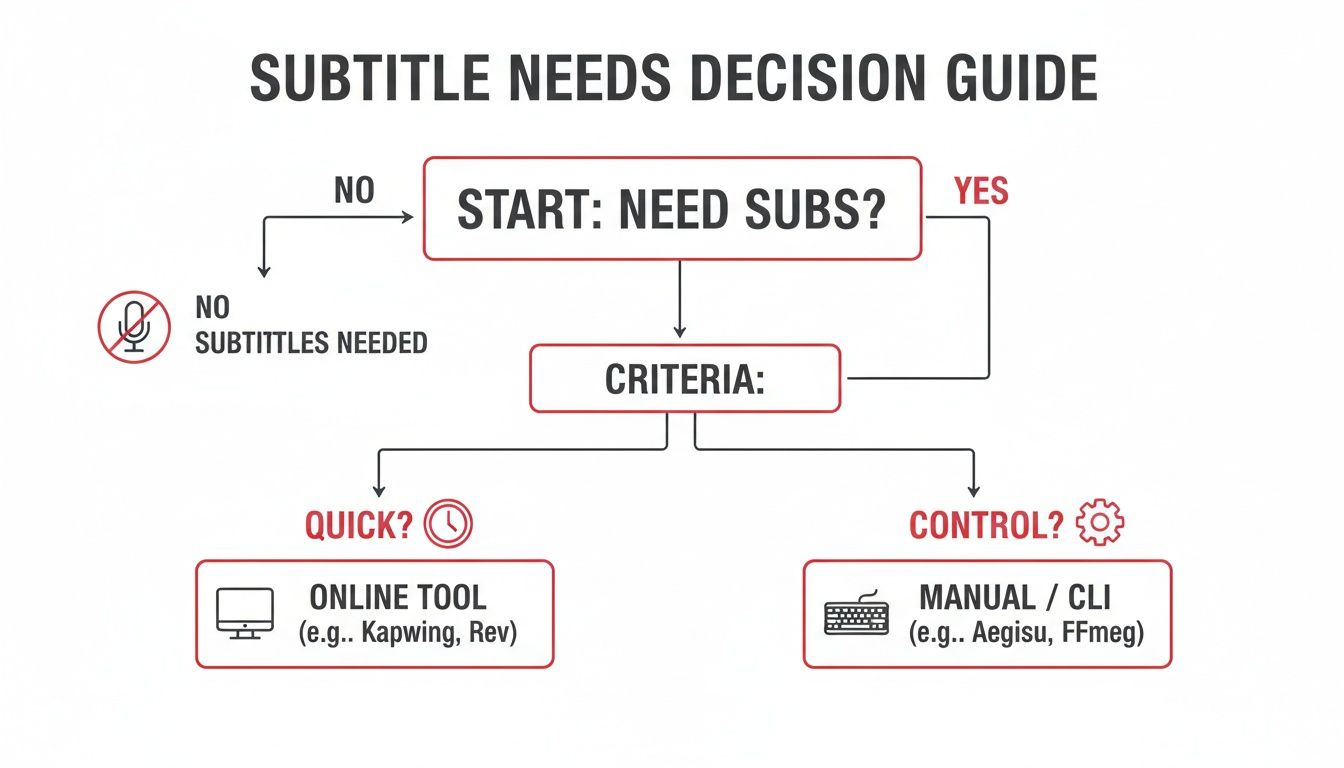
So, how do you decide which method to use? It often comes down to a simple trade-off: do you need it fast, or do you want total control? This flowchart visualises that choice perfectly.
The takeaway is pretty clear: if your priority is getting a usable subtitle file without any technical headaches, an online tool is the way to go.
For the vast majority of content creators, marketers, and students, the efficiency you get from a dedicated online service is a no-brainer. The time you save on fiddly formatting can be spent on what really matters—creating your next piece of content.
These tools make subtitles accessible to everyone. They bridge the gap between needing the text and having it ready to use, no matter your technical skill level.
Getting Your Hands Dirty: Technical Ways to Download Subtitles
For those who like more control or need to integrate subtitle downloads into a larger, automated workflow, there are powerful, hands-on methods. They might look technical at first, but these approaches are perfect for bulk downloads or special projects where you need things just right, solving the problem of scaling your content operations.
While they have a bit of a learning curve, getting comfortable with these techniques can seriously streamline how you repurpose content. Let's start with the simplest trick, built right into Youtube itself.
Using Youtube's Built-In Transcript
Honestly, the fastest way to get a raw text version of a video’s dialogue is to use Youtube's own transcript viewer. No extra software, no fuss.
Just go to the video, find the three-dot menu (...) below the player, and click "Show transcript." A panel will pop up right next to the video with the entire script, complete with timestamps.
You can copy and paste this text straight into a document. The only catch is the timestamps, which you’ll probably want to remove for a clean script. The good news? You can usually just toggle them off in the transcript window before you copy everything.
I find this method is brilliant for quick jobs. Need to grab a specific quote for a social media post? Or maybe you're just creating rough notes for a project? This gives you instant access to the text without any technical headaches.
Power Up with Command-Line Tools
When you need to get serious about automation, command-line tools like yt-dlp are the industry secret. It might look a bit intimidating if you’ve never used a terminal before, but this tool gives you absolute control over your youtube subs download process. It’s what developers and researchers use when they need to pull subtitles from hundreds of videos at once.
First, you'll need to install yt-dlp on your computer, which is pretty straightforward for Windows, macOS, or Linux. Once that's done, you can run simple commands from your terminal.
Here are a few real-world examples I use all the time:
To download all available subtitles: This command grabs every single subtitle file for a video, no matter the language.
yt-dlp --write-subs --skip-download "VIDEO_URL"To download only the English subtitles: If you just need English, this saves you from sorting through a dozen other language files.
yt-dlp --write-subs --sub-lang en --skip-download "VIDEO_URL"To download the auto-generated captions: Sometimes a professionally-made subtitle file isn't available. This command will grab the automatic ones instead.
yt-dlp --write-auto-subs --skip-download "VIDEO_URL"
That --skip-download part is the key. It tells the tool you only want the subtitle files, not the whole video, saving a ton of time and bandwidth.
Think of it like learning to drive a manual car. It takes a little practice, but once you get the hang of it, you have so much more control. If you work with video content regularly, learning a few basic commands can turn a tedious, repetitive job into a quick, automated task.
Getting Your Subtitle Files to Work Perfectly
So, you’ve managed to download your Youtube subtitles. That’s the first step, but now comes the real work: making sure they actually work with your video. The two main formats you'll come across are SRT and VTT, and understanding the difference is crucial for solving common compatibility issues.
Think of an SRT file as the classic, no-frills option. It's a simple text file that contains numbered lines, timestamps, and the subtitle text itself. It’s incredibly reliable and works with almost every video player and editing program out there.
VTT is the newer kid on the block, designed specifically for the web. It allows for more advanced formatting, like adding bold or italic text and even changing colours.
- SRT (SubRip Text): This is your go-to for maximum compatibility. If you plan to use the subtitles in players like VLC or import them into editing software, SRT is the safest choice.
- VTT (WebVTT): Perfect for embedding videos on a website where you want to style the captions directly within the file.
When in doubt, stick with SRT. It's the universal standard that will save you the most headaches.
Solving Common Subtitle Problems
Even with the right file, you can run into a few snags. The most common headache I see is subtitles that are out of sync with the audio. A delay of even half a second can be incredibly distracting for the viewer. This usually happens because of mismatched video frame rates or small errors in the original file.
The other big one is accuracy, especially with auto-generated captions. Youtube's AI has come a long way, but it still struggles with names, technical jargon, or strong accents, which often means you'll need to do some manual clean-up.
Perfecting your subtitles is a crucial step in accessibility. For viewers who rely on captions, accuracy and timing aren't just details—they are the entire viewing experience. Taking a few extra minutes to fix errors ensures your message is clear and inclusive for everyone.
A Quick Troubleshooting Guide
When your subtitles aren’t quite right, don't worry. Most issues have surprisingly simple fixes that you can do with common tools.
Fixing Sync Issues
Most decent video players, like VLC Media Player, let you adjust subtitle timing on the fly. You can nudge them forward or backward by milliseconds until they line up perfectly with the dialogue. For a more permanent solution, specialised software like Subtitle Edit lets you shift all the timestamps in the file at once.
Correcting Text and Punctuation
This is easier than it sounds. Just open the SRT or VTT file in a basic text editor—Notepad on Windows or TextEdit on a Mac will do the job. From there, you can scroll through and fix any spelling mistakes, punctuation goofs, or words the AI got wrong.
When There Are No Subtitles at All
Sometimes you’ll find a video that has no subtitles to begin with. You can't download a file that doesn't exist. In this situation, your only real option is to generate a new transcript from scratch using an AI-powered service like YoutubeToText. Once you have the text, you can easily save it as a properly formatted SRT or VTT file.
Frequently Asked Questions
When you start looking into how to download Youtube subtitles, a few common questions always pop up. It's perfectly normal to wonder about the legal side of things or get tripped up by different file types. Let's get those questions answered so you can grab the subtitles you need without any guesswork.
Is It Legal to Download Subtitles from Youtube?
This is a big one, and the answer is nuanced. Generally, downloading subtitles for your own personal use is perfectly fine. This includes for accessibility, academic research, private study, or repurposing your own video content.
Where you can run into trouble is if you take those subtitles and re-upload them with someone else's video. That can get you into hot water with copyright.
But if you're the one who made the video? You have every right to download your own subtitle files. It's a great way to back up your work or repurpose your content for other platforms. Just remember to always respect the original creator's work.
What Is the Difference Between SRT and VTT Files?
You'll see these two file types everywhere, and it's easy to get them mixed up. Honestly, the difference is pretty straightforward.
SRT (SubRip Text): This is the old-school, tried-and-true format. It’s a simple text file with timings and the subtitle text itself. The beauty of SRT is its universal compatibility—it works with just about any video player or editing software you can think of.
VTT (WebVTT): Think of this as the modern, web-friendly version. VTT files can do more, supporting things like bold and italic text, colours, and even letting you control where the captions appear on the screen.
For most situations, like adding captions for a social media clip or watching a video offline, SRT is your safest bet. It just works. If you're embedding a video on your own website and want more control over how the captions look, VTT is definitely the way to go.
Can I Download Subtitles for Any Youtube Video?
Not always. You can only grab subtitles if the video actually has them in the first place. This means the creator either uploaded a subtitle file themselves or, at the very least, Youtube’s automatic captions are available. If there are no captions on the video, there's simply nothing there to download.
When you hit that wall, your best bet is to pivot to an AI transcription tool. These tools listen to the video's audio and create a new transcript from scratch. Once you have that text, you can easily save it as a perfectly timed SRT or VTT file, effectively creating the subtitles yourself.
Ready to turn any Youtube video into text in seconds? With YoutubeToText, you can get accurate transcripts, summaries, and one-click SRT/VTT downloads without the hassle. Start converting your favourite content today at https://youtubetotext.ai.