Master google meets record basics: learn permissions, setup, troubleshooting, and turning your Google Meet recordings into searchable, shareable content.
How to Record a Google Meet Session: A Complete Guide
Before you hit the record button in Google Meet, a quick check can save you from the disappointment of a lost recording. Ensuring you're set up correctly solves the most common problem people face: the record button is simply not there.
This pre-flight check boils down to three key areas: your Google plan, your role in the meeting, and your organization's settings. Getting these right ensures you can capture, share, and repurpose your discussions effortlessly.
Your Pre-Recording Checklist for Google Meet
Confirm Your Google Workspace Plan
First, the ability to record in Google Meet is a premium feature not available on free, personal Gmail accounts. It's designed for businesses and educational institutions that need to archive meetings for training, compliance, or content creation.
If you can't find the record button, your account type is the most likely culprit. These paid plans provide the tools needed to turn valuable conversations into lasting assets, solving the problem of knowledge being lost the moment a meeting ends.
Here’s a quick rundown of the common plans that include recording features.
Google Workspace Plans with Recording Features
| Workspace Edition | Recording Included | Ideal User (e.g., Business, Education) |
|---|---|---|
| Business Standard | Yes | Small to medium-sized businesses |
| Business Plus | Yes | Larger businesses needing more storage/security |
| Enterprise (All Tiers) | Yes | Large corporations with advanced needs |
| Education Plus | Yes | Educational institutions for staff and students |
| Teaching and Learning Upgrade | Yes | Add-on for other Education plans |
If your plan isn't listed here or isn't a similar legacy G Suite equivalent, you won't have the native recording option.
Once you've confirmed you have the right plan, you can boost productivity further by structuring your sessions with a clear meeting agenda template.
Verify Your Meeting Role and Permissions
With the right subscription confirmed, the next step is to check your role in the meeting. To prevent unauthorized recordings and protect privacy, Google limits this capability to the meeting's organizers.
To start a recording, you must be one of the following:
- The Meeting Host: The person who created the meeting link.
- A Co-host: Someone promoted by the host to share organizer privileges.
- Someone in the Host’s Organisation: This can work in some cases, but being the host or co-host is the most reliable method.
A common productivity roadblock is when a presenter can't record because they aren't the host. To solve this, simply ask the host to make you a co-host before the meeting starts. This simple action empowers you to manage the recording and focus on the discussion.
Check Your Administrator Settings
Finally, even with the right plan and role, your company's Google Workspace administrator has the final say. They can disable recording across the organization for security or compliance reasons.
If you've checked the first two points and still can't record, your IT admin is your next stop. They can verify that the "Let people record their meetings" setting is enabled for you in the Google Admin console. This is a common and easily solvable issue in larger organizations.
Recording Your Google Meet Session Start to Finish
With the preparation complete, capturing your session is straightforward. The key is knowing where the controls are and understanding the process, which is designed to promote transparency and accessibility from the start.
The moment you start recording, Google Meet notifies every participant. This built-in consent mechanism is crucial—it ensures everyone is aware the session is being captured, which is essential for both legal compliance and building trust.
Starting the Recording on Your Desktop
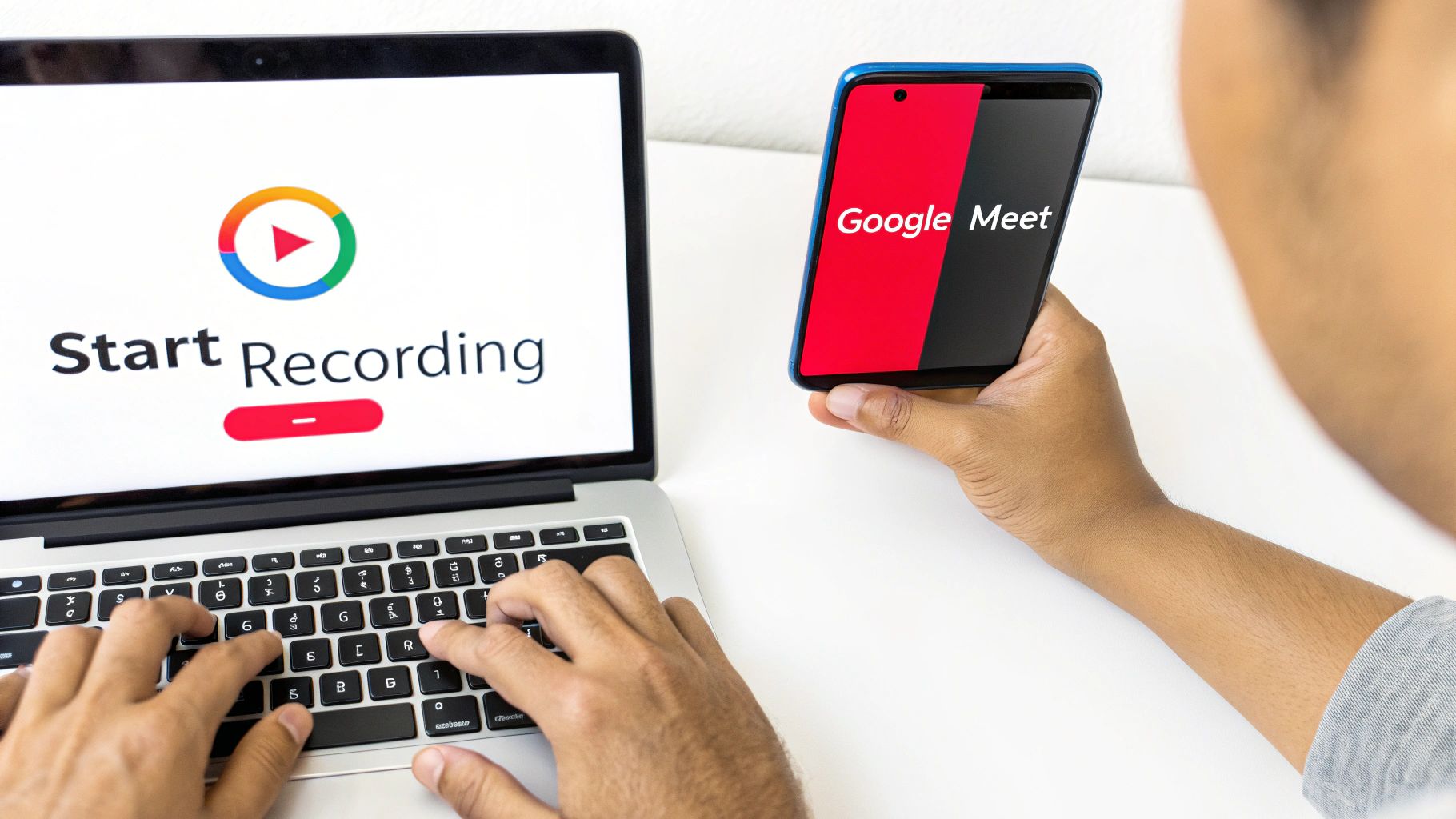
Initiating the recording from your computer is a simple, three-click process.
- In the bottom-right corner, click the Activities icon (the triangle, square, and circle).
- From the menu that appears, select Recording.
- A consent pop-up will appear. Click Start recording to begin.
A red "REC" badge will then appear in the top-left corner, serving as a constant visual reminder for all attendees that the meeting is being recorded.
Recording From the Mobile App
Hosting a meeting on the go doesn't mean you have to sacrifice functionality. Recording from the mobile app is just as easy, empowering you to capture important discussions from anywhere.
On your iOS or Android device, tap the screen to show the controls. Tap the three-dot "More" icon, then select Start recording. You'll see the same consent prompt, ensuring a consistent and transparent experience across devices.
A Quick Pro Tip: Although Google provides a notification, I always verbally announce, "I'm starting the recording now." This simple act of communication reinforces transparency and ensures everyone has consciously acknowledged the recording, which is a best practice for accessibility and inclusion.
How to Stop Recording and What Happens Next
Ending the recording is as easy as starting it. Simply return to the Activities menu, click Recording, and select Stop recording.
After you stop, Google begins processing the video. This can take a few minutes or up to an hour, depending on the meeting's length. You don’t need to stay in the call.
Once ready, Google automatically emails a link to the meeting organizer and saves the file to the host's Google Drive in a folder named "Meet Recordings". This automated workflow solves the problem of manually saving and organizing files, streamlining your post-meeting productivity.
What to Do With Your Recording After the Meeting Ends
You've successfully recorded your Google Meet session. This is where the real value begins. A recording isn't just an archive; it's a powerful asset for productivity, content repurposing, and knowledge sharing.
Shortly after the meeting, the organizer will receive an email with a direct link to the video. This email is your shortcut to accessing the captured content.
Finding Your Google Meet Recording
If you can't find the email, don't worry. Every recording is automatically saved in a dedicated folder in your Google Drive.
Navigate to your Google Drive and look for the "Meet Recordings" folder. Google creates this for you after your first recording. Inside, you'll find all your recordings, neatly organized by date and meeting ID. This solves the challenge of keeping track of disparate video files.
Sharing Your Recording With Your Team
Sharing the recording is as simple as sharing any other Google Drive file, giving you complete control over who can access it.
- Sharing a Link: Right-click the video, click "Share," and create a shareable link. Use "Viewer" permissions for view-only access and "Editor" for those who need to download the file.
- Direct Sharing: For sensitive information, share the file directly with specific email addresses. This ensures only intended recipients can access the content.
For team projects, move the recording from your personal "Meet Recordings" folder to a shared team drive. This solves the problem of access bottlenecks and ensures the knowledge is owned by the team, not an individual.
A Few Best Practices for Managing Your Recordings
A little organization can dramatically improve your team's productivity. A file named abc-defg-hij-2024-10-26 is practically invisible to a future search.
I make it a habit to immediately rename recordings to something descriptive, like "Project Alpha - Client Kickoff - 26-Oct-2024.mp4". This simple step makes the recording easily discoverable later.
Also, monitor your Google Drive storage. High-quality video files can consume space quickly. Periodically archive or delete old recordings to keep your drive organized and ensure you have space for future meetings. This proactive approach to digital asset management is key for long-term productivity.
Tackling Common Google Meet Recording Problems
Even with the best preparation, technology can present challenges. If you're struggling to record your Google Meet session, you're not alone. Most issues are common and easily solved.
The most frequent problems relate to your account, permissions, or a temporary system glitch. Let's walk through how to solve these common roadblocks.
Where Did the Record Button Go?
The most common issue is a missing record button. Before frustration sets in, run through this quick diagnostic checklist.
- Your Account Plan: As a reminder, recording is a premium feature. Free, personal Google accounts do not have this capability. You must be on a supported Google Workspace plan.
- Your Role in the Meeting: Only the meeting host or a designated co-host can initiate a recording. If you need to record, ask the host to grant you co-host permissions.
- Admin Settings: Your organization's IT administrator may have disabled recording for security or policy reasons. A quick chat with your IT department can often resolve this.
If you've confirmed all of the above, try leaving and rejoining the meeting. This simple refresh can often solve temporary glitches.
My Recording Never Showed Up
You recorded the meeting, but the file is nowhere to be found. The email hasn't arrived, and the "Meet Recordings" folder in your Drive is empty.
This delay is usually due to processing time, especially for long meetings. It can sometimes take up to 24 hours for a recording to appear. Patience is often the solution here. If a full day has passed with no sign of your file, it may be time to contact Google Workspace support.
Once your recording is ready, this flowchart shows the next steps.
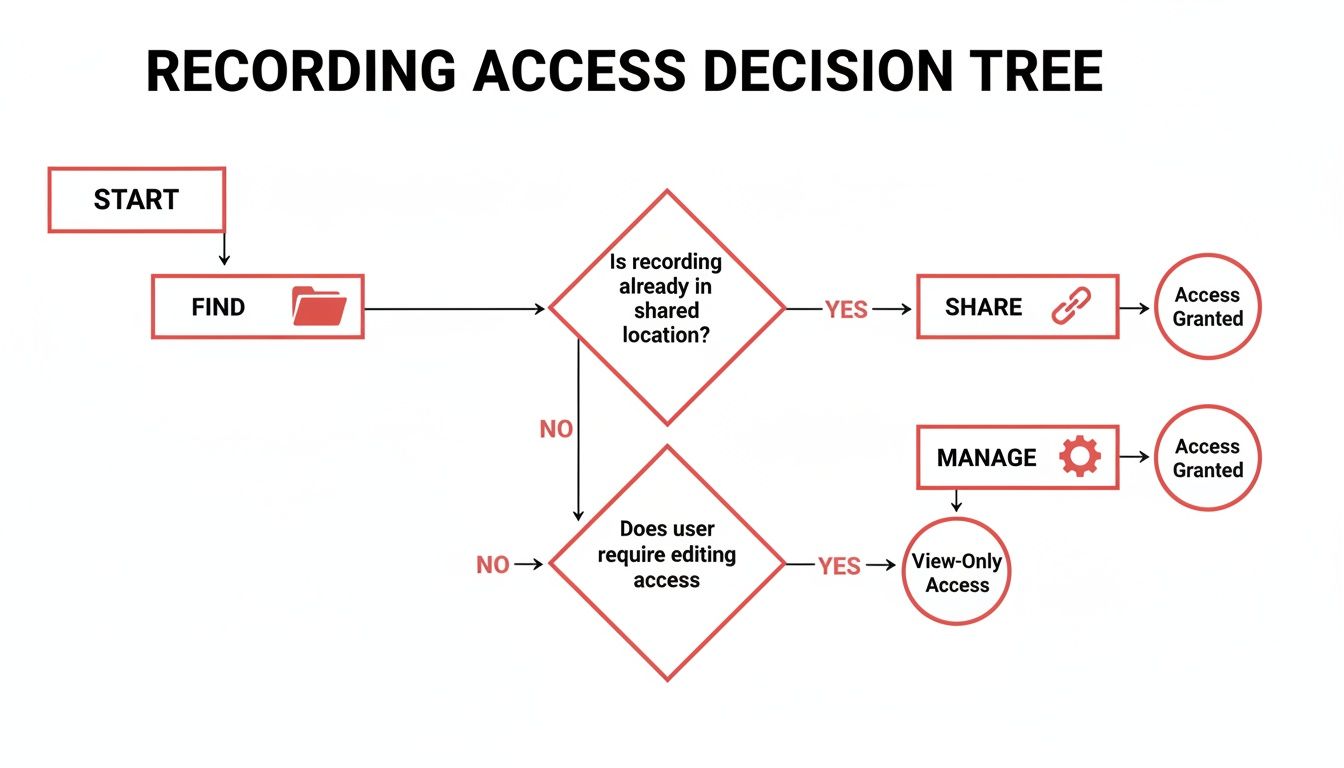
This visual guide helps you understand the workflow for finding and sharing your recording, solving any confusion about the post-meeting process.
Dealing with Poor Audio or Video Quality
If your recording is complete but the quality is poor, the issue is almost always a weak internet connection. A stable connection is crucial for a clear recording.
This is especially true in a highly connected country like the Netherlands, where 45.6% of the population are heavy internet users, making reliable connections a cornerstone of remote work. You can find more fascinating stats like this in DataReportal's 2024 report on the Netherlands.
To inspire better meeting etiquette and improve audio quality, ask all participants to mute their microphones when not speaking. This simple action dramatically reduces background noise and echo, resulting in a cleaner, more professional, and more accessible recording for everyone.
Turn Your Video Recording Into Searchable Text
A Google Meet recording holds immense value—key decisions, action items, and brilliant ideas. The problem is that this value is locked inside a video format, making it difficult to search and use. Trying to find a specific comment in a 60-minute recording is a major productivity drain.
This is where AI transcription solves a critical problem. By converting spoken content into text, you transform your recording from a passive archive into an active, searchable knowledge base. This simple step unlocks the full potential of your meeting content, making it more accessible and reusable.
From Video to Text: A Simple Workflow
You don't need complex software to achieve this. A streamlined workflow using familiar tools can provide an accurate transcript quickly and efficiently.
The process involves uploading your private Google Meet recording to Youtube and then using an AI-powered transcription tool to extract the text.
Upload to Youtube: Take the MP4 file from your "Meet Recordings" folder in Google Drive and upload it to Youtube. Crucially, set the video's privacy to Unlisted. This ensures your confidential meeting content is not public and is only accessible via a direct link.
Generate the Transcript: Use a specialized tool like YoutubeToText.ai to create the transcript. Simply paste the unlisted Youtube link, and the AI will convert the audio into a complete, time-stamped text document.
This two-step process inspires a new way of interacting with your recorded meetings, saving countless hours of manual review.
Imagine a product team converting a two-hour user feedback session into a searchable document. They can instantly find every mention of "bug" or "feature request," accelerating their development cycle. Or, an educator can generate accurate subtitles for a recorded lecture, solving a major accessibility challenge for students.
Putting Your Transcript to Work
With a text transcript, the opportunities for boosting productivity, enhancing accessibility, and repurposing content are endless.
You can instantly search for keywords, pull quotes for reports, or generate summaries of action items. For a deeper dive, our guide on how to transcribe video into text offers more practical tips.
Furthermore, a transcript is the foundation for content repurposing. You can transform a single meeting into blog posts, social media updates, training materials, or internal knowledge base articles. This solves the problem of content creation bottlenecks by leveraging conversations you're already having. It's about working smarter, not harder, by making the knowledge from your Google Meet record sessions discoverable and reusable.
Beyond the Record Button: Legal Rules and Smart Alternatives
Recording a meeting goes beyond technology; it involves important legal and ethical considerations. The most critical rule is consent.
In many regions, including the European Union under GDPR, you are legally required to obtain explicit permission from all participants before recording. This is non-negotiable.
The best practice is to announce your intention to record at the start of the meeting and ask for verbal consent. While Google Meet provides an automatic notification, a direct statement ensures clarity and respect for privacy, which is key to fostering an inclusive and trusting environment.
What if You Can't Record in Google Meet?
If your Google Workspace plan lacks the recording feature, or if you are using a free personal account, you still have options. This is a common problem with a simple solution: third-party screen recording software.
These applications capture everything on your screen, including the video and audio from your Google Meet session. They provide a reliable workaround when the native feature is unavailable.
A powerful and free option is OBS Studio. While it offers extensive control, it can be resource-intensive and has a steeper learning curve. This might not be the most productive solution for quick, everyday meetings but is a great tool for more advanced users.
Choosing the Right Tool for the Job
When considering alternatives, ask these questions to find the most productive solution for you:
- Ease of Use: Is the software intuitive, or will it require significant time to learn? Your goal is to simplify, not complicate, your workflow.
- System Performance: Will the tool slow down your computer and affect the meeting quality? A resource-heavy app can create a poor experience for everyone.
- Cost: While free tools like OBS exist, many user-friendly recorders are subscription-based. Factor this into your decision.
For teams focused on large-scale virtual events, exploring platforms designed for that purpose may be a better long-term solution. Our guide on Zoom for video webinars covers features that might be more suitable.
The importance of these digital tools in modern work is undeniable. In 2023, Google's products helped support over 210,000 jobs in the Netherlands, highlighting the deep integration of platforms like Google Meet in the economy. You can discover more about Google's impact in the Netherlands in this report.
Ultimately, whether you use Google’s native recorder or an alternative, the goals remain the same: to capture knowledge, enhance productivity, and communicate transparently with your team.
Once your meeting is recorded and transcribed, YoutubeToText makes it easy to pinpoint key takeaways and action items. Stop scrubbing through video files and turn your meeting archives into searchable, useful text. Visit https://youtubetotext.ai to see how it works.