Discover how to download video from youtube playlist with easy-to-follow methods, tools, and tips tailored for any user.
Download video from youtube playlist: A Practical Guide to Saving Any Clip
Grabbing a single video from a Youtube playlist is simple enough, but what if you need the whole lot? You can use specialised software like 4K Video Downloader, a command-line tool like yt-dlp, or even some online services. Just paste the playlist URL, and you can download every video in one go, saving you the tedious job of saving them one by one. This guide will show you how to solve the problem of bulk video access for productivity, accessibility, and content repurposing.
Why Download an Entire Youtube Playlist?
Being able to download a single Youtube video is handy, but grabbing an entire playlist at once is a real game-changer. It's more than just a convenience for offline viewing; it unlocks powerful new ways of working for creators, researchers, and students. Think of it as a strategic move to manage and repurpose valuable content efficiently, solving the problem of relying on a constant internet connection.
Take a video editor, for example. They might need to pull all the source files from a client's playlist. Instead of clicking 'download' on dozens of individual videos, they can snatch the entire collection in a single action. This creates a secure local archive, safeguarding their project against a video being accidentally deleted or suddenly switched to private, enhancing their productivity and workflow security.
Unlocking New Ways to Work
Having local copies of a complete video series opens up a world of practical possibilities that streaming just can't offer. The time saved is significant, but the real magic is in what you can do with the files afterwards to boost your productivity and make content more accessible.
- Batch Content Repurposing: For content creators, a downloaded playlist is a goldmine of raw material. You can feed the entire series into a service like YoutubeToText to get accurate transcripts in bulk. This is often the first step before you download the Youtube transcript to create articles, social media posts, or show notes, turning one video series into months of content.
- Offline Access for Education: A student can download a whole lecture series to study on their commute or in a place with flaky Wi-Fi. It ensures their learning never gets interrupted by a poor connection, making educational content more accessible.
- In-depth Research and Analysis: Researchers can gather a playlist of interviews or documentaries to analyse offline, free from buffering or ads. Transcribing this content makes it searchable and citable, solving the problem of analyzing hours of video footage manually.
When you have a local, organised collection of videos from a playlist, you’re in complete control. Your projects, research, and learning no longer hinge on a stable internet connection or whether the creator keeps the videos public.
This need is particularly relevant in places where Youtube is a huge part of daily life. In the Netherlands, for instance, Youtube's user base is projected to hit 15.3 million by late 2025, which is an incredible 83.3% of the entire population. For Dutch educators, marketers, and journalists, being able to download video from Youtube playlist collections for transcription and analysis isn't a luxury—it's a vital productivity tool that saves them countless hours. You can dig into more Dutch digital trends over at DataReportal.
And for creators who download Youtube playlists for inspiration, taking that next step and exploring modern production tools like an AI faceless video generator can be a fantastic way to start producing their own unique content.
Choosing the Right Playlist Download Method
Trying to figure out how to download a Youtube playlist isn't a one-size-fits-all deal. The best tool for you really comes down to solving a specific problem, how comfortable you are with tech, and how often you'll be grabbing entire video collections. There's no single "best" method, just the one that clicks with your goals for productivity or content creation.
For example, a developer looking to automatically archive videos for a project will find a command-line tool like yt-dlp essential. But a marketer who just needs to download a client's playlist once a month for transcription will probably want a simple desktop app that doesn't ask for any coding skills, solving their need for a quick and easy workflow.
This decision guide can help you visualise which path makes the most sense, whether you're a creator, a researcher, or a student.
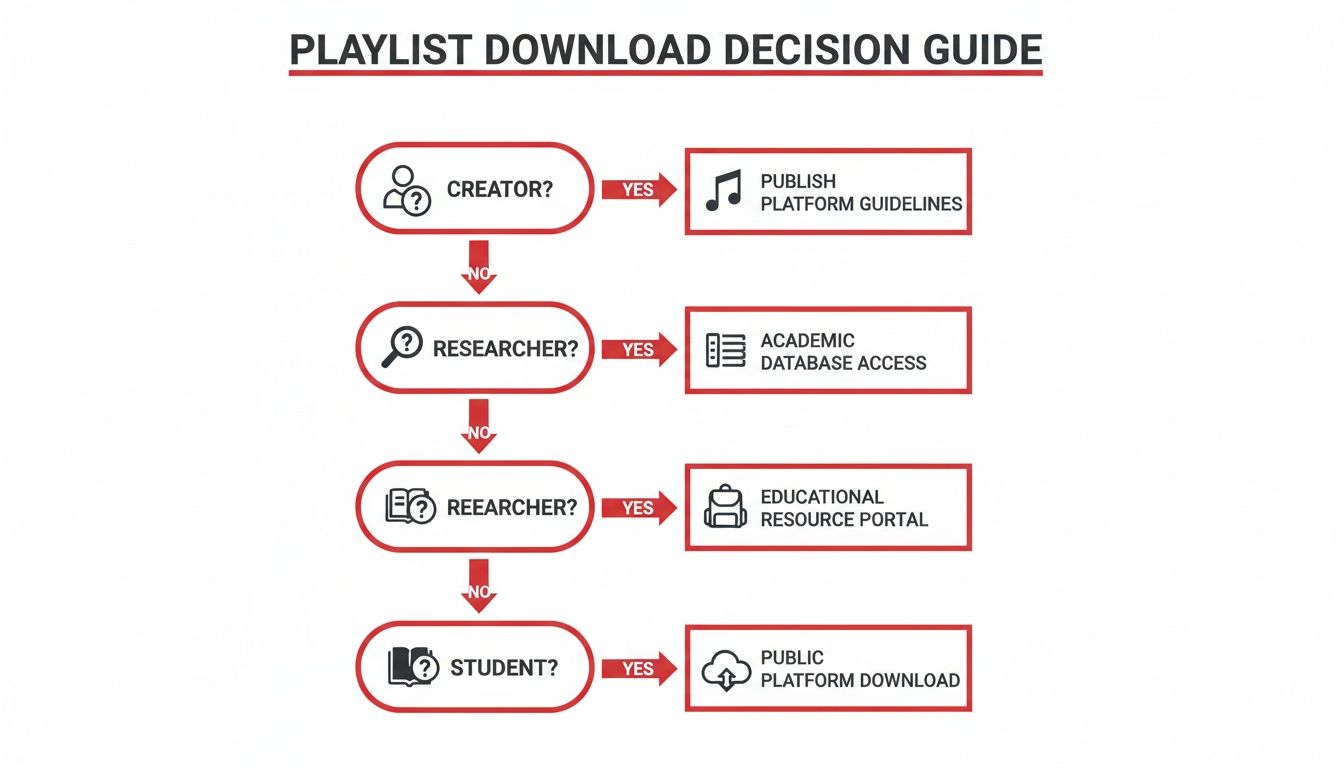
As the flowchart suggests, your role often sets your priorities, nudging you towards the most efficient tool for the job. Now, let’s get into the main types of tools you’ll come across.
A Side-by-Side Look at Your Options
To help you choose wisely, it's good to understand the core differences between the four main approaches. Each comes with its own set of pros and cons when it comes to speed, features, and how easy they are to use to solve your particular problem.
A quick rundown of the contenders:
- Command-Line Tools: These are the powerhouses. Incredibly flexible and perfect for automation, bulk downloads, and squeezing out the absolute best quality for professional repurposing. The catch? You need to be comfortable using a terminal.
- Desktop Applications: Think of these as the user-friendly all-rounders. With a graphical interface, apps like 4K Video Downloader let you just paste a link, pick your settings, and click download. They strike a great balance between power and simplicity for consistent productivity.
- Browser Extensions: Super convenient for a quick, one-off download. These add a button right onto the Youtube page. They're handy but usually have fewer features and can sometimes be a bit unreliable or get flagged by your browser.
- Online Downloaders: These are web-based tools where you just paste a playlist URL. Great if you don't want to install anything, but they're often slow, cluttered with ads, and can sometimes be a bit sketchy on the security front.
Ultimately, your choice is a trade-off between power and convenience. For anything serious and repeatable, like batch transcription for a project, a dedicated desktop app or a command-line tool will almost always serve you better than a browser-based solution.
To make things even clearer, I've put together a table comparing these methods. It lays out the key factors to help you pinpoint the perfect fit for your workflow.
Comparison of Youtube Playlist Download Methods
This side-by-side look at the different methods available for downloading playlists should help you choose the best fit based on your needs for productivity and content management.
| Method | Best For | Pros | Cons |
|---|---|---|---|
| Command-Line (yt-dlp) | Tech-savvy users, automation, batch processing, and maximum quality/customisation. | Extremely powerful, highly configurable, supports a vast number of sites, free and open-source. | Steep learning curve, requires using the terminal, no graphical interface. |
| Desktop Apps (4K Video Downloader) | Most users seeking a balance of simplicity and features for regular use. | Easy to use (GUI), reliable, good feature set (subtitles, quality options), playlist support is solid. | Usually requires installation, free versions have limitations, paid versions cost money. |
| Browser Extensions | Quick, occasional single video downloads directly from the Youtube page. | Very convenient, integrated into the browser, no need to switch apps. | Limited features, can be less reliable, potential security/privacy risks, may stop working with browser updates. |
| Online Services | One-off downloads on any device without installing software. | No installation needed, accessible from any browser, simple to use. | Often full of ads, pop-ups, potential security risks, slower downloads, may have file size or playlist length limits. |
After looking at the comparison, you should have a much better idea of which tool aligns with how you work. For serious projects, investing a little time in a desktop app or a command-line tool really pays off.
Using Yt-dlp for Ultimate Control
For those who want complete power over their downloads, the command-line tool yt-dlp is the undisputed champion. I'll admit, it can look a bit intimidating if you're not used to working in a terminal, but it offers a level of control that graphical apps just can't touch, solving complex workflow problems with precision.
Think of it this way: a GUI app is like driving an automatic car—it gets you there easily. Using yt-dlp is like driving a manual. You're in charge of everything, fine-tuning the process to get the exact result you need. This makes it the go-to for anyone building automated workflows for content repurposing or archiving large amounts of content.
Getting Started with Installation
First things first, you’ll need to get yt-dlp installed on your system. The process is slightly different depending on whether you're on Windows, macOS, or Linux, but it’s generally quite straightforward. Your best bet is to head straight to the official GitHub page for the most up-to-date instructions.
Once it's installed, you'll run it from your terminal (or Command Prompt on Windows). A basic command to download an entire playlist is as simple as this:
yt-dlp "YOUR_PLAYLIST_URL"
Just swap out "YOUR_PLAYLIST_URL" with the actual link to the Youtube playlist. The tool will then get to work, grabbing every single video in the best quality available. Easy.
Powerful Commands for Custom Downloads
But the real magic of yt-dlp lies in its flags—those little commands you add on to modify its behaviour. This is where you go from simple downloading to building a truly customised workflow, telling it exactly what format, quality, and even filename you want to solve your specific content needs.
Here are a few real-world examples I use all the time:
Get a Specific Format: Need MP4 files for better compatibility with your video editor? This command tells yt-dlp to find the best MP4 video and audio streams and merge them.
yt-dlp -f "bv*[ext=mp4]+ba[ext=m4a]/b[ext=mp4] /bv*+ba/b" "YOUR_PLAYLIST_URL"Download Only a Few Videos: Sometimes you don't need the whole playlist. If you just want videos 5 through 10, you can specify that range.
yt-dlp --playlist-items 5-10 "YOUR_PLAYLIST_URL"Grab Just the Audio: This is perfect for turning lectures or interviews into podcasts. The command below strips the video and saves the audio as a high-quality M4A file. If you want to dive deeper, we have a whole guide on how to extract MP3 from Youtube.
yt-dlp -x --audio-format m4a "YOUR_PLAYLIST_URL"
The best part is that you can script these commands. Imagine setting up a small script that automatically archives a new video from your favourite educational series each week. That’s the kind of hands-off efficiency yt-dlp makes possible, inspiring new levels of productivity.
Advanced Customisation and Workflow Integration
It doesn’t stop there. You can create custom filenames to keep your archive perfectly organised from the get-go. For example, you can automatically add the video number, title, and the uploader's name to each file. No more chaotic folders full of generic video names.
This command, for instance, would create a clean filename like: "01 - Intro to Physics - Science Channel.mp4"
yt-dlp -o "%(playlist_index)s - %(title)s - %(uploader)s.%(ext)s" "YOUR_PLAYLIST_URL"
You can also automatically download any available subtitles, which is incredibly useful for accessibility or for feeding into a transcription workflow with a tool like YoutubeToText. Just add --write-sub --sub-lang en to grab the English subtitles along with the video, making content instantly more accessible.
This incredible flexibility is exactly why developers, data archivists, and media professionals rely on yt-dlp for any serious project.
User-Friendly Apps and Online Tools
If messing around with the command line feels a bit daunting, don't worry. There’s a much more straightforward, visual way to download entire Youtube playlists using apps with a graphical user interface (GUI). These applications are built from the ground up to be easy to use, letting you solve what would otherwise be complex tasks with just a few simple clicks.
You can think of them as the perfect middle ground. They’re far more powerful and reliable than a quick online tool, but they don't have the intimidating learning curve of something like yt-dlp. You get a dedicated program that sits on your computer, ready to manage everything from choosing video formats to downloading dozens of videos at once, boosting your productivity.
Dedicated Desktop Apps for Reliable Downloads
For anyone who needs to download playlists regularly, a dedicated desktop app is almost always the best bet. These tools are purpose-built and well-maintained, giving you a stable and feature-rich experience you can count on. Two of the most respected names in this space are 4K Video Downloader and ClipGrab.
4K Video Downloader is a firm favourite for a reason—it has a clean interface and makes the whole process incredibly simple. You just copy the playlist link and paste it into the app, which then automatically pulls up every video in that list. A window pops up giving you clear choices:
- Download the whole playlist or just hand-pick the videos you want.
- Pick your quality, from standard definition all the way up to 8K.
- Choose the format, like MP4 for video or MP3 if you just need the audio.
- Grab the subtitles, which is a brilliant feature for accessibility or repurposing content. We dive deeper into this in our guide on how to download Youtube videos with subtitles.
After you've set your preferences, you just hit the download button and the app takes care of the rest, neatly showing you the progress of each video in the queue. Most of these apps have a free version with some caps (like the number of videos per playlist) and a paid one that unlocks everything.
Quick and Convenient Online Tools
What if you just need to grab a couple of videos from a playlist and don't want the hassle of installing software? That's where online downloaders come into play. These are websites where you can paste the playlist URL right into your browser and start downloading.
They are fantastic for quick, one-off jobs you need to do on the fly, no matter what device you're on. But that convenience comes with some serious trade-offs. Online services are usually plastered with ads, which can be annoying and sometimes link to dodgy websites. They also tend to have limits on playlist length, download speeds, and the quality options available.
Use online downloaders for quick, non-critical tasks. For anything that requires reliability, high quality, or batch processing for a project, a dedicated desktop application is the far safer and more efficient option.
Ultimately, choosing between a desktop app and an online tool boils down to your needs. If you're a student grabbing a short educational series, an online tool will probably do the trick. But if you’re a creator archiving your entire video library to get it transcribed with a service like YoutubeToText, the stability and advanced features of an app like 4K Video Downloader are absolutely essential for a smooth workflow.
Advanced Tips and Ethical Considerations
So, you've got the tools to download a Youtube playlist. That's a great start, but to really make the most of it—and stay on the right side of things—you need to know a bit more. It’s about navigating the tricky bits and, most importantly, respecting the people who create the content you love. This section solves the problem of how to download ethically and effectively.
This is a bigger deal than you might think, especially in places where Youtube is a massive part of daily life. Take the Netherlands, for example, where there are 15.3 million Youtube users. That huge audience means Dutch creators are always looking for efficient ways to manage their content. Many are using tools to download their own playlists for transcription with services like YoutubeToText, turning a whole lecture series into study notes in one go. You can read more about Youtube's expanding role in the Netherlands to get a sense of this trend.
Handling Restricted Content and Common Issues
It’s only a matter of time before you run into a playlist with videos that aren't public. Here’s a quick rundown of what to do when you hit these common roadblocks:
Private or Unlisted Playlists: If you can't see it, you can't download it. To grab these, you need to be logged into the specific Youtube account that has permission to view them. The more powerful tools, like yt-dlp, can cleverly use your browser's cookies to prove you're logged in, letting you download content you already have access to.
Age-Restricted Videos: This works much like private content. You need to be signed in with an account that meets the age requirements. Again, authenticated cookies are your best friend here, especially for command-line tools and some of the more advanced desktop apps.
Unavailable Videos: Sometimes a video in a playlist gets deleted or switched to private. No tool on earth can download what isn't there anymore. The smart move is to set your downloader to simply skip any unavailable videos and carry on with the rest. This prevents a single missing clip from halting the entire batch download.
It all boils down to a simple rule of thumb: if you don't have the right to watch it on Youtube, you shouldn't be trying to download it. These tools are meant for convenience, not for bypassing permissions.
Understanding the Legal and Ethical Boundaries
Now for the most important part: the ethics of it all. Let's be clear—Youtube's Terms of Service don't generally permit downloading videos without the creator's consent. But how this rule is viewed often comes down to why you're doing it.
There's a world of difference between downloading for personal use and re-uploading someone else's work. Our focus here is on responsible uses that solve real problems and respect the original creator.
When is it okay to download a playlist?
- For Your Own Archive: Keeping a personal copy so you can watch your favourite tutorials or talks offline.
- For Accessibility: Grabbing a series of university lectures to review on the go, without needing an internet connection.
- For Research: Building a local library of videos for academic analysis or data collection, then transcribing them to make them searchable.
- For Content Repurposing (Responsibly!): Using a service like YoutubeToText to transcribe your own videos to create blog posts, or transcribing public domain content to make it more accessible.
The absolute golden rule is to never re-upload or distribute copyrighted material that isn't yours. Think of downloading as the first step in a creative or educational workflow, not the final product. When you respect these boundaries, you can ethically download video from Youtube playlist collections to make your work or learning more productive and accessible.
Got Questions? I've Got Answers
Here are a few quick answers to some of the most common things people ask when downloading Youtube playlists. Let's solve any lingering doubts so you can boost your productivity.
Can I Download Age-Restricted Playlists?
You absolutely can, but there's a catch: you have to be able to watch it on Youtube first. This means being logged into an account that’s old enough to view the content.
The best tools for the job, like yt-dlp and 4K Video Downloader, are smart enough to use your browser's login cookies. This basically tells Youtube, "Hey, this person is logged in and allowed to see this," which then lets the download proceed. What you can't do is use these tools to get around an age gate for content you're not supposed to see.
Is Downloading Youtube Playlists Legal?
This is one of those classic "it depends" situations. Youtube's official rules (their Terms of Service) say you shouldn't download content without the creator's permission. In reality, the legal and ethical issues boil down to what you do with the downloaded videos.
Downloading for personal use—like watching videos offline on a flight or saving lectures for your studies—is generally fine. Where you run into serious trouble is if you re-upload, share, or try to make money from someone else's work. As long as you stick to personal, educational, or transformative uses (like transcribing your own videos for a blog post to improve accessibility), you're on solid ground.
What's the Best Quality I Can Download?
Simple: the best you can download is the best the creator uploaded. If the original video is in 4K, a good downloader can save it for you in full 4K glory.
Be aware that some free online downloader sites might cap you at 720p or 1080p to keep their own server costs down. If you're serious about quality for professional content repurposing, a dedicated desktop app or a command-line tool is the way to go. They'll give you full access to every resolution available, right up to the original source file.
Pro Tip: For total control, a tool like yt-dlp lets you specify the exact video and audio formats you want. This is perfect for archival purposes or if you're pulling footage for a video editing project and need the highest possible quality.
How Do I Download Only Specific Videos from a Playlist?
Nobody wants to download 200 videos just to get the three they actually need. Luckily, most decent tools solve this problem by letting you pick and choose.
- GUI Apps (like 4K Video Downloader): When you paste in a playlist link, the app will show you a full list of all the videos. You can just tick the boxes next to the ones you want and ignore the rest.
- Command-Line Tools (like yt-dlp): Here, you get surgical precision. You can use a command like
--playlist-items 5-10to grab just the fifth through tenth videos in the list, for example.
This is a lifesaver for enhancing productivity, like grabbing just a few key lectures from a massive online course for your students.
Ready to turn those downloaded videos into text? YoutubeToText can automatically generate an accurate transcript, summary, or subtitles from any Youtube video in just a few minutes. It’s an inspiring way to save time and repurpose your content, making it more accessible to a wider audience. Start transcribing for free today at youtubetotext.ai.